6. Aircrack-ng Essentials
Aircrack-ng is a powerful suite of more than 20 tools for auditing Wi-Fi networks. Among them are a packet sniffer, a network detector, a frame injection tool, and a tool to crack WEP keys and WPA-PSK passphrases.
Before we dive in and start attacking wireless networks, let's first cover some of the essential tools that we will be using for the majority of our attacks and get familiar with the Aircrack-ng suite in general.
We will first go over Airmon-ng, which places our interfaces in and out of monitor mode. We'll continue with Airodump-ng to capture raw 802.11 frames and display information about wireless networks. We also have Aircrack-ng to crack WEP, and WPA1 and WPA2 Preshared key (PSK) networks. Then we will use Airdecap-ng, a tool to filter and decrypt capture files. Finally, Airgraph-ng creates graphical representations of captured Wi-Fi networks and their clients.
6.1. Airmon-ng
Airmon-ng is a convenient way to enable and disable monitor mode on various wireless interfaces.
Running airmon-ng without any parameters displays the status and information about the wireless interfaces on the system.
kali@kali:~$ sudo airmon-ng

PHY Interface   Driver      Chipset

phy0    wlan0       ath9k_htc   Atheros Communications, Inc. AR9271 802.11n
Listing 1 - Airmon-ng output
Our Airmon-ng output refers to the PHY identifier for the wireless interface, followed by the interface name, the driver, and finally the chipset. The interfaces are typically named "wlan" followed by one or two digits.
Warning
While the interface name can be changed, "phy" is a unique and immutable identifier that a mac80211 interface gets until a reboot or each time a Wi-Fi adapter is plugged in and its driver is loaded. Therefore, plugging and unplugging the same Wi-Fi adapter will result in incremented "phy" numbers.
6.1.1. Airmon-ng check
Some processes, many of which start automatically, are known to interfere with the tools in the Aircrack-ng suite and other tools using interfaces in monitor mode. For example, Network Manager will put a wireless interface back into managed mode and hop on different channels scanning for networks.
It will be important to identify and terminate processes like Network Manager. The Airmon-ng check parameter checks for, and lists, these processes.
kali@kali:~$ sudo airmon-ng check

Found 3 processes that could cause trouble.
Kill them using 'airmon-ng check kill' before putting
the card in monitor mode, they will interfere by changing channels
and sometimes putting the interface back in managed mode

   PID Name
  1885 NetworkManager
  1955 wpa_supplicant
  2015 dhclient
Listing 2 - Checking for network managers using Airmon-ng
The output indicates our system is running Network Manager, WPA Supplicant, and DHCP client.
Airmon-ng with the check kill parameter first tries to stop known services gracefully then kills the rest of the processes:
kali@kali:~$ sudo airmon-ng check kill

Killing these processes:

   PID Name
  1955 wpa_supplicant
  2015 dhclient
Listing 3 - Killing network managers with Airmon-ng
Warning
If Internet access is needed, it should be configured manually after putting the interface in monitor mode using tools such as dhclient and/or wpa_supplicant on another interface. If access point mode is required, it should be manually configured as well using hostapd.
6.1.2. Airmon-ng start
To place our wlan0 wireless interface in monitor mode, let's execute Airmon-ng with the start option and the interface name.
kali@kali:~$ sudo airmon-ng start wlan0

PHY Interface   Driver      Chipset

phy0    wlan0       ath9k_htc   Atheros Communications, Inc. AR9271 802.11n

        (mac80211 monitor mode vif enabled for [phy0]wlan0 on [phy0]wlan0mon)
        (mac80211 station mode vif disabled for [phy0]wlan0)
Listing 4 - Airmon-ng enabling monitor mode on wlan0
Airmon-ng creates a new monitor mode interface named "wlan0mon" as shown above. It appends "mon" to the interface name whenever possible; some drivers don't allow changing the interface name, so it is important to take note of the resulting monitor mode interface.
To start monitor mode on a specific channel, we add the channel number to our previous command.
kali@kali:~$ sudo airmon-ng start wlan0 3

PHY Interface   Driver      Chipset

phy0    wlan0       ath9k_htc   Atheros Communications, Inc. AR9271 802.11n

        (mac80211 monitor mode vif enabled for [phy0]wlan0 on [phy0]wlan0mon)
        (mac80211 station mode vif disabled for [phy0]wlan0)
Listing 5 - Airmon-ng enabling monitor mode on wlan0, channel 3
We only need to set the channel when the tool we use after Airmon-ng doesn't have the ability to set the channel. One example would be Aireplay-ng. In most cases, we'll run Airodump-ng before Aireplay-ng. In that case, the channel will be set by Airodump-ng. We will explore both tools later in this module.
Airmon-ng does not provide any confirmation that monitor mode has been started on the specified channel. Running iw shows that the monitor mode interface is listening on the desired channel and frequency.
kali@kali:~$ sudo iw dev wlan0mon info
Interface wlan0mon
    ifindex 6
    wdev 0x4
    addr 00:13:a7:12:3c:5b
    type monitor
    wiphy 0
    channel 3 (2422 MHz), width: 20 MHz (no HT), center1: 2422 MHz
    txpower 20.00 dBm
Listing 6 - Checking current channel using iw
Alternatively, we can also use the iwconfig command, but since it is deprecated, its output may be unreliable.
kali@kali:~$ sudo iwconfig wlan0mon
wlan0mon  IEEE 802.11  Mode:Monitor  Frequency:2.422 GHz  Tx-Power=20 dBm
          Retry short limit:7   RTS thr:off   Fragment thr:off
          Power Management:off
Listing 7 - Checking frequency/channel with iwconfig
Airmon-ng verbose and debug Options
Airmon-ng's verbose and debug options output detailed information about the system and the installed wireless card. This information is useful for debugging.
The --verbose option outputs release information from lsb_release -a, kernel information from uname -a, virtual machine detection, and details about connected interfaces.
kali@kali:~$ sudo airmon-ng --verbose

No LSB modules are available.
Distributor ID: Kali
Description:    Kali GNU/Linux Rolling
Release:    2019.3
Codename:   kali-rolling

Linux kali 4.19.0-kali5-amd64 #1 SMP Debian 4.19.37-6kali1 (2019-07-22) x86_64 GNU/Linux
Detected VM using lspci
This appears to be a VMware Virtual Machine
If your system supports VT-d, it may be possible to use PCI devices
If your system does not support VT-d, you can only use USB wifi cards

K indicates driver is from 4.19.0-kali5-amd64
V indicates driver comes directly from the vendor, almost certainly a bad thing
S indicates driver comes from the staging tree, these drivers are meant for reference not actual use, BEWARE
? indicates we do not know where the driver comes from... report this


X[PHY]Interface     Driver[Stack]-FirmwareRev       Chipset                                     Extended Info

K[phy0]wlan0        ath9k_htc[mac80211]-1.4         Qualcomm Atheros Communications AR9271 802.11n                  mode managed
Listing 8 - Using --verbose with Airmon-ng
Using the legend in the output as a reference, our interface's module is in the "K" category in that it is from the kernel, as opposed to from the vendor or a staging tree. Any module from anything other than the system's kernel may not function properly with Aircrack-ng or other Wi-Fi security tools. The output also provides more detail about the driver and card. The Extended_Info indicates our interface is still in managed mode.
In comparison, the output with --debug provides slightly more details derived from system commands:
kali@kali:~$ sudo airmon-ng --debug

/bin/sh -> /usr/bin/dash

SHELL is GNU bash, version 5.0.3(1)-release (x86_64-pc-linux-gnu)
Copyright (C) 2019 Free Software Foundation, Inc.
License GPLv3+: GNU GPL version 3 or later (http://gnu.org/licenses/gpl.html)

This is free software; you are free to change and redistribute it.
There is NO WARRANTY, to the extent permitted by law.

No LSB modules are available.
Distributor ID: Kali
Description:    Kali GNU/Linux Rolling
Release:    2019.3
Codename:   kali-rolling

Linux kali 4.19.0-kali5-amd64 #1 SMP Debian 4.19.37-6kali1 (2019-07-22) x86_64 GNU/Linux
Detected VM using lspci
This appears to be a VMware Virtual Machine
If your system supports VT-d, it may be possible to use PCI devices
If your system does not support VT-d, you can only use USB wifi cards

K indicates driver is from 4.19.0-kali5-amd64
V indicates driver comes directly from the vendor, almost certainly a bad thing
S indicates driver comes from the staging tree, these drivers are meant for reference not actual use, BEWARE
? indicates we do not know where the driver comes from... report this


X[PHY]Interface     Driver[Stack]-FirmwareRev       Chipset                                     Extended Info

getStack mac80211
getBus usb
getdriver() ath9k_htc
getchipset() Qualcomm Atheros Communications AR9271 802.11n
BUS = usb
BUSINFO = 0CF3:9271
DEVICEID =
getFrom() K
getFirmware 1.4
K[phy0]wlan0        ath9k_htc[mac80211]-1.4         Qualcomm Atheros Communications AR9271 802.11n                  mode managed
Listing 9 - Using debug with airmon-ng
6.1.3. Airmon-ng stop
To disable monitor mode, we use the stop option followed by the monitor mode interface name.
kali@kali:~$ sudo airmon-ng stop wlan0mon

PHY Interface   Driver      Chipset

phy0    wlan0mon    ath9k_htc   Atheros Communications, Inc. AR9271 802.11n

        (mac80211 station mode vif enabled on [phy0]wlan0)

        (mac80211 monitor mode vif disabled for [phy0]wlan0mon)
Listing 10 - Using stop option with Airmon-ng
Note that the interface name is our monitor mode interface and not the original wireless interface.
Exercises
Get your wireless card up and running in your attacking system and use Airmon-ng to:
- Kill the network managers.
- Identify your card, its driver, wireless stack, and firmware revision.
- Enable monitor mode on your wireless card.
- Disable monitor mode.
6.2. Airodump-ng
Airodump-ng is used to capture raw 802.11 frames and is particularly suitable for collecting WEP Initialization Vectors (IVs) or WPA/WPA2 handshakes, which we'll use with Aircrack-ng or other 802.11 cracking tools. Airodump-ng offers the ability to export files in various formats. This allows us to create custom scripts and makes integration with other tools, including GUIs, easier. For example, with a connected GPS receiver, Airodump-ng can correlate location data with detected APs and stations. This GPS data can then be imported into a database to provide a graphical representation using online maps.
6.2.1. Airodump-ng Usage
Airodump-ng has many filtering and capture options. We can display them by executing airodump-ng without parameters.
kali@kali:~$ sudo airodump-ng

  Aircrack-ng 1.7  - (C) 2006-2022 Thomas d'Otreppe
  https://www.aircrack-ng.org

  usage: aircrack-ng [options] <input file(s)>

  Common options:

      -a <amode> : force attack mode (1/WEP, 2/WPA-PSK)
      -e <essid> : target selection: network identifier
      -b <bssid> : target selection: access point's MAC
      -p <nbcpu> : # of CPU to use  (default: all CPUs)
      -q         : enable quiet mode (no status output)
      -C <macs>  : merge the given APs to a virtual one
      -l <file>  : write key to file. Overwrites file.

  Static WEP cracking options:
                  : same as --write
...
Listing 11 - Airodump-ng options
The options we will use most often are saving to a file, filtering by BSSID, and capturing only on a specific channel.
| Option | Description |
|---|---|
| -w prefix | Saves the capture dump to the specified filename |
| --bssid BSSID | Filters Airodump-ng to only capture the specified BSSID |
| -c channel(s) | Forces Airodump-ng to only capture the specified channel(s) |
Table 1 - Commonly used Airodump-ng options
6.2.2. Sniffing with Airodump-ng
With our wireless interface in monitor mode, we initiate our first sniffing session with airodump-ng, the interface name, and the -c option to only capture traffic on channel 2.
Listing 12 - Airodump command on a fixed channel
Once we execute the command, our packet capture begins.
CH  2 ][ Elapsed: 12 s ][ 2011-11-06 13:31 ][ WPA handshake: C8:BC:C8:FE:D9:65

 BSSID              PWR RXQ  Beacons    #Data, #/s  CH  MB   ENC  CIPHER AUTH ESSID

 C8:BC:C8:FE:D9:65  -23  87      579       69    1   2  54e. WPA2 CCMP   PSK  secnet
 34:08:04:09:3D:38  -30   0      638       24    0   3  54e  OPN              wifu
 00:18:E7:ED:E9:69  -84  10      104        0    0   3  54e. OPN              dlink

 BSSID              STATION            PWR   Rate    Lost  Packets  Probes

 C8:BC:C8:FE:D9:65  0C:60:76:57:49:3F  -69    0 - 1      0       35  secnet
 34:08:04:09:3D:38  00:18:4D:1D:A8:1F  -26   54 -54      0       31  wifu
 30:46:9A:FE:79:B7  30:46:9A:FE:69:BE  -73    0 - 1      0        1
Listing 13 - Airodump-ng output on a fixed channel
Airodump-ng Fields
Airodump-ng presents a great deal of information while it is running its capture. The output is separated into two separate sections. The top portion provides information about detected APs along with the encryption in use, network names, etc. The lower portion provides information about stations sending frames and the associated AP.
The top line of the display, beginning at the left, shows the current channel, followed by the elapsed sniffing time, the current date and time, and interestingly, an indication that a WPA handshake was captured for the AP with the BSSID of C8:BC:C8:FE:D9:65. Capturing a WPA handshake is our ultimate goal with this utility.
The table below contains descriptions of all of the Airodump-ng fields in the top section, where APs are displayed.
| Field | Description |
|---|---|
| BSSID | The MAC address of the AP |
| PWR | The signal level reported by the card, which will get higher as we get closer to the AP or station |
| RXQ | Receive Quality as measured by the percentage of frames successfully received over the last 10 seconds |
| Beacons | Number of announcement frames sent by the AP |
| # Data | Number of captured data packets (if WEP, this is the unique IV count), including data broadcast packets |
| #/s | Number of data packets per second measured over the last 10 seconds |
| CH | Channel number taken from beacon frames. Note that sometimes frames from other channels are captured due to overlapping channels |
| MB | Maximum speed supported by the AP. 11=802.11b, 22=802.11b+, up to 54 is 802.11g and anything higher is 802.11n or 802.11ac |
| ENC | Encryption algorithm in use. OPN=no encryption, "WEP?"=WEP or higher (not enough data to choose between WEP and WPA/WPA2), WEP=static or dynamic WEP, and WPA or WPA2 if TKIP or CCMP is present. WPA3 and OWE both require CCMP |
| CIPHER | The cipher detected: CCMP, WRAP, TKIP, WEP, WEP40, or WEP104 |
| AUTH | The authentication protocol used. One of MGT (WPA/WPA2/WPA3 Enterprise), SKA (WEP shared key), PSK (WPA/WPA2/WPA3 pre shared key), or OPN (WEP open authentication) |
| ESSID | The so-called SSID, which can be empty if the SSID is hidden |
Table 2 - Airodump-ng top section columns descriptions
In the lower station output, Airodump-ng presents a list of devices. Unless specified in the options, any station sending frame(s) is listed in STATION column. If the stations are connected to an AP, the BSSID is displayed. If not, the field will show "(not associated)".
The table below contains descriptions of all the Airodump-ng fields in the bottom section, where all the stations, associated and unassociated, are displayed.
| Field | Description |
|---|---|
| BSSID | The MAC address of the AP |
| STATION | The MAC address of each associated station |
| Rate | Station's receive rate, followed by transmit rate |
| Lost | Number of data frames lost over the last 10 seconds based on the sequence number |
| Packets | Number of data packets sent by the client |
| Probes | The ESSIDs probed by the client |
Table 3 - Airodump-ng bottom section columns descriptions
Let's quickly highlight just a few of the fields from these two tables.
The Receive Quality (RXQ) is measured over all management and data frames. For example, let's say we start our capture at 100% RXQ. Then the RXQ drops to below 90% even though we are still capturing all sent beacons. From this, we can deduce that the AP is sending frames to a client, but we can't "hear" the client or the AP sending data to the client. The solution is to physically move closer to the AP.
Note that the RXQ column will only be displayed when we are locked onto a single channel. It won't be visible while we are channel hopping.
The Lost field measures lost data frames originating from the station. To determine the number of frames lost, Airodump-ng measures the sequence field of every non-control frame.
There are a number of possible reasons for lost frames. Let's review some of them now.
First and foremost, we cannot send data and "listen" to the network at the same time. Every time we send data, we can't "hear" the frames being transmitted for that interval.
Our physical location in relation to the AP is very important. If we are too far away, we might miss frames because the signal is too weak. Interestingly, we can also miss frames if the signal is too strong. This happens when we are too close to an AP. We also need to be aware of other APs, microwave ovens, Bluetooth devices, and other devices that can cause interference. This interference will cause too much noise on the current channel. In less common scenarios, we may need to relocate our device if the AP is using Beamsteering (called beamforming in the 802.11ac amendment), which steers the beam in a specific direction.
Next, we'll want to consider the limitations of our wireless card. If, for example, it isn't capable of decoding certain modulations, we could run into problems. This would be the case if we were using a wireless card for packet capture that was 802.11n, while the wireless network was 802.11ac. We will also have issues if our wireless card isn't capable of decoding due to the number of streams. For example, the Alfa AWUS036NHA is a 1-stream device and it cannot decode anything more than a 1-stream transmission.
Finally, it's worth mentioning that we might miss frames because a station scanning for APs will hop onto different channels.
To minimize the number of lost frames, we can try changing the physical location of our device, the type of antenna we are using, the channel, the data rate, or the injection rate. Any one or more of these may prove useful.
6.2.3. Precision Sniffing
If we are in an area with too many other APs, our Airodump-ng display and capture files will become very cluttered with unwanted data. As part of our initial reconnaissance, we will want to determine the BSSID of the target AP and its channel so that we can focus on it specifically.
To sniff the data of a specific AP on a given channel, we add the --bssid option and the BSSID to our airodump-ng command. We output the data to cap1 files with the -w option, which will be explained in a later section:
kali@kali:~$ sudo airodump-ng -c 3 --bssid 34:08:04:09:3D:38 -w cap1 wlan0mon
...
CH  3 ][ Elapsed: 4 mins ][ 2011-11-06 15:14

BSSID              PWR RXQ  Beacons    #Data, #/s  CH  MB   ENC  CIPHER AUTH ESSID

34:08:04:09:3D:38  -29  62     2369      381    1   3  54e  OPN              wifu

BSSID              STATION            PWR   Rate    Lost  Packets  Probes

34:08:04:09:3D:38  00:18:4D:1D:A8:1F  -26    6 -48      0      399 wifu
Listing 14 - Airodump-ng focused on a channel and BSSID
As shown in the above Airodump-ng output, filtering for a specific AP can make for a much more manageable display and will keep capture files to a reasonable size.
6.2.4. Airodump-ng Output Files
By default, executing airodump-ng with the -w option, followed by a filename prefix writes the output to a number of formats:
- PCAP, with a cap extension.
- CSV, with a csv extension.
- Kismet legacy CSV, with a kismet.csv extension.
- Kismet legacy NetXML, with a kismet.netxml extension.
- Log CSV, with a log.csv extension.
Two additional files are created with certain options:
- GPS coordinates, with a gps extension when the -g option and a GPS device is configured. More details about this feature in a later section.
- Initialization Vector (IVS), with a .ivs extension with the --ivs option. In this case, only the IVS file will be created. This option is only useful for WEP cracking.
Files are never overwritten; the filename passed on the command line gets incremented with a number followed by the file extension. For example, when using "wpa" as the prefix, the files are initially named wpa-01.cap, wpa-01.csv, and so on. Executing the same airodump-ng command again, the files are named wpa-02.cap, wpa-02.csv, and so on.
To limit which file formats we generate, we can use the --output-format option followed by a comma separated list of file formats. An example command is sudo airodump-ng --output-format csv,pcap wlan0mon.
These output files make scripting attacks much easier. In addition, there are a number of tools that can use these files to display information found by Airodump-ng. Some of the tools that can work with this input are Fern WiFi cracker and WiFite 2, which are both a GUI for Aircrack-ng; GISKismet, which maps APs using Google Earth; and Airgraph-ng, which is a graphing tool.
6.2.5. Airodump-ng Interactive Mode
Airodump-ng is not limited to parameters at the command line. We can also interact with the information displayed on the screen while running. Airodump-ng acknowledges key presses on the top right.
One of the most useful keys is space, which allows us to freeze the output when we notice something useful on the screen. Only the GUI is frozen, and the capture continues in the background. Pressing space again will refresh the screen and the live data display resumes.
AP and client coloring is another useful feature. Pressing Tab enables and disables scrolling through the AP list. When scrolling is enabled we can go up and down with the ↑ and ↓ keys. As we scroll through the APs, we may notice the associated stations are highlighted. The M key cycles through the color options for a selected AP.
The A key cycles through different displays options.
- APs and stations (default)
- APs and stations plus ACK statistics (note: some wireless drivers don't provide control frames to user space)
- APs only
- Stations only
The S key cycles through different sorting options:
- Amount of beacons
- Amount of data packets
- Packet rate
- Channel
- Max data rate
- Encryption
- Cipher
- Authentication
- ESSID
- First seen
- BSSID
- Power level
The I key will invert the sorting and D resets to the default sorting (by power level).
6.2.6. Airodump-ng Troubleshooting
Let's quickly review a few ways to solve common issues that we might encounter while using Airodump-ng.
No APs or Clients are Shown
When no APs or clients are shown in the Airodump-ng output, we should first verify that there are APs on the current channel. Next, we can make sure our card works in managed mode. If we still can't see any APs or clients, we can try unloading the driver with rmmod and reloading it with modprobe. It could be the case that we need to unload multiple modules. Finally, we can check dmesg for errors.
Little or No Data Being Captured
If little or no data is being captured during our sniffing session, we can start by making sure that we used the -c or --channel option to specify a single channel. If we don't do this, Airodump-ng will hop between different channels. We might also consider our physical location. We may need to be physically closer to (or farther away from) the AP to get a quality signal. Next, we can check to make sure that we started our wireless card in monitor mode with Airmon-ng. Finally, we can ensure there is no network manager causing interference. We can do this by running airmon-ng check.
Airodump-ng Stops Capturing After a Short Period of Time
If Airodump-ng stops capturing after a short period of time, the most common cause is that a connection manager is running on the system that takes the wireless card out of monitor mode.
To remedy this, we'll need to use airmon-ng check kill prior to placing our card in monitor mode. We can also make sure that no interfering processes are running on your system by using airmon-ng check.
Another possibility is firmware issues. The firmware, being a piece of compiled code, may crash, which would interrupt the capture process. Such issues will typically be logged in dmesg.
SSIDs Displayed as ""
At times, we might see "
"Fixed channel" Error Message
If we, for example, set the channel to channel 6 with the -c option, we might encounter an error message similar to the one found here.
Listing 15 - Fixed channel message
When we receive this error, we know that some other process is changing to channel 1 or that some process is channel scanning.
We need to eliminate the root cause and restart Airodump-ng. The problem is most likely the result of network managers and other interfering processes that are running. If this is the case, we can resolve the issue by killing the network managers with airmon-ng check kill.
This error message might also mean that we cannot use this channel (and Airodump-ng failed to set the channel). For example, if we tried setting the channel to channel 40 with a card that only supports channels 1 to 11.
No Output Files
We ran Airodump-ng and now cannot find the output files.
First, we'll want to make sure we ran airodump-ng with the option to create output files with -w or --write and the filename prefix. Without this option, Airodump-ng won't create output files.
By default, the output files are placed in the directory where Airodump-ng is run. Before starting Airodump-ng, we can use pwd to display the current directory. We'll make a note of this directory so we can return to it later.
To output the files to a different directory, we'll want to add the full path to the file prefix name. For example, to output files to /tmp we'll use -w /tmp/
Exercises
Set up your lab AP with no encryption and configure a wireless victim client to connect to the wireless network. Check for interfering processes and kill them. Place your wireless card into monitor mode on the channel of the AP and while your capture is running, generate some clear text traffic from the victim computer.
- Capture unencrypted traffic for your specific AP.
- In interactive mode, highlight the AP and choose a color for it and its client.
- Identify the different files created by Airodump-ng.
- Identify the unencrypted traffic using Wireshark.
6.3. Aireplay-ng
Aireplay-ng is primarily useful for generating wireless traffic. Later, we'll use it with Aircrack-ng to crack WEP keys and WPA-PSK passphrases. Aireplay-ng also supports various attacks such as deauthentication (which will help us capture a 4-way WPA handshake), fake authentication, interactive packet replay, and more.
Aireplay-ng supports the following attacks. They are listed along with the corresponding number from the tool's documentation.
| Attack # | Attack Name |
|---|---|
| 0 | Deauthentication |
| 1 | Fake Authentication |
| 2 | Interactive Packet Replay |
| 3 | ARP Request Replay Attack |
| 4 | KoreK ChopChop Attack |
| 5 | Fragmentation Attack |
| 6 | Café-Latte Attack |
| 7 | Client-Oriented Fragmentation Attack |
| 8 | WPA Migration Mode Attack |
| 9 | Injection Test |
The majority of these options are attacks specific to WEP networks. We will concentrate on the Aireplay-ng options relevant to WPA attacks, 0 for deauthentication, and 9 for the injection test.
6.3.1. Aireplay-ng Replay Options
When replaying (injecting) packets, we have a number of options we can apply. Not every option is relevant for every attack. In order to decide which options to use, we may want to consult the specific attack documentation, which provides examples of relevant options. The following table is a complete list of all available options.
| Option | Description |
|---|---|
| -x nbpps | Number of packets per second |
| -p fctrl | Set frame control word (hex) |
| -a bssid | Access point MAC address |
| -c dmac | Destination MAC address |
| -h smac | Source MAC address |
| -e essid | Target AP SSID |
| -j | arpreplay attack: inject FromDS packets |
| -g value | Change ring buffer size (default: 8) |
| -k IP | Destination IP in fragments |
| -l IP | Source IP in fragments |
| -o npckts | Number of packets per burst (-1) |
| -q sec | Seconds between keep-alives (-1) |
| -y prga | Keystream for shared key authentication |
| -B | Bit rate test |
| -D | Disable AP detection |
| -F | Chooses first matching packet |
| -R | Disables /dev/rtc usage |
6.3.2. Aireplay-ng Injection Test
Before we send deauthentication frames, we need to determine if our card can successfully inject wireless frames into our target AP. The injection test measures ping response times to the AP. We can get a good indication of the link quality by looking at the percentage of responses received. In addition, if we have two wireless cards connected, the test can also help us determine which specific injection attacks will be successful.
The basic injection test lists the APs in the area that respond to broadcast probes. For each of the APs found, Aireplay-ng performs a 30-frame test to measure the connection quality. This will tell us whether or not our card can successfully send and receive a response to the test target.
Basic Injection Test
Prior to running a basic injection test, it is important that we first set our card to the desired channel. For this test, our target is on channel 3. We can set the channel with airmon-ng (or iw). We then execute Aireplay-ng with the -9 option and wlan0mon for our wireless interface
kali@kali:~$ sudo airmon-ng start wlan0 3

PHY Interface   Driver      Chipset

phy0    wlan0       ath9k_htc   Atheros Communications, Inc. AR9271 802.11n

        (mac80211 monitor mode vif enabled for [phy0]wlan0 on [phy0]wlan0mon)
        (mac80211 station mode vif disabled for [phy0]wlan0)

kali@kali:~$ sudo aireplay-ng -9 wlan0mon
12:02:10  Trying broadcast probe requests...
12:02:10  Injection is working!
12:02:11  Found 2 APs

12:02:12  34:08:04:09:3D:38 - channel: 3 - 'wifu'
12:02:13  Ping (min/avg/max): 1.455ms/4.163ms/12.006ms Power: -37.63
12:02:13  30/30: 100%

12:02:13  C8:BC:C8:FE:D9:65 - channel: 2 - 'secnet'
12:02:13  Ping (min/avg/max): 1.637ms/4.516ms/18.474ms Power: -28.90
12:02:13  30/30: 100%
Listing 16 - Aireplay-ng injection test
Let's take a moment to analyze some of the output from our injection test.
Our Aireplay-ng command confirms we can inject into the wifu AP on channel 3 with a 100% success rate. Incidentally, it is common for our injection to spill over into other channels as evidenced by Aireplay-ng reporting output for the secnet AP on channel 2.
Injection Test for a Specific SSID
Let's run an injection test against a specific ESSID with the -e option and the ESSID and the -a option and the BSSID.
kali@kali:~$ sudo aireplay-ng -9 -e wifu -a 34:08:04:09:3D:38 wlan0mon
12:26:14  Waiting for beacon frame (BSSID: 34:08:04:09:3D:38) on channel 3
12:26:14  Trying broadcast probe requests...
12:26:14  Injection is working!
12:26:16  Found 1 AP

12:26:16  Trying directed probe requests...
12:26:16  34:08:04:09:3D:38 - channel: 3 - 'wifu'
12:26:16  Ping (min/avg/max): 1.968ms/3.916ms/11.581ms Power: -35.73
12:26:16  30/30: 100%
Listing 17 - Aireplay-ng injection test focused on an ESSID/BSSID
The results indicate that the wireless card can inject successfully and communicate with the target AP. We need to know the SSID in order to run this test.
Aireplay-ng validates that the BSSID is correct. In cases when the signal is too low or too high, the test will fail. In order to blindly trust the values from the command line, we can append the -D parameter to the command to disable AP detection.
Card-to-Card (Attack) Injection Test
The card-to-card injection test is a far more robust check. It will also test whether or not our card can implement various Aireplay-ng attacks. Transmitting a frame using Aireplay-ng or any other tool doesn't guarantee it will actually be sent. Sometimes frames are modified by the card's firmware or driver before being sent. Doing a card-to-card injection test guarantees frames are actually sent correctly.
Let's run the command with the -i option followed by our additional capture interface.
kali@kali:~$ sudo aireplay-ng -9 -i wlan1mon wlan0mon

12:50:57  Trying broadcast probe requests...
12:50:57  Injection is working!
12:50:59  Found 2 APs

12:50:59  Trying directed probe requests...
12:50:59  34:08:04:09:3D:38 - channel: 3 - 'wifu'
12:51:00  Ping (min/avg/max): 1.735ms/4.619ms/12.689ms Power: -47.33
12:51:00  27/30:  90%

12:51:01  C8:BC:C8:FE:D9:65 - channel: 2 - 'secnet'
12:51:01  Ping (min/avg/max): 2.943ms/17.900ms/49.663ms Power: -117.10
12:51:01  29/30:  96%

12:51:01  Trying card-to-card injection...
12:51:01  Attack -0:           OK
12:51:02  Attack -1 (open):    OK
12:51:02  Attack -1 (psk):     OK
12:51:02  Attack -2/-3/-4/-6:  OK
12:51:02  Attack -5/-7:        OK
Listing 18 - Aireplay-ng card-to-card injection test
Similar to the single card injection test, this test begins by evaluating the results of the detected APs. In the second part of the test, the output shows that our attacking card will perform all attack types successfully.
If we receive a "Fail" message for attack 5, the card may still work if the injection MAC address matches the current card MAC address. With some drivers, it will fail if they are not the same.
6.3.3. Aireplay-ng Troubleshooting
Let's review a few troubleshooting tips. The following tips apply to all modes of Aireplay-ng.
Aireplay-ng does not Inject Frames
We'll want to ensure that we are using the correct monitor mode interface. Running iw dev
Aireplay-ng Hangs with No Output
If we enter the command and it appears to hang with no output, this is usually because our wireless card is on a different channel number than the AP.
This could also be caused by another instance of Aireplay-ng running in background mode. If the options conflict, the second command might hang.
interfaceXmon is on channel Y, but the AP uses channel Z
Let's take a look at one example of this message. We might see something like "wlan0mon is on channel 1, but the AP uses channel 6". This tells us something is causing the wireless card to channel hop. The most likely cause is that we started monitor mode on the wrong channel. It could also be because we did not terminate interfering processes with airmon-ng check kill.
Aireplay-ng General Troubleshooting Tips
There are a few things we might try when troubleshooting in general.
To begin, we can look for deauthentication or disassociation messages during injection. These might indicate that we are not associated with the AP. Aireplay-ng will typically indicate this, but we can also observe it by using the tcpdump command tcpdump -n -e -s0 -vvv -i
We can also ensure that the wireless card driver is properly patched and installed.
It's important to remember that physical location can make a difference. We'll want to make sure that we are physically close enough to the AP (but not too close). We can confirm that we're able to communicate with the specific AP by running the injection test.
We may also want to verify that our card is in monitor mode. In addition, the card needs to be configured on the same channel as the AP. We can use iw dev wlan0mon info to confirm this.
Exercise
Turn on your lab AP. Ensure that your wireless card is in monitor mode on the same channel as your AP.
Use Aireplay-ng to test your card for injection capabilities against your AP.
6.4. Aircrack-ng
The last tool we'll review in this module is Aircrack-ng. It can crack WEP and WPA/WPA2 networks that use pre-shared keys or PMKID.
Aircrack-ng is considered an offline attack since it works with packet captures and doesn't require interaction with any Wi-Fi device. We'll begin with benchmarking, which helps us understand the performance capabilities of our cracking system.
Warning
Aircrack-ng is CPU intensive and will fully use all the CPUs. Laptops typically aren't built for constant CPU load for long periods of time. This can raise the temperature of the CPU significantly. If the laptop's cooling system is inadequate, the CPU will be throttled, which will reduce performance. Sometimes, the cooling system can't even handle throttled CPUs, and the CPU may end up suddenly turning off to protect itself and other components from damage. Adding an active cooling pad might help. We can also monitor the temperatures. In Linux we'll do this with the lm-sensors command.
6.4.1. Aircrack-ng Benchmark
Aircrack-ng has a benchmark mode to test CPU performance. Let's run aircack-ng -S. After about 15 seconds we'll get the following.
Listing 19 - Benchmark on all CPUs
This short test estimates our CPU can crack approximately 11117.918 passphrases per second. Since Aircrack fully uses the CPU, the speed can decrease significantly if we're running other demanding tasks on the system at the same time.
Exercise
Use Aircrack-ng to display your CPU information, followed by a benchmark. See how using different numbers of cores affect the cracking speed.
6.5. Airdecap-ng
Airdecap-ng is useful after we have successfully retrieved the key to a wireless network. We can use it to decrypt WEP, WPA PSK, or WPA2 PSK capture files. We'll use it to strip wireless headers from an unencrypted wireless capture.
6.5.1. Removing Wireless Headers
Wireless capture files contain a lot of frames that we are not interested in. We show this in Figure 1 below. The capture file here is from an unencrypted network, and we can see all the network traffic among other wireless frames.
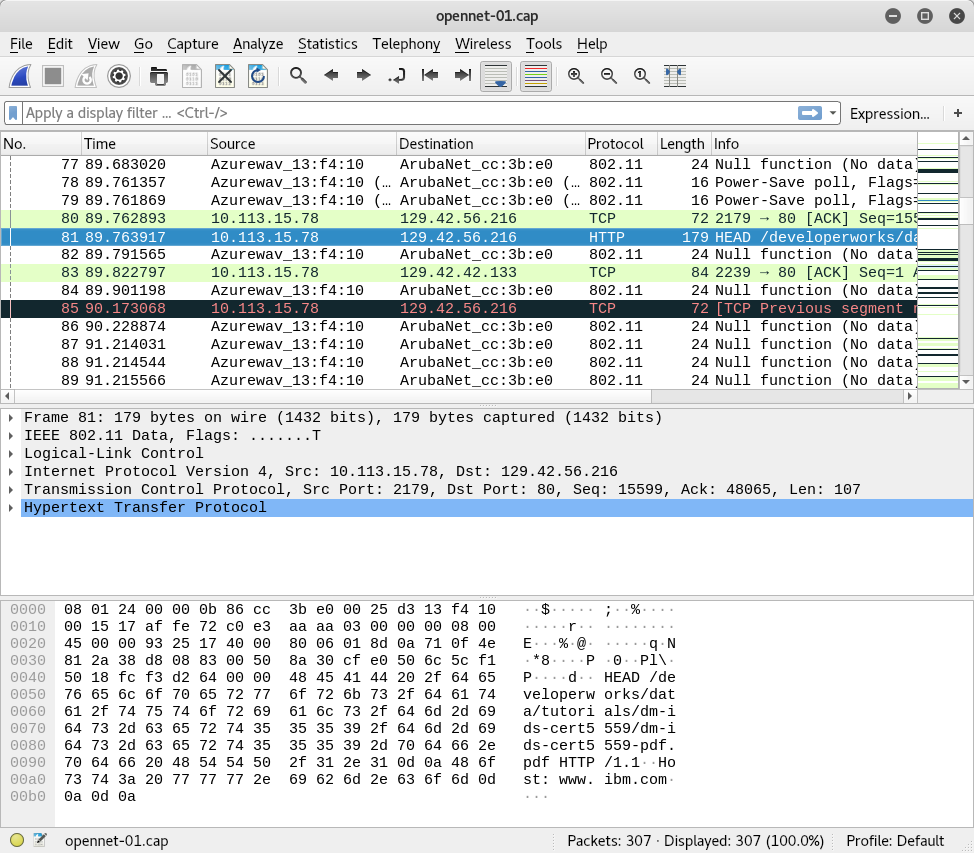
Figure 1: Open network capture file with 802.11 headers
One feature of Airdecap-ng is that we can use it to remove the wireless headers from unencrypted capture files. We'll use the -b option and set the access point MAC address to keep. This will filter out all additional APs from our capture file.
kali@kali:~$ sudo airdecap-ng -b 34:08:04:09:3D:38 opennet-01.cap
Total number of stations seen            0
Total number of packets read           307
Total number of WEP data packets         0
Total number of WPA data packets         0
Number of plaintext data packets         0
Number of decrypted WEP  packets         0
Number of corrupted WEP  packets         0
Number of decrypted WPA  packets         0
Number of bad TKIP (WPA) packets         0
Number of bad CCMP (WPA) packets         0
Listing 20 - Airdecap-ng removing wireless headers
Examining the output, we can see that of the 307 packets that were in the capture file, only 95 of them were actually data packets linked to that BSSID. Airdecap-ng saved the data packets linked to 34:08:04:09:3D:38 into a new capture file, with -dec, for decrypted, appended to the original filename. Now we have a new file named opennet-01-dec.cap.
Figure 2 shows our cleaned-up capture file in Wireshark with only the data transferred across the desired network.
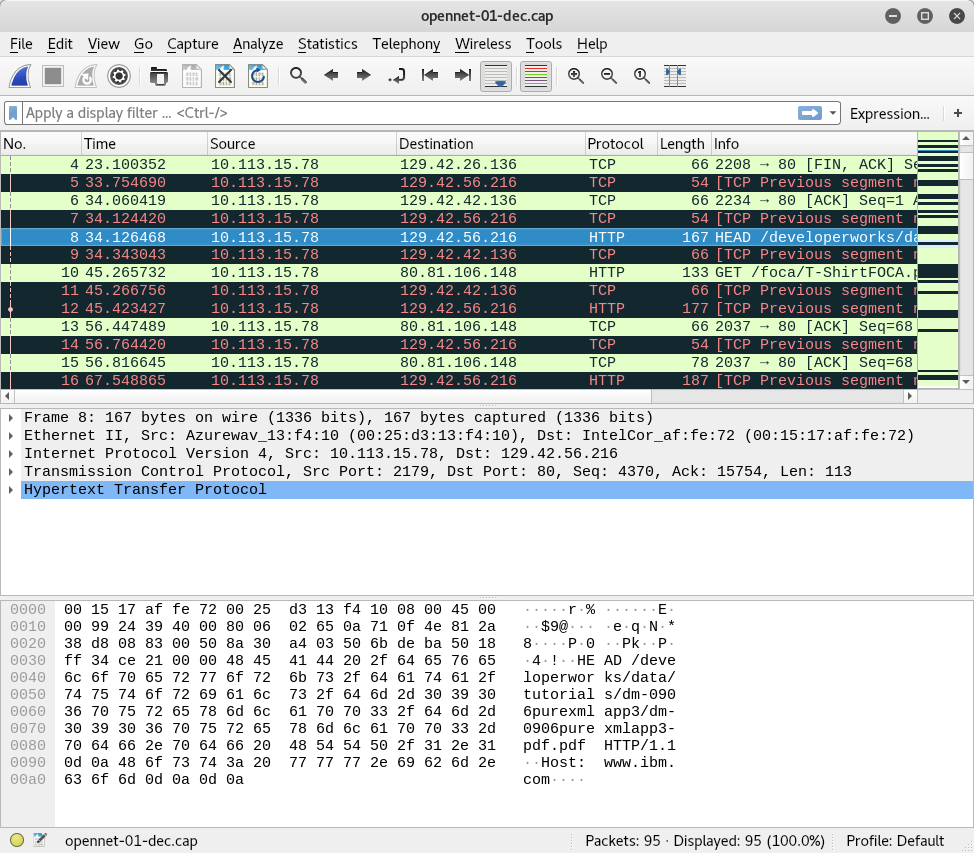
Figure 2: Open network capture file without 802.11 headers
Exercise
Set up an unencrypted AP (open network) and then start a packet capture using Airodump-ng on that same channel and save the traffic. Connect a device and browse the web for a little while. You may want to try http://example.com. Stop the capture.
Use Airdecap-ng to remove wireless headers.
6.6. Airgraph-ng
Airgraph-ng is a Python script that can be used to create graphs of wireless networks using the CSV files generated by Airodump-ng.
The Airodump-ng CSV files contain the relationships between wireless clients and APs, and the list of probed networks. They can be passed to Airgraph-ng to create two types of graphs, a Clients to AP Relationship and a Clients Probe Graph.
6.6.1. Clients to AP Relationship Graph
The Clients to AP Relationship (CAPR) graph type displays the relationships between clients and APs. As its focus is more on the clients rather than the APs, it won't draw an AP that doesn’t have any clients. Airgraph-ng assigns colors to the access points depending on the type of encryption provided. green is for WPA, yellow is for WEP, red is for Open, and black is for unknown.
Let's run Airgraph-ng with the -o option to output to a file name, the -i option to input an Airodump-ng .csv file, and -g to define a CAPR graph.
kali@kali:~$ mkdir support

kali@kali:~$ cd support

kali@kali:~$ wget http://standards-oui.ieee.org/oui.txt

kali@kali:~$ cd ..

kali@kali:~$ airgraph-ng -o Picture1_png -i dump-01.csv -g CAPR
Figure 3 shows a CAPR graph generated after two hours of sniffing traffic with Airodump-ng:
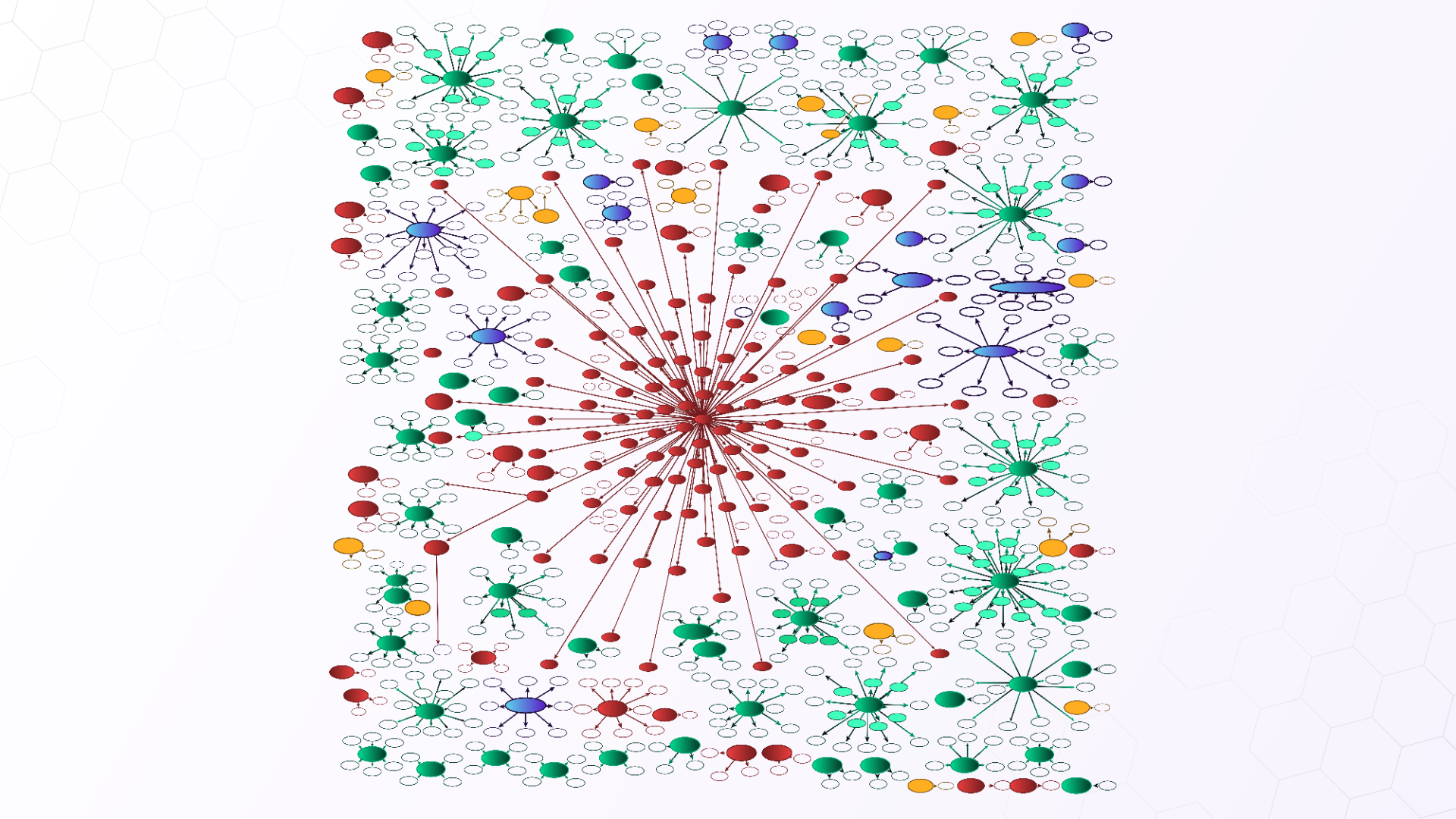
Figure 3: A CAPR graph
6.6.2. Clients Probe Graph
The Client Probe Graph (CPG) displays the relationships between wireless clients and probed networks. To create this graph with our Airodump-ng .csv file, we'll use the -g CPG option.
Figure 4 shows the resultant graph.
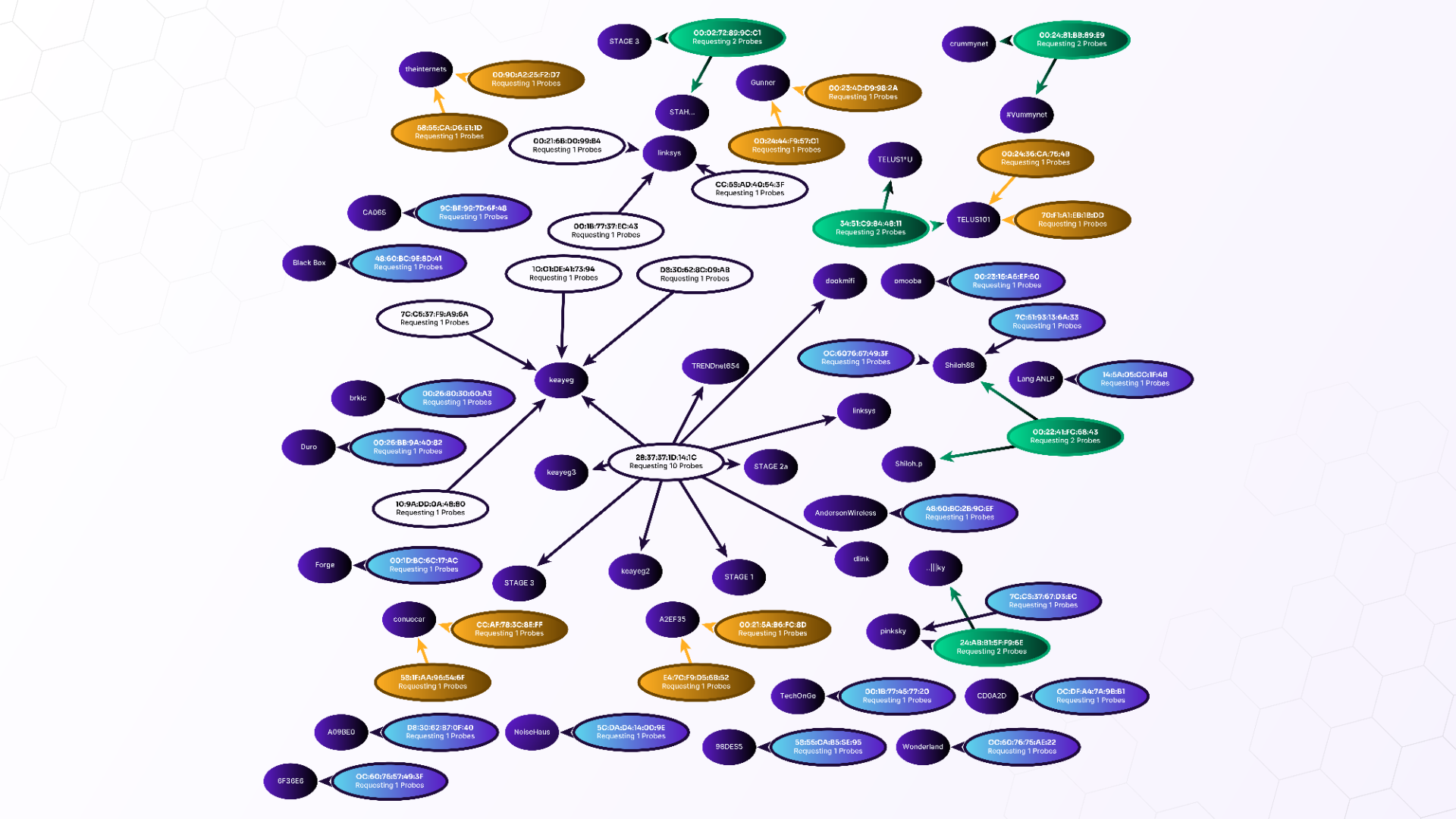
Figure 4: A CPG graph
Exercise
Run Airodump-ng for a few minutes and save the CSV file only. Create both types of graphs (CAPR and CPG) with Airgraph-ng.
6.7. Wrapping Up
In this module we covered the some of the basics for the most used Aircrack-ng tools.
We started with Airmon-ng to enable and disable monitor mode on wireless cards. We followed with Airodump-ng to display information about Wi-Fi devices in the air, capture wireless frames, and output to several different files. Aireplay-ng is used to replay frames, attack devices, and test wireless card injection capabilities. We went over Aircrack-ng, which is used to crack WEP and WPA1/2 Pre-Shared Key networks and to benchmark our system. We also used Airedecap-ng to decrypt and filter Wi-Fi packet captures. Finally, we covered Airgraph-ng to map relationships between APs and clients.