16. Wireless Networks
Come penetration tester, è comune sapere poco o nulla della rete target all'inizio. Inoltre, esistono molti modi diversi in cui una rete wireless può essere progettata. Poiché i nostri vettori di attacco, i metodi e persino gli strumenti che usiamo sono dettati dalla configurazione della rete target e dai protocolli di sicurezza in uso, è una buona idea avere una conoscenza pratica della piena varietà di disposizioni possibili.
Per ora, è utile considerare questo modulo come un'introduzione e un riferimento rapido da usare quando si risolvono problemi o si incontrano configurazioni wireless non familiari.
16.1. Overview
Ecco alcune delle architetture e modalità che esamineremo, con una breve spiegazione di ciascuna:
- Infrastructure è il termine che useremo per descrivere l'organizzazione e le relazioni tra access point (AP) e client. Un'architettura di rete può avere un'infrastruttura molto basilare oppure includere diversi degli altri concetti trattati in questo modulo.
- Wireless Distribution System è un modo per collegare più AP senza cavi Ethernet tra loro per creare una singola rete. Diversi AP possono avere ruoli diversi nella rete.
- Ad-Hoc Networks sono un tipo di rete in cui tutti i dispositivi sono uguali. In una rete Ad-Hoc, il dispositivo che avvia la rete si occupa dei compiti dell'AP, come beaconing e autenticazione.
- Mesh Networks sono un tipo di rete in cui tutti gli AP sono uguali e non hanno ruoli definiti. Le mesh network sono usate più spesso per estendere la copertura di una rete in aree dove posare cavi è difficile o impossibile. Esistono varie tecnologie proprietarie per le mesh network, ma non sono compatibili tra loro.
- Wi-Fi Direct è noto anche come Wi-Fi Peer-to-Peer (P2P). Consente connessioni temporanee tra due o più dispositivi per condividere elementi come file, un display o altri servizi.
- Monitor Mode non è un'architettura in sé, ma una modalità usata dalle schede wireless che ci aiuterà a catturare frame Wi-Fi e a iniettare pacchetti durante un penetration test.
In tutte le architetture (tranne che in monitor mode), è richiesto un Service Set Identifier (SSID) per la verifica della rete. Nelle architetture mesh, Wi-Fi P2P e infrastructure, l'AP imposta l'SSID, mentre in modalità Ad-Hoc è la stazione che crea la rete a impostarlo.
16.2. Infrastructure
Iniziamo la discussione sui diversi tipi e architetture di reti Wi-Fi parlando dell'infrastructure di base. Nelle reti infrastructure di base c'è almeno un AP e una stazione (STA). Questi due formano un Basic Service Set (BSS). L'AP è solitamente connesso a una rete cablata, chiamata Distribution System (DS).
Un esempio semplice sarebbe una stazione (STA), come un laptop o uno smartphone, connessa a un access point wireless (AP), a sua volta connesso tramite cavo ethernet a un router cablato (DS). Potrebbe essere il tipo di configurazione che si trova in casa o in un piccolo ufficio.
Approfondiamo. Quando un insieme di due o più AP wireless sono connessi alla stessa rete cablata, lo chiamiamo Extended Service Set (ESS). Ogni AP aggiuntivo definisce un singolo segmento logico di rete. Vedi Figura 1.
Warning
Sui sistemi operativi di tipo Linux, agire come stazione è solitamente chiamato modalità Managed e agire come AP è solitamente chiamato modalità Master.
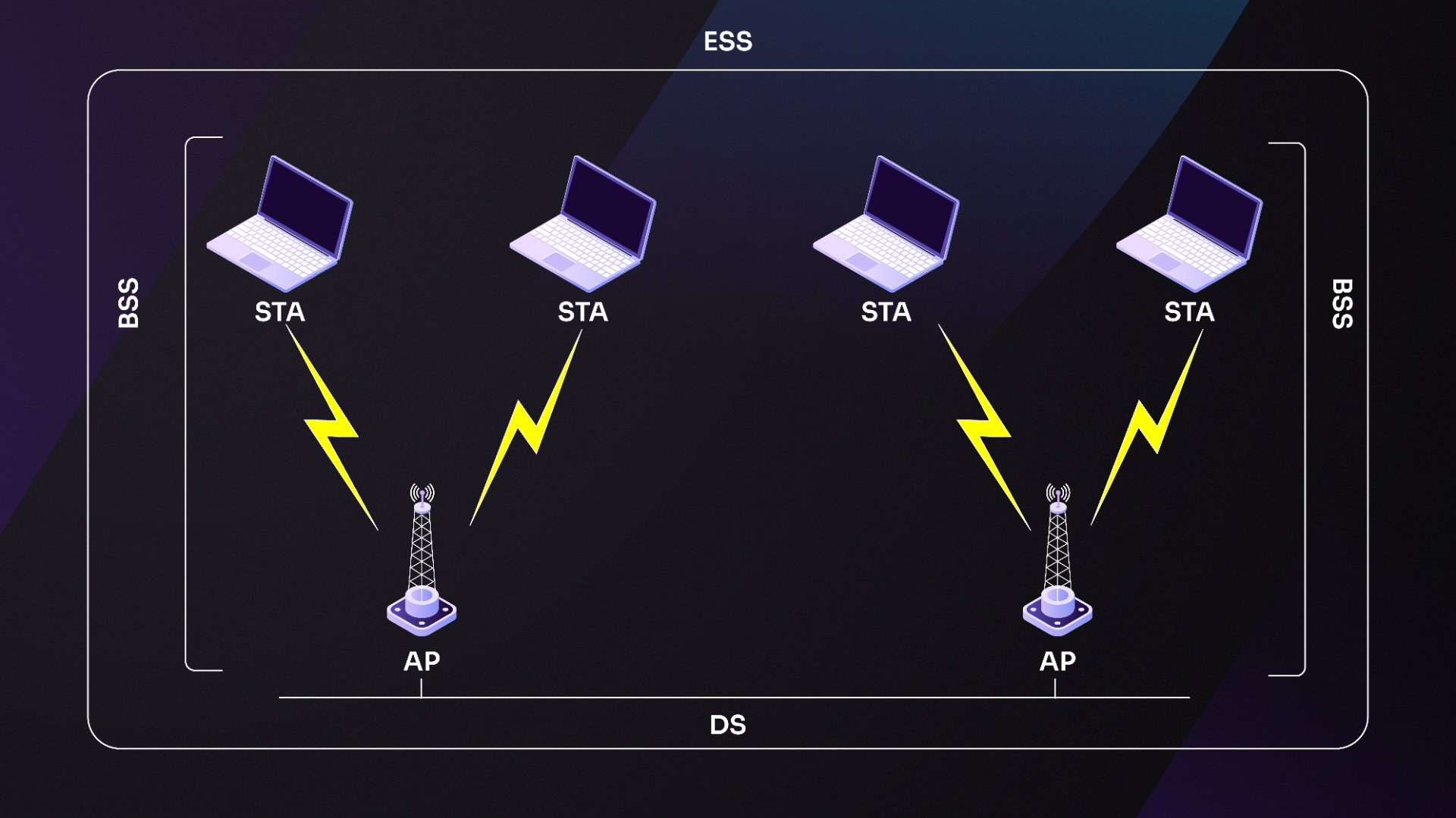
Figura 1: Relazioni tra DS, BSS ed ESS
Per espandere il nostro precedente esempio della rete di un piccolo ufficio, prenderemmo un cavo di rete aggiuntivo connesso all'access point originale (che ha capacità DS). Lo porteremmo in un'area dell'ufficio che il segnale del primo AP non raggiunge. A quel punto collegheremmo un nuovo router wireless. I laptop in questa parte dell'ufficio potrebbero usare il nuovo router come AP, mentre un laptop più vicino al vecchio router userebbe l'altro AP.
16.3. Wireless Distribution Systems
Ora che abbiamo una comprensione di base dell'infrastructure, parliamo dei Wireless Distribution Systems (WDS). Possiamo ricordare che nelle reti infrastructure gli AP sono collegati a un Distribution System (DS), una rete cablata. Nei casi in cui le funzioni di router e AP sono integrate, il DS sarebbe qualsiasi cosa diversa dalla rete wireless stessa.
Il WDS, d'altra parte, è esattamente ciò che sembra. È un DS che passa su Wi-Fi invece che su un cavo. Il WDS ha due modalità di connettività:
- Wireless Bridging: consente la comunicazione solo tra AP WDS.
- Wireless Repeating: consente la comunicazione sia tra stazioni sia tra AP.
La figura sotto mostra un esempio di configurazione WDS.
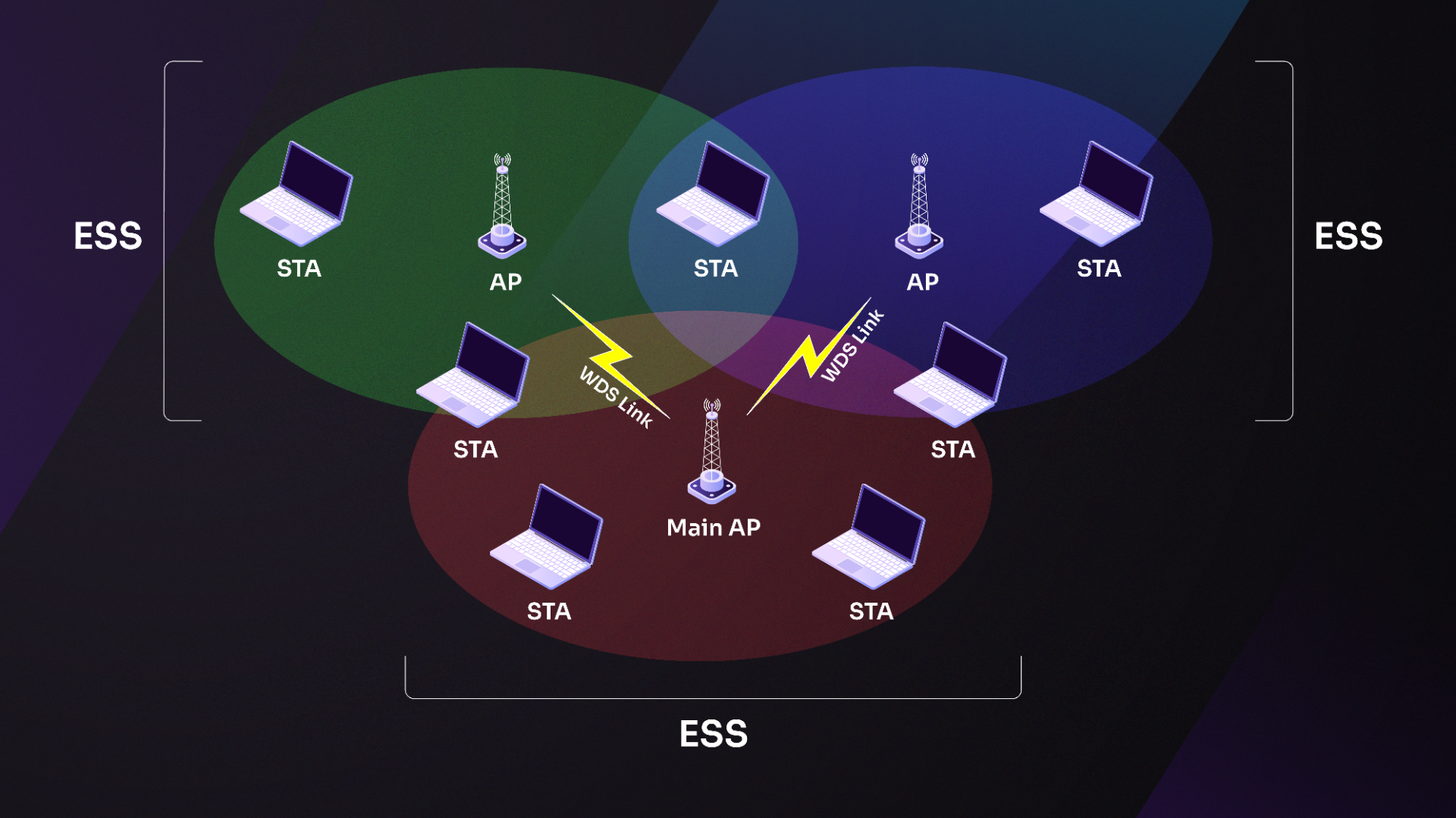
Figura 2: Diagramma del Wireless Distribution System
Consideriamo un altro esempio molto semplice di rete con WDS. Useremo di nuovo l'esempio del nostro piccolo ufficio. Supponiamo che il ripostiglio sul retro dell'edificio abbia un computer troppo lontano dal router wireless nella parte anteriore dell'edificio. Il proprietario dell'attività potrebbe installare un access point aggiuntivo vicino al ripostiglio senza posare un cavo ethernet fino a lì. Il computer nel ripostiglio comunica con il secondo AP, che trasporta il segnale al primo AP nella parte anteriore dell'edificio, connesso al DS cablato.
Un WDS usa tipicamente lo stesso canale dell'access point esistente per il back-haul.[^back-haul] Questa condivisione del canale ha un impatto sulle reti ad alto traffico, poiché le velocità dati disponibili possono dimezzarsi. Nelle reti a basso traffico, probabilmente non sarà un problema.
16.4. Ad-Hoc Networks
Una rete Ad-Hoc potrebbe non essere qualcosa che vediamo spesso, ma dovremmo conoscerla. Una rete Ad-Hoc, nota anche come Independent Basic Service Set (IBSS), consiste in almeno due stazioni che comunicano senza un AP.
In una rete Ad-Hoc, una delle stazioni partecipanti assume alcune delle responsabilità di un AP, come beaconing e autenticazione dei nuovi client che si uniscono alla rete. La stazione che assume le responsabilità dell'AP non inoltra i pacchetti ad altri nodi come farebbe un AP.
La Figura 3 sotto mostra una configurazione Ad-Hoc di base.
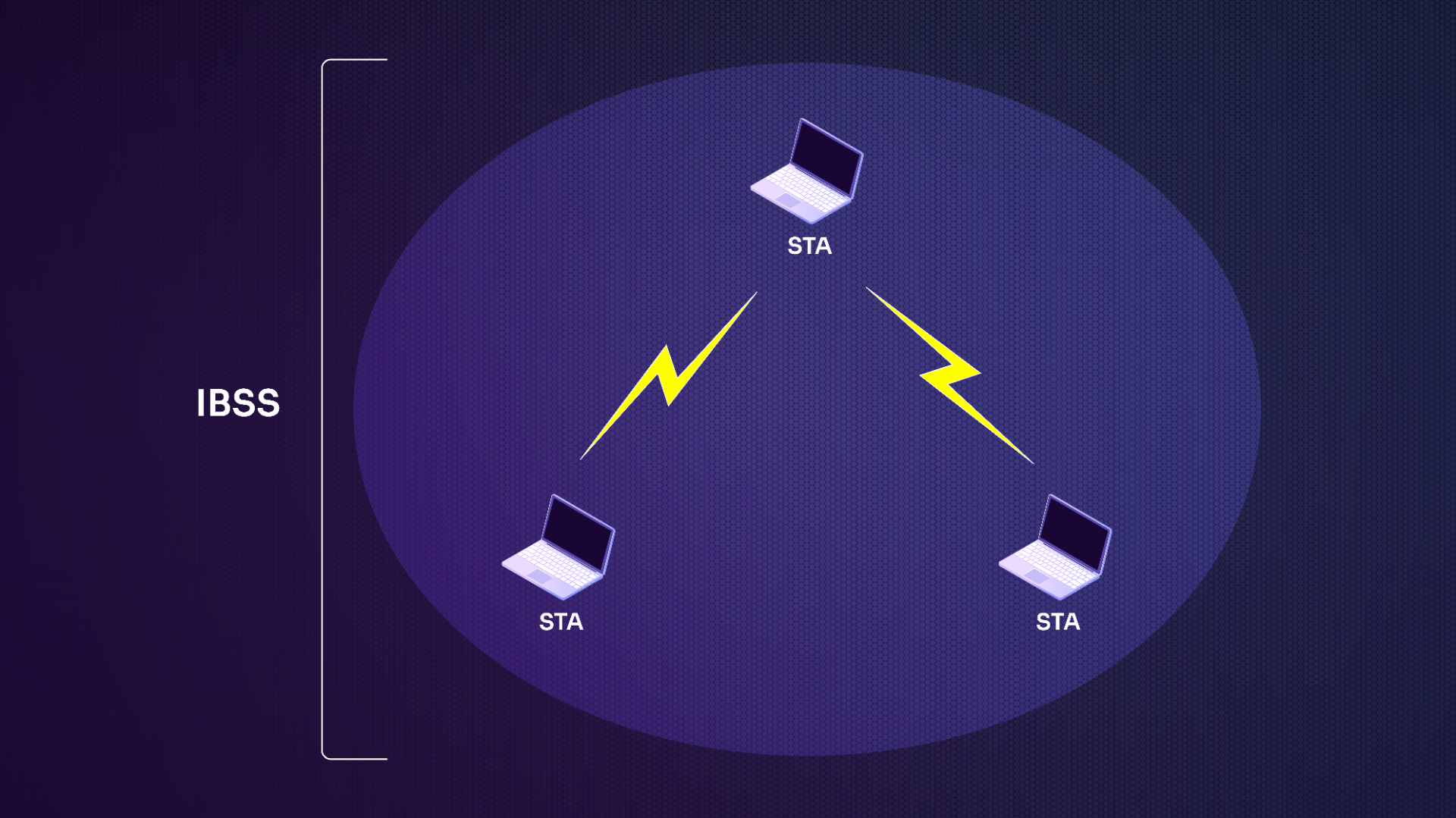
Figura 3: Diagramma di rete Ad-Hoc
Warning
Né WDS né Ad-Hoc (con un protocollo di routing) sono ideali a causa sia della complessità della configurazione sia dei bug nelle implementazioni dello standard da parte dei vari vendor. Più repeater vengono aggiunti, maggiore è la complessità nella configurazione, nella gestione e nell'instradamento efficiente dei pacchetti. In Ad-Hoc, i bug portano alla disconnessione casuale di alcuni nodi sulla rete. Il WDS è spesso limitato a reti WEP o non crittografate, e il WPA è difficile da far funzionare.
16.4.1. Ad-Hoc Demo
Ad-Hoc Demo è una deviazione rispetto a una modalità Ad-Hoc o IBSS standard. Questa modalità è chiamata anche Pseudo-IBSS perché è una modalità pre-standard, pre-IBSS con soli dati.
Non ci sono frame di gestione di alcun tipo (nessun beaconing per pubblicizzare la rete, nessuna association) e il BSSID è tutto zero.
Ci sono diversi pro e contro nella modalità Ad-Hoc Demo. Può essere vista come una modalità Ad-Hoc grezza o essenziale. Pertanto, dobbiamo impostare manualmente il rate su tutte le schede wireless. L'assenza di frame di gestione e di meccanismi di collision avoidance consente un throughput leggermente superiore, ma richiede un canale libero o un segnale forte.
16.5. Mesh Networks
Continuiamo a costruire la nostra comprensione delle reti parlando delle Mesh Networks. La copertura di una rete Wi-Fi tipica è limitata dagli AP. Possono essere aggiunti AP aggiuntivi per aumentare la copertura, ma devono essere vicini a una presa di rete. Questo può essere un problema in grandi ambienti interni come magazzini, aree esterne come campus, o monumenti e edifici storicamente protetti dove non possiamo praticare fori per far passare cavi di rete da un AP al successivo.
Le mesh network possono essere una buona soluzione in questi casi. Possono essere configurate usando equipaggiamento e tecnologie esistenti. Vengono aggiunti access point aggiuntivi all'infrastructure per determinare il miglior "percorso del segnale" per una stazione sulla rete. In questo caso, gli AP aggiuntivi agiscono sia come client (verso l'AP che stanno ripetendo) sia come AP per ripetere ulteriormente il segnale. 802.11s è un emendamento di 802.11 per standardizzare il mesh networking.
Si potrebbe creare una mesh network usando la modalità Ad-Hoc. In questo caso, la configurazione è abbastanza complessa e richiede software aggiuntivo per gestire l'instradamento dei pacchetti tra i nodi usando protocols come AODV, BATMAN o OSLR. D'altra parte, 802.11s è stato progettato per reti fino a 32 nodi, con un protocollo di routing predefinito chiamato Hybrid Wireless Mesh Protocol (HWMP).
Vari vendor offrono soluzioni di tipo mesh, ma poiché i loro protocolli sono proprietari, non sono né interoperabili né compatibili con 802.11s.
Oltre alle somiglianze con le reti infrastructure, 802.11s aggiunge le seguenti classi di dispositivi:
- Mesh Point (MP): dispositivi che stabiliscono un collegamento tra dispositivi mesh. Possono essere Mesh Portal, Mesh AP o anche altri Mesh Point.
- Mesh AP (MAP): dispositivi che hanno la funzionalità di un Mesh Point e di un Access Point.
- Mesh Portal (MPP): dispositivi che forniscono un collegamento tra la rete cablata e la rete wireless.
Possiamo vedere alcuni di questi acronimi usati nel diagramma di una Mesh Network sotto.
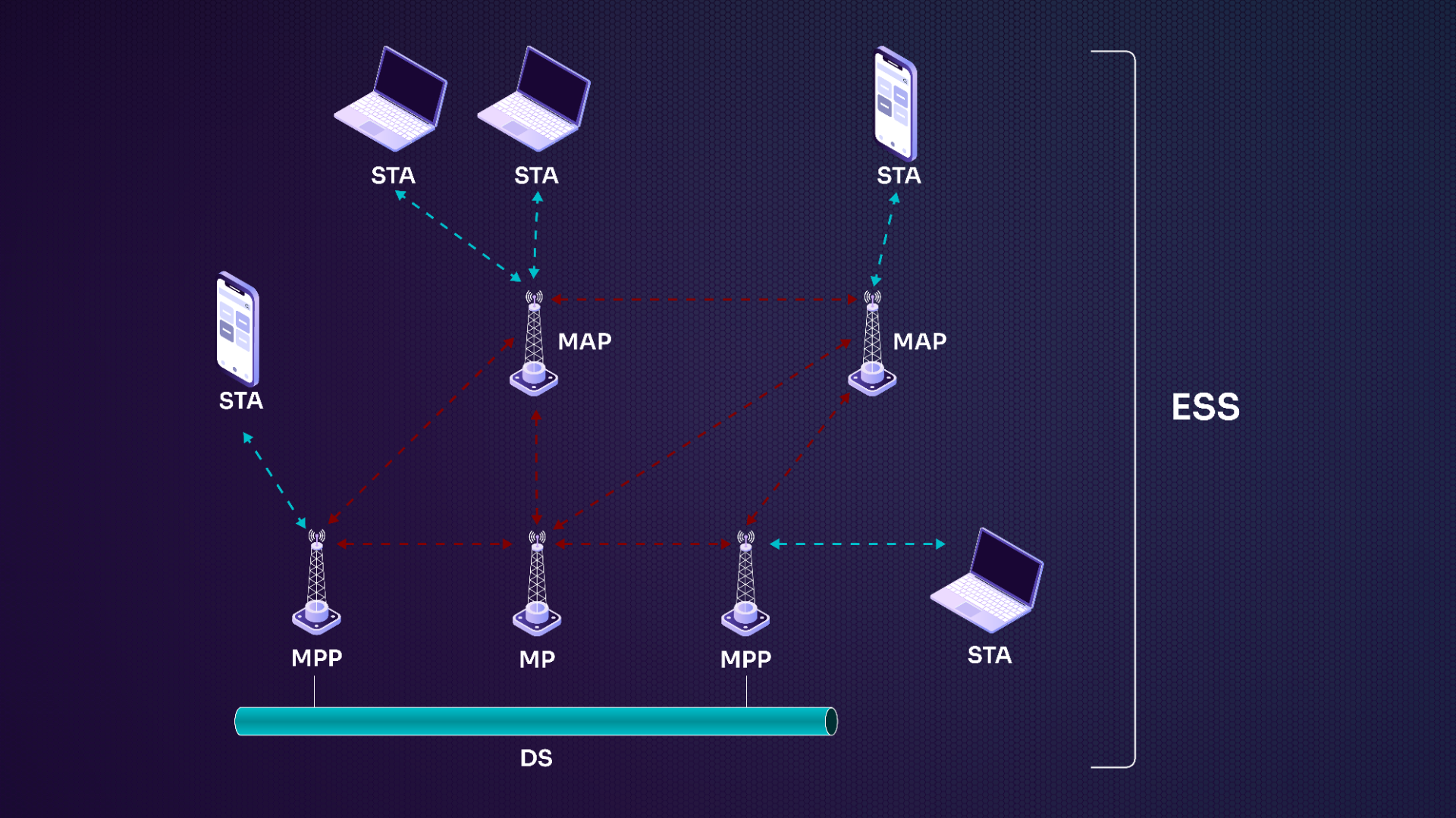
Figura 4: Diagramma di mesh network
Nella Figura 4, i collegamenti rossi rappresentano i collegamenti radio mesh e i collegamenti blu rappresentano le connessioni wireless con le stazioni. Ad esempio, il tablet con lo stylus può comunicare con il MAP più vicino, ma a seconda di diversi fattori quei pacchetti possono seguire uno di diversi percorsi verso il DS.
Oltre alla funzionalità descritta qui, dobbiamo considerare che i dispositivi nelle reti wireless a volte si spostano o scompaiono, quindi il percorso che un pacchetto segue non sarà sempre lo stesso. Il percorso è generato dinamicamente da software che tiene conto di vari parametri in cambiamento, come qualità del segnale, rumore, rate, tempo di risposta o distanza tra i nodi.
Poiché Mesh è peer-to-peer (P2P), i dispositivi mesh devono gestire neighbor discovery, connessione ai peer e sicurezza reciproca. Dopo aver scoperto i MAP vicini, avviano il peering. La connessione viene mantenuta finché entrambi i dispositivi sono nel raggio e continuano a rispondere ai frame.
Sono disponibili due modalità di peering:
- Mesh Peering Management (MPM): peering non sicuro
- Authenticated Mesh Peering Exchange (AMPE): peering sicuro
MPM non è crittografato e stazioni rogue possono dirottare le connessioni.
AMPE, il protocollo crittografato, usa Simultaneous Authentication of Equals (SAE) o 802.1X[^802.1x] per scambiare chiavi di crittografia. SAE è un meccanismo di autenticazione basato su password, mentre 802.1X usa un authentication server. Sebbene 802.1X sia più robusto di SAE, usa un authentication server e, a seconda dello stato della rete 802.1X, potrebbe non esserci un percorso verso l'authentication server, oppure il percorso potrebbe interrompersi.
16.6. Wi-Fi Direct
Wi-Fi Direct consente comunicazioni dirette a singolo hop tra dispositivi ed è usato più comunemente per stampa, condivisione file e visualizzazione di immagini o video. La connessione è solitamente uno-a-uno, ma i dispositivi possono anche formare gruppi.
Per usare il nostro esempio ricorrente del piccolo ufficio, può essere comune avere una stampante connessa alla rete Wi-Fi. Questo sarebbe considerato multi-hop, poiché i dati passano dal laptop che vuole stampare all'AP e infine alla stampante. Wi-Fi Direct, al contrario, consente al laptop di comunicare direttamente con la stampante, anche se, ad esempio, il laptop non è connesso alla stessa infrastructure della stampante.
Wi-Fi Direct è chiamato anche Wi-Fi P2P. Non è uno standard o un emendamento 802.11, ma una specifica tecnica della Wi-Fi alliance.
I dispositivi che offrono un servizio agiscono come access point software con connessioni in stile WPS usando crittografia WPA2. Devono anche consentire la service discovery. Le funzionalità supportate dall'access point software sono più o meno complesse a seconda dei servizi offerti e possono sostituire Bluetooth in alcune situazioni.
Alcuni esempi di applicazioni Wi-Fi Direct sono:
- Chioschi per stampa fotografica
- Cornici per album fotografici
- Display remoti come Miracast
- Condivisione file tra dispositivi
- Giocare
- Condivisione Internet (tethering)
16.7. Monitor Mode
La monitor mode non è una modalità wireless o uno schema architetturale, ma piuttosto lo stato di un dispositivo wireless che consente di monitorare tutti i segnali Wi-Fi nel suo raggio.
Immaginiamo uno scenario in cui siamo in un parcheggio fuori dal nostro target di penetration testing. Ci sono diversi laptop connessi alla rete Wi-Fi del target. Se mettiamo la nostra scheda Wi-Fi in monitor mode, vedremo molto più di noi stessi, l'AP e tutti gli altri client connessi allo stesso AP. Vedremo anche il traffico di qualsiasi altra rete nel raggio, come attività commerciali vicine, abitazioni e hotspot Wi-Fi mobili.
La monitor mode è essenziale per il penetration testing wireless poiché consente la cattura di frame 802.11 grezzi e permette la packet injection. La maggior parte degli strumenti usati per testare reti Wi-Fi richiede che la nostra interfaccia wireless sia in monitor mode.
16.8. Conclusione
In questo modulo abbiamo discusso una varietà di architetture di reti wireless. Abbiamo trattato le infrastructure e poi ampliato questa comprensione con Wireless Distribution System (WDS), Ad-Hoc Networks e Mesh Networks. Abbiamo anche descritto brevemente Wi-Fi Direct. Infine, abbiamo introdotto la Monitor Mode, che sarà una modalità utile più avanti nel corso.
Ask KAI
Come penetration tester, comprendere le differenze tra queste architetture o configurazioni, inclusi punti di forza e debolezze, può rendere il nostro lavoro più semplice.