14. Kismet Essentials
Kismet1 è uno strumento versatile per l'acquisizione wireless. Può catturare dati di diverse tecnologie wireless come Wi-Fi, Bluetooth,2 e segnali nRF,3 oppure può utilizzare Software Defined Radio (SDR)4 per catturare segnali ADS-B,5 Automatic meter reading (AMR),6 433MHz,7 e altro ancora. Per ora, ci concentreremo sulle sue funzionalità Wi-Fi.
Kismet cattura frame wireless grezzi e li decodifica per identificare access point e dispositivi sulla rete. Se abbinato a un dispositivo GPS8, Kismet include anche dati di geolocalizzazione stimati per i dispositivi rilevati.9 Possiamo utilizzare questi dati per avere un'idea approssimativa di dove si trovano i dispositivi rispetto agli access point.
L'interfaccia utente di Kismet ci offre diversi modi per visualizzare le reti wireless. Possiamo usarla insieme ad altri strumenti di rete per approfondire la nostra comprensione di una determinata rete wireless.
1 (Kismet Wireless, 2021), https://www.kismetwireless.net/ ↩︎
2 (Kismet Wireless, 2021), https://www.kismetwireless.net/docs/readme/datasources_bluetooth/ ↩︎
3 (Kismet Wireless, 2021), https://www.kismetwireless.net/docs/readme/datasources_nrf_mousejack/ ↩︎
4 (Kismet Wireless, 2021), https://www.kismetwireless.net/docs/readme/datasources_sdr_rtl433/ ↩︎
5 (Wikipedia, 2021), https://en.wikipedia.org/wiki/Automatic_dependent_surveillance_–_broadcast ↩︎
6 (Wikipedia, 2021), https://en.wikipedia.org/wiki/Automatic_meter_reading ↩︎
7 (Wikipedia, 2020), https://en.wikipedia.org/wiki/LPD433 ↩︎
8 (Wikipedia, 2021), https://en.wikipedia.org/wiki/Global_Positioning_System ↩︎
9 (Kismet Wireless, 2021), https://www.kismetwireless.net/docs/readme/gps/ ↩︎
14.1. Installazione
Per iniziare, installeremo Kismet in Kali utilizzando apt install kismet.
kali@kali:~$ sudo apt install kismet
Reading package lists... Done
Building dependency tree
Reading state information... Done
The following additional packages will be installed:
  kismet-capture-common kismet-capture-linux-bluetooth kismet-capture-linux-wifi kismet-capture-nrf-51822 kismet-capture-nrf-mousejack
  kismet-capture-nxp-kw41z kismet-capture-ti-cc-2531 kismet-capture-ti-cc-2540 kismet-core kismet-logtools libmicrohttpd12 libprotobuf22
  python3-kismetcapturefreaklabszigbee python3-kismetcapturertl433 python3-kismetcapturertladsb python3-kismetcapturertlamr python3-protobuf
Suggested packages:
  gpsd kismet-doc kismet-plugins festival
The following NEW packages will be installed:
  kismet kismet-capture-common kismet-capture-linux-bluetooth kismet-capture-linux-wifi kismet-capture-nrf-51822 kismet-capture-nrf-mousejack
  kismet-capture-nxp-kw41z kismet-capture-ti-cc-2531 kismet-capture-ti-cc-2540 kismet-core kismet-logtools libmicrohttpd12 libprotobuf22
  python3-kismetcapturefreaklabszigbee python3-kismetcapturertl433 python3-kismetcapturertladsb python3-kismetcapturertlamr python3-protobuf
0 upgraded, 18 newly installed, 0 to remove and 112 not upgraded.
Need to get 0 B/6,237 kB of archives.
After this operation, 29.1 MB of additional disk space will be used.
Do you want to continue? [Y/n] y
Preconfiguring packages ...
...
Setting up kismet (2020.04.R3-0kali1) ...
Processing triggers for man-db (2.9.3-2) ...
Processing triggers for kali-menu (2020.3.2) ...
Processing triggers for libc-bin (2.30-8) ...
Listato 1 - Installazione di Kismet
Ora che abbiamo completato l'installazione rapida, approfondiamo come configurare Kismet.
14.2. File di configurazione
Ci sono diversi modi per familiarizzare con Kismet, ma inizieremo dai file di configurazione.1 Si trovano in /etc/kismet/.
kali@kali:~$ ls -al /etc/kismet/
drwxr-xr-x   2 root root  4096 Sep 17 13:34 .
drwxr-xr-x 164 root root 12288 Sep 17 13:23 ..
-rw-r--r--   1 root root  4033 Sep 14 07:53 kismet_80211.conf
-rw-r--r--   1 root root  3723 Sep 14 07:53 kismet_alerts.conf
-rw-r--r--   1 root root  7768 Sep 14 07:53 kismet.conf
-rw-r--r--   1 root root  3486 Sep 14 07:53 kismet_filter.conf
-rw-r--r--   1 root root  2717 May 15 03:21 kismet_httpd.conf
-rw-r--r--   1 root root  5106 May 15 03:21 kismet_logging.conf
-rw-r--r--   1 root root  4977 Sep 14 07:53 kismet_memory.conf
-rw-r--r--   1 root root  4737 May 15 03:21 kismet_uav.conf
Listato 2 - File di configurazione di Kismet
Ogni file nel Listato 2 configura un aspetto specifico di Kismet. Esaminiamo rapidamente cosa controlla ciascun file.
kismet_80211.conf configura le impostazioni relative al Wi-Fi.
kismet_alerts.conf configura il sottosistema di rilevamento delle intrusioni e degli avvisi di Kismet. Kismet include un Wireless Intrusion Detection System2 (WIDS), ma non tratteremo quella particolare funzionalità in questo modulo.
kismet.conf è il file di configurazione principale di Kismet.
kismet_filter.conf configura le regole di filtraggio per dispositivi e pacchetti.
kismet_httpd.conf configura il server web di Kismet.
kismet_logging.conf configura come e dove Kismet crea i file di log.
kismet_memory.conf configura l'utilizzo della memoria di Kismet.
kismet_uav.conf contiene regole per il rilevamento di veicoli aerei senza pilota3 (UAV) e droni.
Oltre a modificare questi file singolarmente, possiamo sovrascrivere le impostazioni in più file creando un file kismet_site.conf in /etc/kismet/. Qualsiasi opzione specificata in questo file sovrascrive le impostazioni nei file di configurazione predefiniti. Possiamo utilizzare questa funzionalità per mantenere le nostre impostazioni personalizzate anche se un aggiornamento di Kismet include modifiche ai file di configurazione predefiniti.
Potremmo voler sovrascrivere le impostazioni predefinite soprattutto per quanto riguarda il logging. Prima di farlo, dobbiamo comprendere meglio come Kismet registra i dati. In seguito, potrebbero esserci altre impostazioni che vorremo modificare.
1 (Kismet Wireless, 2021), https://kismetwireless.net/docs/readme/config_files/ ↩︎
2 (Kismet Wireless, 2021), https://www.kismetwireless.net/docs/readme/alerts_and_wids/ ↩︎
3 (Wikipedia, 2021), https://en.wikipedia.org/wiki/Unmanned_aerial_vehicle ↩︎
14.2.1. File di output
Kismet crea file di log1 in tre formati diversi: kismet, PcapPpi e PcapNg. Il formato kismet è l'impostazione predefinita e include tutti i dati raccolti in un database SQLite2. Il formato PcapPpi è un formato Pcap legacy, mentre il formato PcapNg è il formato Pcap moderno.
I formati kismet e PcapNg consentono pacchetti da più Data Link Types3 (DLT). In altre parole, possono contenere un mix di segnali Wi-Fi, Bluetooth e altri. I file Pcap legacy possono contenere un solo DLT.
Tra questi due, il formato PcapNg è generalmente più preferito perché ci consente di utilizzare i risultati in altri strumenti, come Wireshark.
Anche se PcapNg supporta più DLT, se abilitiamo più tipi di sensori durante un'acquisizione, ad esempio sia Wi-Fi che Bluetooth, Kismet consoliderà tutti i diversi tipi di frame nel file di log. Altri strumenti potrebbero avere problemi nell'analizzare file Pcap con più di una sorgente dati.
Possiamo convertire file PcapNg che contengono un singolo tipo di dati, ad esempio solo Wi-Fi, in file Pcap utilizzando tshark. Useremmo il seguente comando.
Listato 3 - Conversione da PcapNg a Pcap
Modifichiamo il modo in cui Kismet registra i dati creando un file di configurazione di override. Per prima cosa, esamineremo le impostazioni in kismet_logging.conf.
# Default log title, can be overridden with the '-t' argument to Kismet
log_title=Kismet

# Default location for logs; by default this is the directory Kismet was launched
# in, but the logs can be automatically stored in other directories as well.
# The directory must exist before Kismet is started - Kismet will /not/ create
# the directory list itself.
log_prefix=./


# Logging is enabled by type; plugins may add additional types.  The log types can be
# overridden on the command line with the '--log-types' argument.
#
# Built-in log types (plugins may add more, consult the documentation for plugins):
#   kismet      Unified log which can be turned into multiple types of data
#   pcapppi     Old-style pcap with PPI headers for signal and metadata.  Not as
#               flexible as the pcapng format.
#   pcapng      Pcap-NG (suitable for use with Wireshark and Tshark, as well as other
#               tools) which contains raw pcap data with interface tags.  See the
#               Kismet readme for methods to turn this into an old-style pcap log.
#
# By default, Kismet only enabled the unified 'kismet' log; the pcapng option is
# provided for special configurations as a legacy fallback mode.
log_types=kismet
...
Listato 4 - Estratto da kismet_logging.conf
Per impostazione predefinita, Kismet memorizza i file di log nella directory di lavoro corrente. Modifichiamo questa impostazione in una posizione centralizzata nel nostro file di configurazione di override.
Modificheremo anche i tipi di log per includere i log PcapNg. Il log kismet è utile, ma come abbiamo menzionato in precedenza, se vogliamo utilizzare i dati di Kismet in altri strumenti, vorremo registrare anche nel formato PcapNg.
Per prima cosa, creiamo una nuova directory in /var/log per contenere i nostri file di log.
Listato 5 - Creazione della directory di log kismet
Successivamente, creeremo il file kismet_site.conf con le nostre impostazioni di override per log_prefix per memorizzare i dati nella nuova directory e log_types per creare file di log nei formati kismet e PcapNg.
Listato 6 - Contenuto di kismet_site.conf
Ora che abbiamo configurato il logging, passiamo alle sorgenti dati.
Esercizio
Crea una directory per i file di log di Kismet e crea un file di configurazione di override per utilizzare quella directory per il logging.
1 (Kismet Wireless, 2021), https://www.kismetwireless.net/docs/readme/logging/ ↩︎
2 (Wikipedia, 2021), https://en.wikipedia.org/wiki/SQLite ↩︎
3 (The Tcpdump Group, 2021), https://www.tcpdump.org/linktypes.html ↩︎
14.2.2. Sorgenti dati
Kismet acquisisce dati da una o più sorgenti.1 Useremo principalmente un dispositivo Wi-Fi come sorgente, ma Kismet, se utilizzato con l'hardware appropriato, può anche catturare segnali Bluetooth, Software Defined Radio (SDR) e nRF.
Possiamo specificare le sorgenti dati nei file di configurazione o sulla riga di comando all'avvio di Kismet. L'opzione da riga di comando è spesso sufficiente per attività semplici con una singola sorgente dati. Tuttavia, l'utilizzo dei file di configurazione è un buon modo per rimanere organizzati man mano che aggiungiamo più adattatori wireless.
Quando specifichiamo un dispositivo Wi-Fi come sorgente, Kismet rileverà automaticamente e acquisirà su tutti i canali supportati da quel dispositivo. Possiamo anche configurare Kismet per acquisire solo su determinati canali o frequenze.2 Se ci troviamo in un'area con molte reti Wi-Fi, possiamo utilizzare questa funzionalità per concentrarci solo sui canali che ci interessano.
1 (Kismet Wireless, 2021), https://kismetwireless.net/docs/readme/datasources/ ↩︎
2 (Kismet Wireless, 2021), https://www.kismetwireless.net/docs/readme/datasources_wifi/ ↩︎
14.3. Avvio di Kismet
Eseguiamo kismet sulla nostra rete wireless utilizzando -c wlan0. Kismet metterà automaticamente la nostra interfaccia wireless in modalità monitor. Lasceremo Kismet in esecuzione per qualche istante, poi usciremo utilizzando C+c.
Kismet utilizza la libreria ncurses1 per sovrascrivere il testo nel suo output della console, il che significa che mostra solo l'output più recente. Sfortunatamente, questo significa che non possiamo scorrere l'output e cercare eventuali informazioni che potremmo aver perso. Possiamo disabilitare questa funzionalità con l'opzione da riga di comando --no-ncurses per ottenere tutto l'output su nuove righe nella console.
Otterremo molto output quando eseguiamo Kismet, quindi analizziamo parte dell'output della console. La prima sezione dell'output mostra quali file di configurazione sono stati caricati.
kali@kali:/etc/kismet$ cd ~
kali@kali:~$ sudo kismet -c wlan0 --no-ncurses
INFO: Including sub-config file: /etc/kismet/kismet_httpd.conf
INFO: Including sub-config file: /etc/kismet/kismet_memory.conf
INFO: Including sub-config file: /etc/kismet/kismet_alerts.conf
INFO: Including sub-config file: /etc/kismet/kismet_80211.conf
INFO: Including sub-config file: /etc/kismet/kismet_logging.conf
INFO: Including sub-config file: /etc/kismet/kismet_filter.conf
INFO: Including sub-config file: /etc/kismet/kismet_uav.conf
INFO: More than one override file included; Kismet will process them in the order they were defined.
INFO: Loading config override file '/etc/kismet/kismet_package.conf'
INFO: Optional sub-config file not present: /etc/kismet/kismet_package.conf
INFO: Loading config override file '/etc/kismet/kismet_site.conf'
INFO: Loading optional sub-config file: /etc/kismet/kismet_site.conf
...
Listato 7 - Informazioni sulla configurazione di Kismet
L'output nel Listato 7 verifica che Kismet abbia caricato il nostro file di configurazione di override. Kismet verifica la presenza di un ulteriore file di configurazione di override in /etc/kismet/kismet_package.conf. Questo file viene utilizzato per gestire configurazioni specifiche della piattaforma, come l'esecuzione di Kismet su OpenWrt. Possiamo ignorare questo file su Kali.
Successivamente, abbiamo l'output relativo al server web di Kismet.
...
KISMET - Point your browser to http://localhost:2501 (or the address of this system) for the Kismet UI
INFO: Starting Kismet web server...
INFO: Started http server on 0.0.0.0:2501
...
Listato 8 - Informazioni sul server web di Kismet
Infine, Kismet inizia ad acquisire dati sull'interfaccia wlan0.
...
INFO: Found type 'linuxwifi' for 'wlan0'
INFO: wlan0 telling NetworkManager not to control interface 'wlan0': you may need to re-initialize this interface later or tell NetworkManager to control it again via 'nmcli'
INFO: wlan0 bringing down parent interface 'wlan0'
INFO: Data source 'wlan0' launched successfully
INFO: Detected new 802.11 Wi-Fi access point 5B:5C:79:0B:A8:F2
INFO: 802.11 Wi-Fi device 5B:5C:79:0B:A8:F2 advertising SSID 'Galain'
INFO: Detected new 802.11 Wi-Fi access point D5:89:1D:35:20:62
INFO: 802.11 Wi-Fi device D5:89:1D:35:20:62 advertising SSID 'Liosan'
INFO: Detected new 802.11 Wi-Fi device AC:D5:64:3B:A7:BB
INFO: Detected new 802.11 Wi-Fi access point 67:CB:81:07:A7:57
INFO: 802.11 Wi-Fi device 67:CB:81:07:A7:57 advertising SSID 'Emurlahn'
^C
*** KISMET IS SHUTTING DOWN ***
Shutting down plugins...
...
Kismet exiting.
kali@kali:~$
Listato 9 - Esecuzione di Kismet
Come illustrato nel Listato 9, Kismet è stato eseguito con successo e ha identificato tre access point Wi-Fi e un dispositivo Wi-Fi. Possiamo anche verificare che il nostro file di configurazione di override abbia funzionato correttamente controllando /var/log/kismet/ per i file di log.
kali@kali:~$ ls -al /var/log/kismet/
total 76
drwxr-xr-x  2 root root  4096 Sep 17 12:26 .
drwxr-xr-x 19 root root  4096 Sep 17 11:49 ..
-rw-r--r--  1 root root 61440 Sep 17 11:38 Kismet-20200917-15-38-41-1.kismet
-rw-r--r--  1 root root   744 Sep 17 11:38 Kismet-20200917-15-38-41-1.pcapng
Listato 10 - Elenco della directory di log di Kismet
Proviamo a eseguire nuovamente Kismet, ma questa volta limiteremo i canali. Useremo -c wlan0:channels="4,5,6" per impostare la nostra sorgente dati su wlan0 e limitarla ai canali 4, 5 e 6.
kali@kali:~$ sudo kismet -c wlan0:channels="4,5,6"
...
INFO: Data sources passed on the command line (via -c source), ignoring
      source= definitions in the Kismet config file.
INFO: Probing interface 'wlan0' to find datasource type
...
INFO: Found type 'linuxwifi' for 'wlan0:channels="4,5,6"'
...
INFO: Data source 'wlan0:channels="4,5,6"' launched successfully
INFO: Detected new 802.11 Wi-Fi device AC:D5:64:3B:A7:BB
^C
*** KISMET IS SHUTTING DOWN ***
Shutting down plugins...
...
Kismet exiting.
Listato 11 - Esecuzione di Kismet sui canali 4, 5 e 6
Limitando Kismet ai canali 4, 5 e 6, abbiamo trovato solo un dispositivo e non abbiamo trovato alcun access point. Questa funzionalità è utile, ma dobbiamo fare attenzione a non perdere dispositivi o access point importanti.
Possiamo anche eseguire Kismet come processo in background utilizzando il flag --daemonize. Questa opzione ci consente di eseguire Kismet come servizio all'avvio del sistema se combinata con il flag --no-ncurses per disabilitare il wrapper ncurses.
Proviamolo eseguendo kismet con il flag --daemonize.
kali@kali:~$ sudo kismet --daemonize
Silencing output and entering daemon mode...
INFO: Including sub-config file: /etc/kismet/kismet_httpd.conf
INFO: Including sub-config file: /etc/kismet/kismet_memory.conf
INFO: Including sub-config file: /etc/kismet/kismet_alerts.conf
INFO: Including sub-config file: /etc/kismet/kismet_80211.conf
INFO: Including sub-config file: /etc/kismet/kismet_logging.conf
INFO: Including sub-config file: /etc/kismet/kismet_filter.conf
INFO: Including sub-config file: /etc/kismet/kismet_uav.conf
INFO: More than one override file included; Kismet will process them in the order they were defined.
INFO: Loading config override file '/etc/kismet/kismet_package.conf'
INFO: Optional sub-config file not present: /etc/kismet/kismet_package.conf
INFO: Loading config override file '/etc/kismet/kismet_site.conf'
INFO: Loading optional sub-config file: /etc/kismet/kismet_site.conf
INFO: Setting server UUID 00000000-0000-0000-0000-4B49534D4554
INFO: Serving static content from '/usr/share/kismet/httpd/'
INFO: Serving static userdir content from '/root/.kismet/httpd/'
INFO: Loading saved HTTP sessions
INFO: Opened OUI file '/usr/share/kismet/kismet_manuf.txt
INFO: Indexing manufacturer db
Listato 12 - Avvio di Kismet come daemon
Possiamo interagire con il processo daemon tramite l'interfaccia web di Kismet o con un'acquisizione remota.
Quando siamo pronti a fermare il processo Kismet, possiamo usare ps -aux | grep kismet per trovare l'ID del processo e poi kill -9 per terminare il processo.
Esercizio
Esegui Kismet sulla tua rete Wi-Fi. Sperimenta con la limitazione delle scansioni a diversi canali o frequenze.
1 (Wikipedia, 2021), https://en.wikipedia.org/wiki/Ncurses ↩︎
14.4. Interfaccia web
Kismet include un server web1 e un'interfaccia web accessibile su localhost:2501 per impostazione predefinita. Questa interfaccia web ci offre un altro modo per visualizzare e interagire con i dati acquisiti. Per questo esempio, abbiamo avviato Kismet senza una sorgente dati.
Dovremo creare un account utente la prima volta che tentiamo di connetterci all'applicazione.
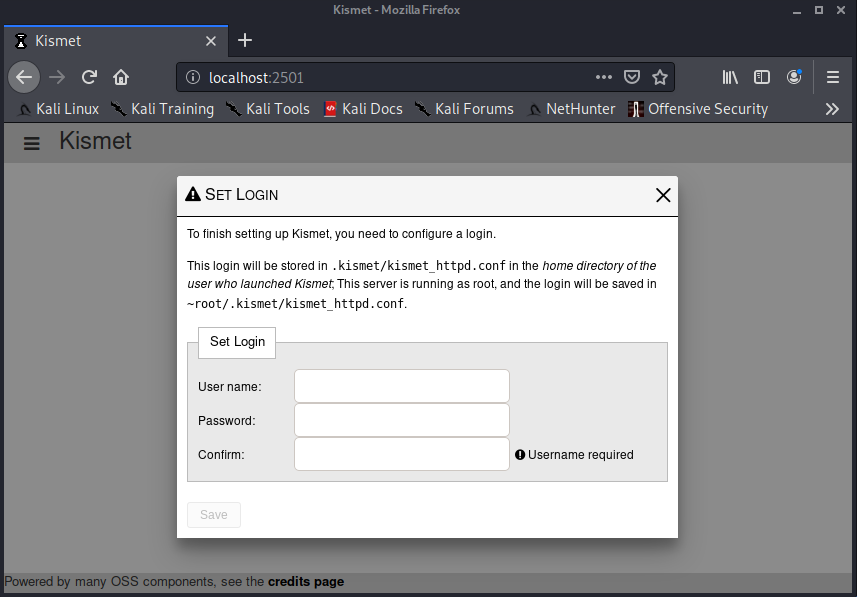
Figura 1: Primo accesso all'interfaccia utente di Kismet
Una volta creato il nostro account, possiamo utilizzare l'interfaccia web per interagire con Kismet e visualizzare i dati raccolti. Poiché non abbiamo specificato una sorgente dati, la pagina principale non avrà dati sui dispositivi disponibili.
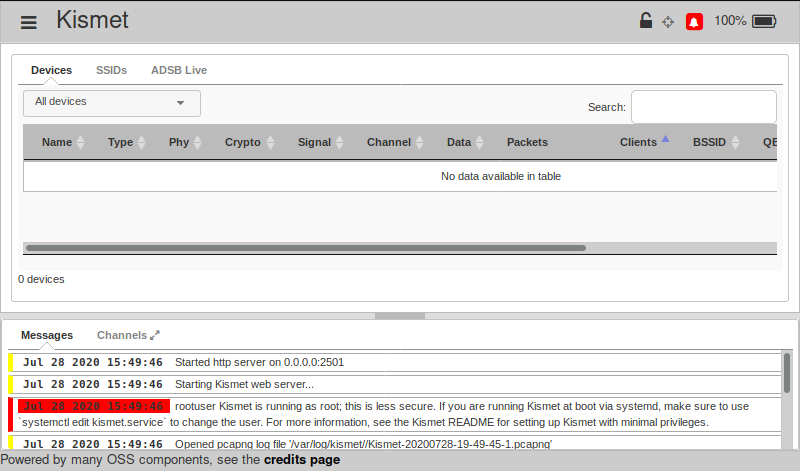
Figura 2: Interfaccia web di Kismet
Possiamo avviare un'acquisizione cliccando sul menu hamburger in alto a sinistra della pagina e poi cliccando su Data Sources.
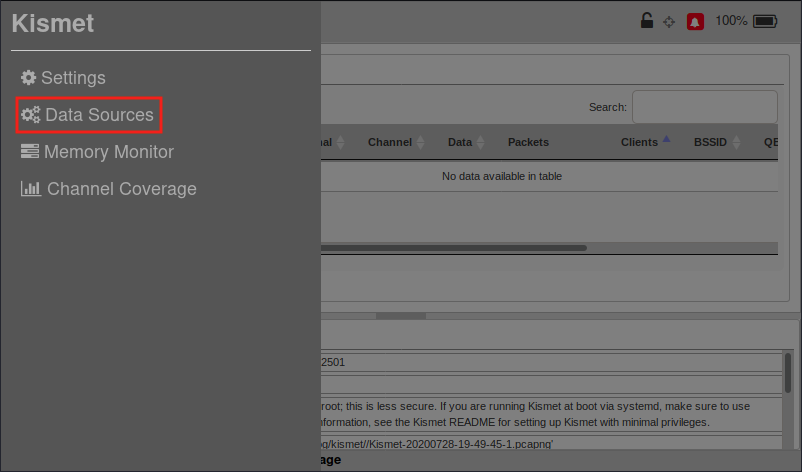
Figura 3: Menu dell'interfaccia web di Kismet
Successivamente cliccheremo su Available Interface: wlan0 interface (linuxwifi) e poi su Enable Source per iniziare ad acquisire dati Wi-Fi.
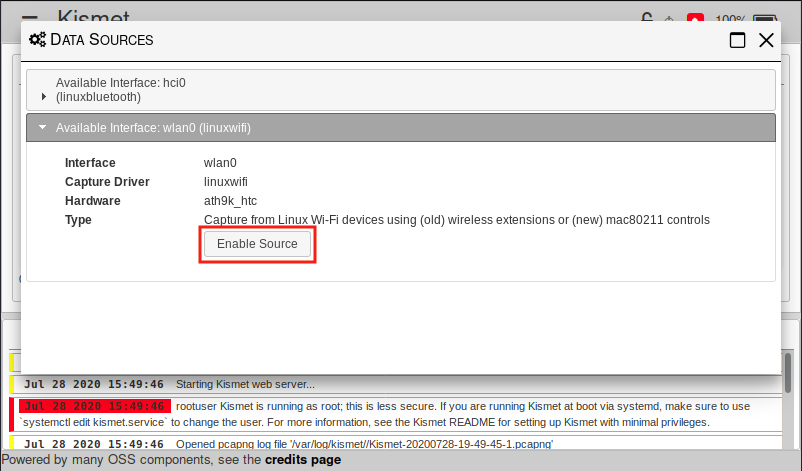
Figura 4: Avvio dell'acquisizione nell'interfaccia web di Kismet
Una volta abilitata la sorgente, l'interfaccia utente inizierà a mostrare del traffico. Se clicchiamo di nuovo su wlan0, otterremo maggiori dettagli sulla configurazione dell'interfaccia.
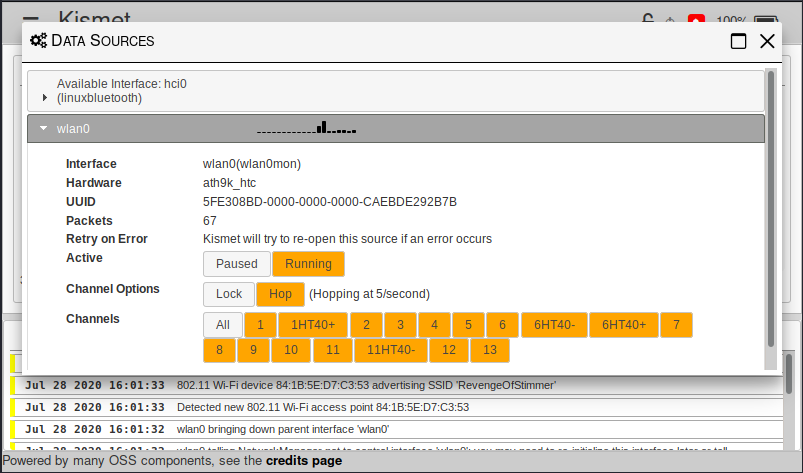
Figura 5: Dettagli dell'interfaccia nell'interfaccia utente di Kismet
Possiamo chiudere i dettagli dell'interfaccia cliccando sul pulsante X.
Ora dovremmo avere alcuni dati disponibili nella pagina principale. La metà superiore della pagina mostra informazioni sui dispositivi identificati. La metà inferiore della pagina mostra messaggi, simili all'output della console.
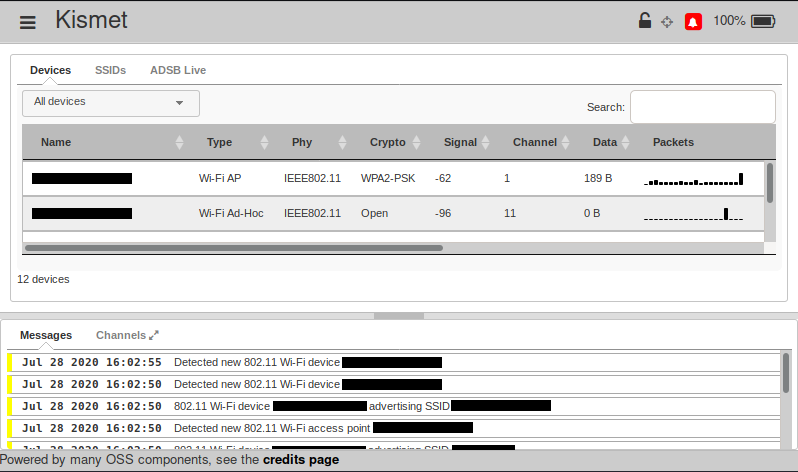
Figura 6: Interfaccia utente di Kismet
In fondo alla pagina, possiamo cliccare su Channels per ottenere un grafico del numero di dispositivi per canale.
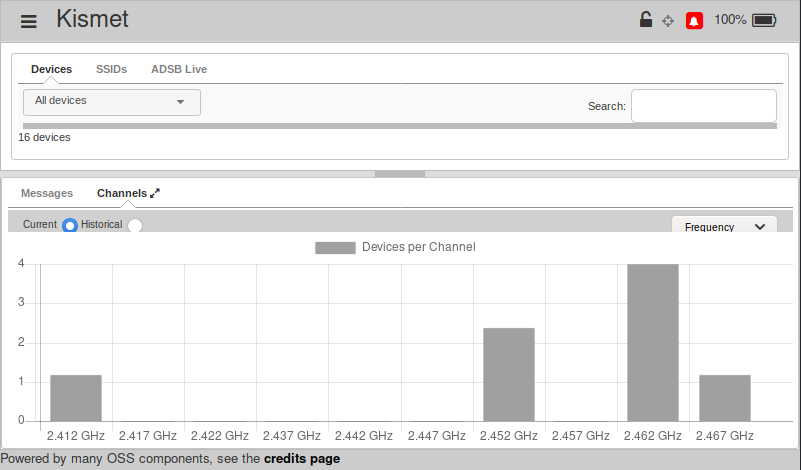
Figura 7: Canali nell'interfaccia utente di Kismet
Possiamo passare tra frequenza e numeri di canale Wi-Fi cliccando sul menu a discesa nell'angolo in alto a destra del riquadro. Il grafico si aggiorna in base alle informazioni in tempo reale mentre i dispositivi saltano tra i canali.
In alto nella pagina, possiamo filtrare i dispositivi visualizzati cliccando su All devices e selezionando un valore dall'elenco a discesa.
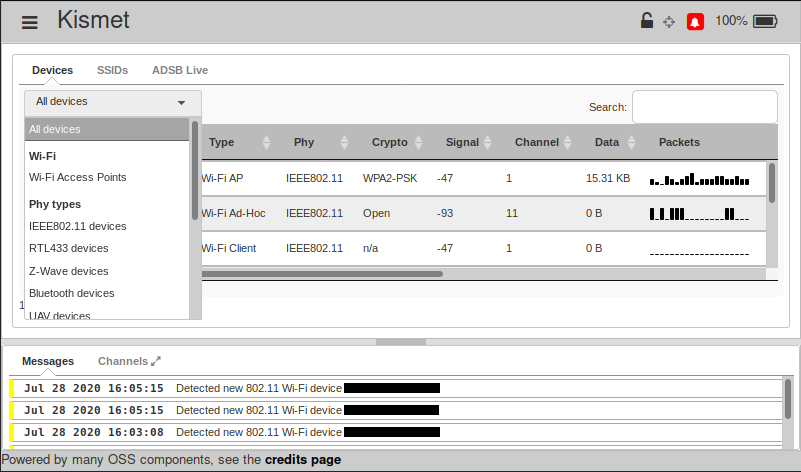
Figura 8: Filtraggio dei dispositivi nell'interfaccia utente di Kismet
Se clicchiamo su un dispositivo, otteniamo una vista dettagliata di quel dispositivo.
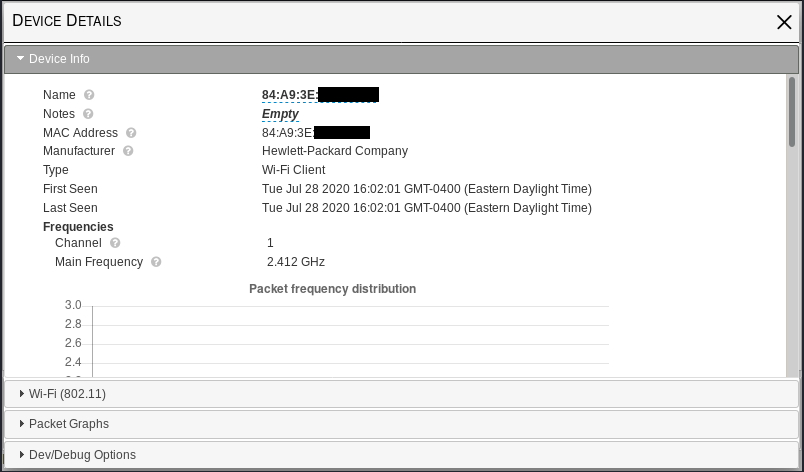
Figura 9: Dettagli del dispositivo nell'interfaccia utente di Kismet
Kismet tenta di identificare il produttore di un dispositivo esaminando i primi tre ottetti dell'indirizzo MAC del dispositivo. Controlla quegli ottetti rispetto a un database Organizationally Unique Identifier (OUI), che è semplicemente un file di testo. Il database OUI utilizzato da Kismet si trova in /usr/share/kismet/kismet_manuf.txt.
I dettagli includono anche l'utilizzo della frequenza del dispositivo, la potenza del segnale, i tipi di pacchetto e altro ancora. Possiamo chiudere questa vista e tornare alla pagina principale cliccando sulla X nell'angolo in alto a destra. L'elenco dei dispositivi include gli access point. Possiamo cliccare su un dispositivo access point per ottenere anche una vista dettagliata.
Possiamo anche cliccare su SSIDs per ottenere informazioni aggiuntive sugli SSID rilevati.
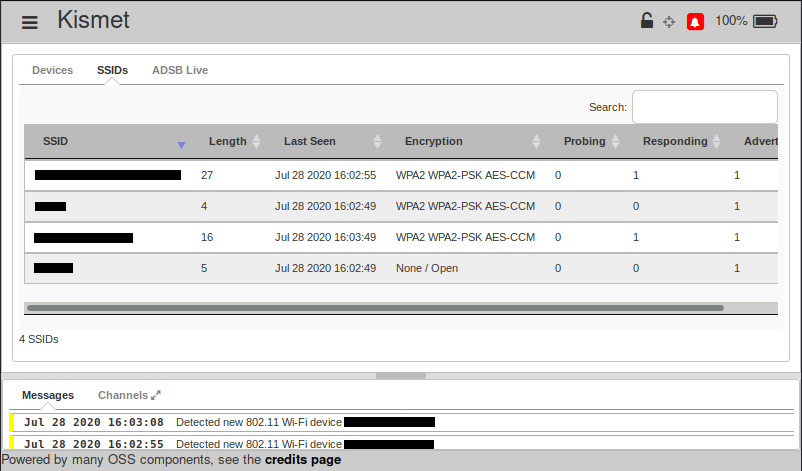
Figura 10: SSID nell'interfaccia utente di Kismet
Anche se l'elenco dei dispositivi include gli access point, l'elenco degli SSID include alcune informazioni aggiuntive, come il tipo di crittografia utilizzato dalla rete.
1 (Kismet Wireless, 2021), https://kismetwireless.net/docs/readme/webserver/ ↩︎
14.4.1. Protezione dell'interfaccia web
Per impostazione predefinita, il server web di Kismet ascolta su tutte le interfacce, consentendo connessioni remote all'interfaccia utente. Questa impostazione va bene in un ambiente controllato, ma dovremmo limitare l'accesso prima di utilizzare Kismet in uno scenario reale. Possiamo configurare il server web di Kismet per ascoltare sulla nostra interfaccia loopback aggiungendo "httpd_bind_address=127.0.0.1" al nostro file di configurazione di override kismet_site.conf.
Listato 13 - Contenuto aggiornato del file kismet_site.conf
Possiamo anche abilitare HTTPS sul server web1 per crittografare le nostre comunicazioni con il server web. Questo passaggio non è necessario in un ambiente di laboratorio. Tuttavia, consigliamo di configurarlo prima di eseguire Kismet su una rete pubblica.
Esercizio
Connettiti all'interfaccia web ed esplora le sue funzionalità.
1 (Kismet Wireless, 2021), https://www.kismetwireless.net/docs/readme/webserver/#kismet-and-ssl ↩︎
14.5. Acquisizione remota
Kismet include strumenti separati per acquisire dati. Quando eseguiamo Kismet e specifichiamo una sorgente, utilizzerà automaticamente lo strumento appropriato. Ad esempio, quando eseguiamo un'acquisizione su wlan0 su Kali, Kismet chiama lo strumento kismet_cap_linux_wifi per gestire l'acquisizione.
Possiamo anche chiamare questi strumenti direttamente per acquisire traffico localmente e inviare i dati a un server Kismet in esecuzione su un host remoto.1 Il server non avvia l'acquisizione, ma ascolta le connessioni e elabora i dati. Kismet consente connessioni solo da localhost per impostazione predefinita.
Possiamo utilizzare questa funzionalità per acquisire dati Wi-Fi su diversi dispositivi più piccoli ed economici e inviarli a un unico server centralizzato per l'elaborazione e la conservazione.
Per abilitare l'acquisizione remota, dobbiamo configurare un tunnel SSH verso il server o configurare l'istanza remota di Kismet per ascoltare su una specifica interfaccia di rete. Possiamo fare quest'ultimo modificando il valore remote_capture_listen su una specifica interfaccia nel nostro file di configurazione di override.
Abbiamo due istanze Kali con Kismet installato per l'esempio seguente: un host Kali e kaliremote. Useremo il nostro host Kali come istanza server e kaliremote come dispositivo di acquisizione poiché dispone di un adattatore Wi-Fi.
Avvieremo Kismet sul nostro host Kali senza fornire un parametro sorgente.
kali@kali:~$ sudo kismet
...
INFO: Launching remote capture server on 127.0.0.1:3501
INFO: No data sources defined; Kismet will not capture anything until a
      source is added.
INFO: Opened kismetdb log file '/var/log//Kismet-20200917-15-18-55-1.kismet'
INFO: Saving packets to the Kismet database log.
INFO: Opened pcapng log file '/var/log/kismet//Kismet-20200917-15-18-55-1.pcapng'
ALERT: rootuser Kismet is running as root; this is less secure.  If you
       are running Kismet at boot via systemd, make sure to use `systemctl
       edit kismet.service` to change the user.  For more information, see
       the Kismet README for setting up Kismet with minimal privileges.
INFO: Starting Kismet web server...
INFO: Started http server on port 2501
Listato 14 - Avvio di un server Kismet senza sorgente dati su Kali
Successivamente, stabiliremo il tunnel SSH da kaliremote, la nostra istanza di acquisizione, al nostro host Kali. Poiché Kismet ascolta sulla porta 3501 di localhost, dobbiamo utilizzare il port forwarding quando stabiliamo il nostro tunnel SSH. Useremo ssh con il flag -L per abilitare il port forwarding in modo che la porta 8000 su kaliremote inoltri alla porta 3501 sul nostro host Kali.
kali@kaliremote:~$ ssh kali@192.168.62.192 -L 8000:localhost:3501
kali@192.168.62.192's password:
Linux kali 4.19.0-kali5-amd64 #1 SMP Debian 4.19.37-6kali1 (2019-07-22) x86_64

The programs included with the Kali GNU/Linux system are free software;
the exact distribution terms for each program are described in the
individual files in /usr/share/doc/*/copyright.

Kali GNU/Linux comes with ABSOLUTELY NO WARRANTY, to the extent
permitted by applicable law.
Last login: Tue Sep 16 10:21:11 2020 from 192.168.62.219
kali@kali:~$
Listato 15 - Stabilimento di un tunnel SSH con inoltro della porta 8000
Dopo aver stabilito un tunnel SSH, apriremo un nuovo terminale su kaliremote e avvieremo un'acquisizione dati. Usiamo kismet_cap_linux_wifi con il flag --connect impostato su localhost:8000 e --source su wlan0 per utilizzare la rete wireless locale. Poiché abbiamo inoltrato la porta 8000 attraverso il nostro tunnel SSH alla porta 3501, kismet_cap_linux_wifi dovrebbe inviare i dati al nostro host Kali.
kali@kaliremote:~$ sudo kismet_cap_linux_wifi --connect 127.0.0.1:8000 --user offsec --password lab --source=wlan0:name=remote-wlan0
INFO - Connected to '127.0.0.1:8000'...
INFO - 127.0.0.1:8000 starting capture...
Listato 16 - Avvio di un'acquisizione remota
A questo punto, l'istanza Kismet su kaliremote acquisisce dati Wi-Fi e li invia attraverso il tunnel SSH al server Kismet sul nostro host Kali.
INFO: wlan0 - wlan0 telling NetworkManager not to control interface
      'wlan0': you may need to re-initialize this interface later or tell
      NetworkManager to control it again via 'nmcli'
INFO: wlan0 - wlan0 bringing down parent interface 'wlan0'
INFO: Detected new 802.11 Wi-Fi access point 5B:5C:79:0B:A8:F2
INFO: 802.11 Wi-Fi device 5B:5C:79:0B:A8:F2 advertising SSID 'Galain'
Listato 17 - Dati di acquisizione su Kali
Lasceremo questo in esecuzione brevemente, poi ci disconnetteremo premendo C+c su kaliremote.
kali@kaliremote:~$ sudo kismet_cap_linux_wifi --connect 127.0.0.1:8000 --user offsec --password lab --source=wlan0:name=remote-wlan0
INFO - Connected to '127.0.0.1:8000'...
INFO - 127.0.0.1:8000 starting capture...
^C
kali@kaliremote:~$
Listato 18 - Arresto dell'acquisizione su kaliremote
Il server Kismet continuerà a essere in esecuzione e ad attendere connessioni sul nostro host Kali. Anche se l'istanza Kismet su kaliremote ha gestito l'acquisizione, l'istanza sull'host Kali gestisce l'elaborazione e il logging dei dati.
Ora possiamo chiudere il nostro tunnel SSH.
kali@kali:~$ ssh kali@192.168.62.192 -L 8000:localhost:3501
kali@192.168.62.192's password:
Linux kali 4.19.0-kali5-amd64 #1 SMP Debian 4.19.37-6kali1 (2019-07-22) x86_64

The programs included with the Kali GNU/Linux system are free software;
the exact distribution terms for each program are described in the
individual files in /usr/share/doc/*/copyright.

Kali GNU/Linux comes with ABSOLUTELY NO WARRANTY, to the extent
permitted by applicable law.
Last login: Tue Sep 16 10:21:11 2020 from 192.168.62.219
kali@kali:~$ exit
logout
Connection to 192.168.62.192 closed.
kali@kaliremote:~$
Listato 19 - Chiusura del tunnel SSH
Possiamo anche arrestare l'istanza del server Kismet in esecuzione sul nostro host Kali.
INFO: wlan0 - wlan0 found existing monitor interface 'wlan0mon' for source
      interface 'wlan0'
INFO: wlan0 - wlan0 monitor interface 'wlan0mon' already exists for
      capture interface 'wlan0', we'll use that.
INFO: wlan0 - wlan0 bringing down parent interface 'wlan0'
INFO: Detected new 802.11 Wi-Fi access point 5B:5C:79:0B:A8:F2
INFO: 802.11 Wi-Fi device 5B:5C:79:0B:A8:F2 advertising SSID 'Galain'
^C
*** KISMET IS SHUTTING DOWN ***
Shutting down plugins...
...
kali@kali:~$
Listato 20 - Arresto di Kismet su kali
Questo esempio ha appena sfiorato la superficie di ciò che è possibile con la funzionalità di acquisizione remota di Kismet. Possiamo utilizzare l'acquisizione remota con più dispositivi per migliorare le capacità di monitoraggio Wi-Fi.
1 (Kismet Wireless, 2021), https://kismetwireless.net/docs/readme/datasources_remote_capture/ ↩︎
14.6. File di log
Abbiamo già esplorato come configurare il logging con un file di override. Possiamo anche utilizzare diverse opzioni da riga di comando per controllare il logging in fase di esecuzione.
 -T, --log-types <types>      Override activated log types
 -p, --log-prefix <prefix>    Directory to store log files
 -n, --no-logging             Disable logging entirely
Listato 21 - Opzioni da riga di comando selezionate per il logging di Kismet
Possiamo utilizzare l'opzione --no-logging se dobbiamo eseguire il debug di un problema senza creare file di log aggiuntivi.
Abbiamo menzionato in precedenza che i file di log kismet sono database SQLite. Vediamo come possiamo utilizzare lo strumento sqlite3 per interagire con i file kismet.
kali@kali:~$ sudo sqlite3 /var/log/kismet/Kismet-20200917-18-45-34-1.kismet
SQLite version 3.33.0 2020-08-14 13:23:32
Enter ".help" for usage hints.
sqlite>
Listato 22 - Apertura di un file kismet con sqlite
Possiamo visualizzare le tabelle nel database con .tables.
Listato 23 - Visualizzazione delle tabelle
Esaminiamo rapidamente ciascuna tabella.
- La tabella KISMET contiene la versione del database e quale versione di Kismet ha creato il file di log.
- La tabella alerts contiene eventuali avvisi o problemi WIDS.
- La tabella data contiene record non correlati ai pacchetti, come dati SDR.
- La tabella datasources contiene informazioni sulle sorgenti dati utilizzate per acquisire i dati.
- La tabella devices contiene informazioni sui dispositivi che Kismet è riuscito a identificare.
- La tabella messages contiene messaggi informativi, come quelli visualizzati nella console o nell'applicazione web.
- La tabella packets contiene i pacchetti grezzi acquisiti da Kismet. La tabella può contenere più DLT.
- La tabella snapshots contiene informazioni basate sul tempo.
La documentazione di Kismet1 include un'analisi più dettagliata di ciascuna tabella e dei suoi campi. Diverse tabelle hanno una colonna che memorizza dati in JavaScript Object Notation2 (JSON).
Possiamo ottenere i nomi delle colonne di una tabella con .schema seguito dal nome della tabella.
sqlite> .schema devices
CREATE TABLE devices (first_time INT, last_time INT, devkey TEXT, phyname TEXT, devmac TEXT, strongest_signal INT, min_lat REAL, min_lon REAL, max_lat REAL, max_lon REAL, avg_lat REAL, avg_lon REAL, bytes_data INT, type TEXT, device BLOB, UNIQUE(phyname, devmac) ON CONFLICT REPLACE);
Listato 24 - Schema della tabella devices
Esaminiamo le colonne.
- Le colonne first_time e last_time contengono rispettivamente la prima e l'ultima volta in cui Kismet ha visto un dispositivo.
- La colonna devkey contiene un identificatore univoco per ciascun dispositivo.
- La colonna phyname contiene il livello fisico del dispositivo.
- La colonna devmac contiene l'indirizzo MAC di un dispositivo.
- La colonna strongest_signal contiene il segnale più forte registrato per il dispositivo.
- Le colonne min_lat, max_lat e avg_lat contengono i valori minimi, massimi e medi di latitudine per il dispositivo.
- Le colonne min_lot, max_lot e avg_lot contengono i valori minimi, massimi e medi di longitudine.
- La colonna bytes_data contiene il numero di byte di dati rilevati per il dispositivo.
- La colonna type contiene un valore leggibile per il tipo di dispositivo del livello fisico.
- Infine, la colonna device contiene una versione JSON del record del dispositivo, che può essere piuttosto lunga.
Ora che conosciamo le colonne della tabella devices, utilizziamo una query per ottenere i tipi e gli indirizzi MAC. Abiliteremo anche le intestazioni delle colonne nel nostro output con .headers.
sqlite> .headers on
sqlite> select type, devmac from devices;
type|devmac
Wi-Fi AP|67:CB:81:07:A7:57
Wi-Fi Device|E0:46:9A:29:49:F9
Wi-Fi Client|64:B0:A6:D9:73:52
Wi-Fi Device|AC:D5:64:3B:A7:BB
Wi-Fi AP|5B:5C:79:0B:A8:F2
Wi-Fi AP|D5:89:1D:35:20:62
Wi-Fi Client|00:0F:13:F6:A7:A6
Listato 25 - Recupero degli indirizzi MAC dalla tabella devices
Al termine, possiamo uscire con .quit.
Listato 26 - Uscita da sqlite
Abbiamo molta flessibilità quando utilizziamo sqlite3 e i file di log kismet. Possiamo utilizzare query SQLite per filtrare facilmente i dati acquisiti per l'analisi manuale.
Possiamo anche eseguire una query SQLite come one-liner utilizzando sqlite3, specificando un file di log e poi una query come un unico comando.
kali@kali:~$ sudo sqlite3 /var/log/kismet/Kismet-20200917-18-45-34-1.kismet "select type, devmac from devices;"
Wi-Fi AP|67:CB:81:07:A7:57
Wi-Fi Device|E0:46:9A:29:49:F9
Wi-Fi Client|64:B0:A6:D9:73:52
Wi-Fi Device|AC:D5:64:3B:A7:BB
Wi-Fi AP|5B:5C:79:0B:A8:F2
Wi-Fi AP|D5:89:1D:35:20:62
Wi-Fi Client|00:0F:13:F6:A7:A6
Listato 27 - One-liner sqlite
Indipendentemente da come interagiamo con esso, il file di log kismet fornisce accesso a tutte le informazioni acquisite durante l'esecuzione di Kismet.
1 (Kismet Wireless, 2021), https://www.kismetwireless.net/docs/devel/kismetdb/#log-sections ↩︎
2 (Wikipedia, 2021), https://en.wikipedia.org/wiki/JSON ↩︎
14.6.1. Lettura dei file di log
Kismet può utilizzare i file di log come sorgente dati, inclusi i file di acquisizione Pcap o PcapNg. Durante la rielaborazione di un file, Kismet tenta di riprodurlo il più velocemente possibile. Possiamo limitare l'elaborazione con le opzioni pps e realtime. Queste opzioni si escludono reciprocamente.
Se vogliamo che il file venga elaborato alla velocità di acquisizione originale, possiamo utilizzare il flag realtime impostato su true. Se vogliamo controllare la velocità di elaborazione di Kismet, possiamo utilizzare l'opzione pps per impostare una velocità di elaborazione in pacchetti al secondo. Questa opzione è utile quando abbiamo un file di grandi dimensioni e risorse CPU limitate.
Warning
Impostare il flag realtime su false equivale a non includere nessuna delle due opzioni. In altre parole, Kismet tenterà comunque di elaborare il file il più velocemente possibile.
Proviamolo con il file di esempio Network_Join_Nokia_Mobile.pcap dal sito web di Wireshark.1 Useremo -c per specificare un file di log come sorgente e aggiungeremo :realtime=true per far elaborare a kismet il file alla velocità di acquisizione originale. Potrebbe essere necessario attendere qualche istante prima che i risultati completi vengano visualizzati.
kali@kali:~$ sudo kismet -c Documents/Network_Join_Nokia_Mobile.pcap:realtime=true
...
INFO: Pcapfile 'Documents/Network_Join_Nokia_Mobile.pcap' will replay in
      realtime
INFO: Data source 'Documents/Network_Join_Nokia_Mobile.pcap:realtime=true'
      launched successfully
INFO: Detected new 802.11 Wi-Fi access point 00:01:E3:41:BD:6E
INFO: 802.11 Wi-Fi device 00:01:E3:41:BD:6E advertising SSID 'martinet3'
INFO: Detected new 802.11 Wi-Fi device 00:01:E3:42:9E:2B
INFO: Detected new 802.11 Wi-Fi device 00:15:00:34:18:52
INFO: Detected new 802.11 Wi-Fi device 00:16:BC:3D:AA:57
ALERT: noclientmfp IEEE80211 network BSSID 00:01:E3:41:BD:6E client
       00:16:BC:3D:AA:57 does not support management frame protection
       (MFP) which may ease client disassocation or deauthentication
^C
*** KISMET IS SHUTTING DOWN ***
Shutting down plugins...
...
Listato 28 - Elaborazione di un file PcapNg con Kismet
Anche se un altro strumento ha creato il file .pcap, Kismet ha identificato un access point e tre dispositivi dal contenuto del file. Anche se non ci stiamo concentrando particolarmente su questo al momento, Kismet ha anche identificato che la Management Frame Protection2 (MFP) non era abilitata sulla rete. Questo avviso è un esempio del Wireless Intrusion Detection System (WIDS) di Kismet.
Esercizio
Esegui Kismet con un file di acquisizione 802.11 di esempio da Wireshark come sorgente dati.
1 (Wireshark, 2021), https://wiki.wireshark.org/SampleCaptures?action=AttachFile&do=get&target=Network_Join_Nokia_Mobile.pcap ↩︎
2 (Wikipedia, 2021), https://en.wikipedia.org/wiki/IEEE_802.11w-2009 ↩︎
14.7. Esportazione dei dati
Kismet include diversi strumenti che possiamo utilizzare per esportare dati in una varietà di formati di file. Esaminiamo diversi formati comunemente utilizzati e gli strumenti associati.
14.7.1. Pcap
All'inizio di questo modulo abbiamo configurato Kismet per generare file kismet e PcapNg. Anche se abbiamo solo file di log kismet, possiamo utilizzare lo strumento kismetdb_to_pcap1 per convertire i log kismet in log Pcap e PcapNg. Lo strumento è semplice da usare. Tuttavia, dobbiamo tenere presente che Kismet può acquisire più tipi di dati da più sorgenti dati. Esistono strumenti che non possono gestire diversi tipi di dati all'interno di un file PcapNg.
Eseguiamo kismetdb_to_pcap, specificando il nostro file di log kismet con --in, e utilizzando --list-datasources per ottenere un elenco delle sorgenti dati in quel file di log.
kali@kali:~$ kismetdb_to_pcap --in Kismet-20200917-18-45-34-1.kismet --list-datasources
Datasource #0 (5FE308BD-0000-0000-0000-26C65C9CEA7A wlan0 wlan0) 104 packets
   DLT 127: IEEE802_11_RADIO 802.11 plus radiotap header
Listato 29 - Verifica delle sorgenti dati in un file kismet
Non è necessario utilizzare il flag --datasource poiché c'è una sola sorgente dati. Useremo kismetdb_to_pcap, impostando --in sul nostro file kismet e --out sul nostro nuovo file PcapNg.
kali@kali:~$ kismetdb_to_pcap --in Kismet-20200917-18-45-34-1.kismet --out sample.pcapng --verbose
* Preparing input database 'Kismet-20200917-18-45-34-1.kismet'...
* Found KismetDB version 6
* Collecting info about datasources...
* Opening pcapng file sample.pcapng
kali@kali:~$
Listato 30 - Conversione di un file kismet in un file PcapNg
Ora che abbiamo un file PcapNg, potremmo aprirlo in Wireshark o in altri strumenti per ulteriore elaborazione e analisi.
1 (Kismet Wireless, 2021), https://www.kismetwireless.net/docs/readme/kismetdb_to_pcap/ ↩︎
14.7.2. JSON
Possiamo convertire i file di log kismet in formato JSON utilizzando lo strumento kismetdb_dump_devices1.
Proviamolo. Useremo kismetdb_dump_devices, il flag --in per specificare il nostro file di log kismet, --out per impostare il file di output, --skip-clean per saltare il comando SQL vacuum2 e --verbose per abilitare la modalità verbose.
kali@kali:~$ kismetdb_dump_devices --in /var/log/kismet/Kismet-20200917-17-45-17-1.kismet --out sample.json --skip-clean --verbose
* Preparing input database '/var/log/kismet/Kismet-20200917-17-45-17-1.kismet'...
* Found KismetDB version 6 6 devices
* 17% Processed 1 devices of 6
* 34% Processed 2 devices of 6
* 51% Processed 3 devices of 6
* 67% Processed 4 devices of 6
* 84% Processed 5 devices of 6
* 101% Processed 6 devices of 6
* Processed 6 devices
* Done!
Listato 31 - Utilizzo di kismetdb_dump_devices per creare un file .json
Molti degli strumenti di esportazione di Kismet eseguono il comando SQL VACUUM per ottimizzare il database sqlite prima di esportare i dati da esso. Questo processo comporta la riscrittura del file di log e quindi richiede accesso in scrittura al file di log. Se non abbiamo accesso in scrittura, possiamo eseguire lo strumento di esportazione con sudo o utilizzando il flag --skip-clean.
Con i nostri dati acquisiti in formato JSON, possiamo eseguire ulteriore post-elaborazione o aggregazione dei dati con altri strumenti, come Elastic Stack,3 script Python personalizzati o jq,4 uno strumento simile a sed per JSON.
Se prevediamo di caricare i dati Kismet in Elastic Stack, potrebbe essere necessario utilizzare i flag --json-path o --ekjson per generare un file di output compatibile.
1 (Kismet Wireless, 2021), https://kismetwireless.net/docs/readme/kismetdb_devices_json/ ↩︎
2 (SQLite, 2021), https://sqlite.org/lang_vacuum.html ↩︎
3 (Elasticsearch B.V., 2021), https://www.elastic.co/what-is/elk-stack ↩︎
4 (stedolan, 2018), https://stedolan.github.io/jq/ ↩︎
14.8. Conclusione
Kismet è uno strumento versatile per acquisire dati sui dispositivi wireless. La sua attenzione ai dispositivi e agli access point lo rende un buon complemento ad altri strumenti wireless e di rete. Abbiamo esaminato come acquisire dati e come esportarli in una varietà di formati per l'utilizzo in altri strumenti.