3. Linux Wireless Tools, Drivers, and Stacks
In this module, we will cover the Linux wireless subsystem.
We'll start off discussing some of the tools that we'll be using in the course. Often, we will interact with our wireless card through a nice user interface in a piece of software, but there are circumstances that require a penetration tester to understand and be able to use the tools that are "under the surface".
One example of a situation where a knowledge of the tools is absolutely critical is in a remote wireless penetration test. A system administrator will set up a machine with a wireless card on site and allow us to interact remotely via SSH. In these cases, we may not have access to familiar, well-tested hardware. The capabilities and limitations of the card chosen by the system administrator are critical, and we must be able to handle instances where drivers misbehave using the tools described below.
In addition, we're going to discuss the Linux drivers and wireless stacks. Much of the information in this portion of the module will be useful when using unfamiliar or uncooperative wireless cards, when troubleshooting, and for future reference.
3.1. Loading and Unloading Wireless Drivers
Let's start with the basics and configure our wireless device with command line tools.
When a device is plugged in or powered on, Linux should automatically load its driver. Let's type the airmon-ng command in the command prompt to determine our device's driver. Airmon-ng is a utility from the Aircrack-ng suite of tools for auditing Wi-Fi networks.
kali@kali:~$ sudo airmon-ng

PHY     Interface       Driver          Chipset

phy0    wlan0           ath9k_htc       Qualcomm Atheros Communications AR9271 802.11n
Listing 1 - Running lsusb for Alfa AWUS036NHA
The output reveals the wireless device's driver as ath9k_htc and its chipset as Qualcomm Atheros AR9271.
Next, let's run the lsusb command. This command lists a system's USB devices and shows detailed information for each device:
kali@kali:~# sudo lsusb -vv

Bus 001 Device 002: ID 0cf3:9271 Qualcomm Atheros Communications AR9271 802.11n
Device Descriptor:
  bLength                18
  bDescriptorType         1
  bcdUSB               2.00
  bDeviceClass          255 Vendor Specific Class
  bDeviceSubClass       255 Vendor Specific Subclass
  bDeviceProtocol       255 Vendor Specific Protocol
  bMaxPacketSize0        64
  idVendor           0x0cf3 Qualcomm Atheros Communications
  idProduct          0x9271 AR9271 802.11n
  bcdDevice            1.08
  iManufacturer          16 ATHEROS
  iProduct               32 USB2.0 WLAN
  iSerial                48 12345
  bNumConfigurations      1
...
Listing 2 - Running lsusb -vv on a AWUS036NHA
This excerpt from the output indicates the vendor id and product id are 0cf3:9271 and the chipset is a AR9271 from Qualcomm Atheros Communications.
In Windows, each and every piece of hardware needs to have its own driver installed. Some devices are very similar. They may have identical chips or different chips that behave similarly. It may even be the case that two devices that look alike will advertise different product IDs.
On Linux, one driver can cover multiple devices, and sometimes multiple similar chipsets. For example, the Alfa AWUS036NHA has the same chipset as the TP-Link WN722N v1 as well as at least 50 other devices, which means a single driver handles them all. Because that specific driver is provided with the kernel, nothing needs to be installed.
While it is possible to build drivers in the kernel itself in Linux, most drivers are usually Loadable Kernel Modules (LKM), which are only loaded when necessary to avoid wasting memory. Other operating systems use loadable kernel modules as well, but name the feature differently.
While it is rarely necessary to change them, kernel modules often have parameters to adjust settings of the hardware. These settings are displayed with the modinfo command and the name of the driver. Running modinfo for the ath9k_htc driver displays the following output:
kali@kali:~$ sudo modinfo ath9k_htc
filename:       /lib/modules/4.16.0-kali2-amd64/kernel/drivers/net/wireless/ath/ath9k/ath9k_htc.ko
firmware:       ath9k_htc/htc_9271-1.4.0.fw
firmware:       ath9k_htc/htc_7010-1.4.0.fw
description:    Atheros driver 802.11n HTC based wireless devices
license:        Dual BSD/GPL
author:         Atheros Communications
alias:          usb:v0CF3p20FFd*dc*dsc*dp*ic*isc*ip*in*
...
alias:          usb:v0CF3p1006d*dc*dsc*dp*ic*isc*ip*in*
alias:          usb:v0CF3p9271d*dc*dsc*dp*ic*isc*ip*in*
depends:        mac80211,ath9k_hw,ath9k_common,ath,cfg80211,usbcore
retpoline:      Y
intree:         Y
name:           ath9k_htc
vermagic:       4.16.0-kali2-amd64 SMP mod_unload modversions
parm:           debug:Debugging mask (uint)
...
parm:           blink:Enable LED blink on activity (int)
Listing 3 - Using modinfo to list ath9k_htc parameters
This information is important for determining dependencies, compatibility, and firmware requirements. The full path of the ath9k_htc.ko driver file is displayed in the filename field. Drivers are located in subdirectories of /lib/modules/
The two firmware fields indicate both ath9k_htc/htc_9271-1.4.0.fw and ath9k_htc/htc_7010-1.4.0.fw firmwares can be loaded by this driver.
The driver lists all the device aliases it supports in the alias fields. For instance, usb:v0CF3p9271 indicates a USB device, manufactured by vendor ID 0CF3 (Qualcomm Atheros Communications), with device ID 9271 (AR9271 802.11n). So when the device is installed, it identifies itself as usb:v0CF3p9271 and when the system determines the ath9k_htc driver supports that alias, it gets loaded in memory.
When the driver is loaded in memory, the system also loads the dependent modules listed in the depends field. If the listed modules also have dependencies, those modules are loaded as well.
The items in the params field are options for the device. Typically, we don't need to change the default parameters. Linux distributions may do so if they see fit.
In the following example, we will disable blinking on network activity on the ath9k_htc driver, by resetting the blink parameter when loading the driver:
Listing 4 - Loading ath9k_htc and disabling blinking LED
If an error occurs, it will be displayed in the console. If there is no error, there will be no output.
Linux distributions allow users to set and change parameters for modules using /etc/modprobe.d. This directory can also be used to blacklist modules.
A good example of when to use blacklisting would be the case where an open source Broadcom driver and the closed source vendor drivers are both present on the system. If we run modinfo on both of them, we will see they share similar IDs. There should only be one driver claiming a device at a time, so we have to blacklist one of them. If we don't, the two drivers will fight for the same resource, causing unexpected results.
lsmod lists all the loaded modules as well as the dependencies of each module. Running the command with the ath9k_htc driver loaded outputs the following:
kali@kali:~$ lsmod
Module                  Size  Used by
ath9k_htc              81920  0
ath9k_common           20480  1 ath9k_htc
ath9k_hw              487424  2 ath9k_htc,ath9k_common
ath                    32768  3 ath9k_htc,ath9k_hw,ath9k_common
mac80211              802816  1 ath9k_htc
cfg80211              737280  4 ath9k_htc,mac80211,ath,ath9k_common
rfkill                 28672  3 cfg80211
uhci_hcd               49152  0
ehci_pci               16384  0
ehci_hcd               94208  1 ehci_pci
ata_piix               36864  0
mptscsih               36864  1 mptspi
usbcore               290816  5 ath9k_htc,usbhid,ehci_hcd,uhci_hcd,ehci_pci
usb_common             16384  1 usbcore
...
Listing 5 - Listing loaded kernel modules
Notice the lsmod output relevant to our wireless driver corresponds with our modinfo dependencies in Listing 3. The first column has the loaded module and the third column shows the number of, and names, of the modules using it.
Sometimes it is necessary to unload a driver. At times we need to reload it (with or without different parameters) or we may want to use a different driver since only one driver can claim a device at a time.
Before unloading a driver, we need to remove the modules the device is dependent on with the rmmod command. Modules dependent on the main module(s) must be unloaded first.
Let's examine what happens if we try to remove a module for our ath9k_htc driver that has remaining dependencies:
kali@kali:~$ sudo rmmod ath
rmmod: ERROR: Module ath is in use by:  ath9k_htc ath9k_hw ath9k_common
Listing 6 - Attempting to remove a module with dependencies
Listing 6 shows that trying to remove a module with dependencies returns an error.
With our lsmod output in Listing 5 as a guide, we can start removing modules that are not needed by other drivers. If we are unsure which module to remove next, we can run lsmod again and find one that isn't used by any other.
Listing 7 - Removing modules correctly
Warning
In the event you are experimenting with drivers, modifying them or compiling drivers, you can use insmod to manually load a module from a specific path; modprobe loads a module from the kernel modules directory. Example: insmod rtl8812au.ko.
3.2. Wireless Tools
There are two sets of tools to set, show, or change wireless card parameters. iw, the modern set of tools, are made for the newer mac80211 framework. On the other side, iwconfig (and others, such as iwpriv), dating back from the early 2000's, were made for the ieee80211 framework. While iwconfig can still be used for some of the mac80211 features, they are deprecated and limited compared to the capabilities of iw.
We'll discuss the mac80211 framework and the ieee80211 framework later in this module. For now, let's explore the features and capabilities of both toolsets. We'll begin with the legacy tools.
3.2.1. iwconfig and Other Utilities
Let's take a moment to discuss some of the deprecated utilities available in Linux.
- iwconfig manipulates the basic wireless parameters: change modes, set channels, and keys.
- iwlist allows for the initiation of scanning, listing frequencies, bit rates, and encryption keys.
- iwspy provides per-node link quality (not often implemented by drivers).
- iwpriv allows for the manipulation of the Wireless Extensions specific to a driver.
To see the channel numbers and corresponding frequencies that our wireless interface is able to detect, we can run iwlist with the interface name followed by the frequency parameter:
kali@kali:~$ sudo iwlist wlan0 frequency
wlan0     14 channels in total; available frequencies :
          Channel 01 : 2.412 GHz
          Channel 02 : 2.417 GHz
          Channel 03 : 2.422 GHz
          Channel 04 : 2.427 GHz
          Channel 05 : 2.432 GHz
          Channel 06 : 2.437 GHz
          Channel 07 : 2.442 GHz
          Channel 08 : 2.447 GHz
          Channel 09 : 2.452 GHz
          Channel 10 : 2.457 GHz
          Channel 11 : 2.462 GHz
          Channel 12 : 2.467 GHz
          Channel 13 : 2.472 GHz
Listing 8 - Using iwlist to display available channels/frequencies
Note that the command output will vary based on geography.
3.2.2. The iw Utility
Even though we could still use iwconfig and other tools thanks to a compatibility layer, they are deprecated and we shouldn't use them anymore. The iw utility and its variety of options is the only command we need for configuring a Wi-Fi device.
Assuming the drivers have been loaded properly, running iw list will provide us with lots of detailed information about the wireless devices and their capabilities:
kali@kali:~$ sudo iw list
Wiphy phy0
    ...
    Supported interface modes:
         * IBSS
         * managed
         * AP
         * AP/VLAN
         * monitor
         * mesh point
         * P2P-client
         * P2P-GO
         * outside context of a BSS
    Band 1:
      Capabilities: 0x116e
            HT20/HT40
            ...
        ...
        HT TX/RX MCS rate indexes supported: 0-7
        Bitrates (non-HT):
            * 1.0 Mbps
            * 2.0 Mbps (short preamble supported)
            * 5.5 Mbps (short preamble supported)
            * 11.0 Mbps (short preamble supported)
            * 6.0 Mbps
            * 9.0 Mbps
            * 12.0 Mbps
            * 18.0 Mbps
            * 24.0 Mbps
            * 36.0 Mbps
            * 48.0 Mbps
            * 54.0 Mbps
        Frequencies:
            * 2412 MHz [1] (20.0 dBm)
            * 2417 MHz [2] (20.0 dBm)
            * 2422 MHz [3] (20.0 dBm)
            * 2427 MHz [4] (20.0 dBm)
            * 2432 MHz [5] (20.0 dBm)
            * 2437 MHz [6] (20.0 dBm)
            * 2442 MHz [7] (20.0 dBm)
            * 2447 MHz [8] (20.0 dBm)
            * 2452 MHz [9] (20.0 dBm)
            * 2457 MHz [10] (20.0 dBm)
            * 2462 MHz [11] (20.0 dBm)
            * 2467 MHz [12] (20.0 dBm)
            * 2472 MHz [13] (20.0 dBm)
            * 2484 MHz [14] (disabled)
    ...
Listing 9 - Using iw list to display detailed wireless interface information
The listing above shows the card supports a number of modes, including IBSS (ad hoc), monitor mode, managed mode (client), and AP mode. It also lists frequencies allowed. Channel 1 to 13 are allowed 20dBm, and 14 is forbidden.
To get a listing of wireless access points that are within range of our wireless card, we will use iw with the dev wlan0 option, which specifies our device. Next, we'll add the scan parameter. We then pipe this command through grep SSID to filter our output to only wireless network names:
Listing 10 - Listing available SSID by parsing iw scan output
The channel number that a target access point is transmitting is a critical piece of information. The iw dev scan output can be further refined by piping the results with egrep using the logical OR operator (|) to output strings which either contain "DS Parameter set" or "SSID:":
kali@kali:~$ sudo iw dev wlan0 scan | egrep "DS Parameter set|SSID:"
    SSID: wifu
    DS Parameter set: channel 3
    SSID: 6F36E6
    DS Parameter set: channel 11
Listing 11 - Listing available SSID and channels by parsing iw scan output
With some of the basic commands out of the way, we will create a new Virtual Interface (VIF) named "wlan0mon" in monitor mode. These iw commands will seem complex but once we break them down a bit, we'll notice that the logic they follow is pretty simple.
We again specify our device with iw dev wlan0. Then we add an interface with the interface option and the add parameter followed by its name (wlan0mon). Lastly the type option with monitor places our new interface in monitor mode:
Listing 12 - Adding a separate monitor mode interface, called wlan0mon linked to wlan0
As with many commands, when there is no output displayed, we know the command was successful. With the new interface created, we need to bring it up with ip (newly created interfaces are down by default):
Listing 13 - Bringing newly created wlan0mon up
Using the iw dev info command, we will be able to inspect our newly created monitor mode interface:
kali@kali:~$ sudo iw dev wlan0mon info
Interface wlan0mon
    ifindex 4
    wdev 0x1
    addr 0c:0c:ac:ab:a9:08
    type monitor
    wiphy 0
    channel 11 (2462 MHz), width: 20 MHz, center1: 2462 MHz
Listing 14 - Getting information from iw on the monitor mode interface
Let's verify our card is in monitor mode by starting a sniffer, tcpdump, to capture wireless frames:
kali@kali:~$ sudo tcpdump -i wlan0mon
tcpdump: verbose output suppressed, use -v or -vv for full protocol decode
listening on wlan0mon, link-type IEEE802_11_RADIO (802.11 plus radiotap header), capture size 262144 bytes
13:39:17.873700 2964927396us tsft 1.0 Mb/s 2412 MHz 11b -20dB signal antenna 1 [bit 14] Beacon (wifu) [1.0* 2.0* 5.5* 11.0* 9.0 18.0 36.0 54.0 Mbit] ESS CH: 3, PRIVACY[|802.11]
Listing 15 - Testing monitor mode using tcpdump
Running this command in our lab environment will display a great deal of traffic on the wlan0mon interface. Pressing C+c will stop the capture.
In the example above, we notice a beacon on channel 3 with the SSID "wifu".
Once we have finished with our VAP, we will want to delete it with the iw command and the del option. Once we've done that, let's confirm it worked with info:
kali@kali:~$ sudo iw dev wlan0mon interface del

kali@kali:~$ sudo iw dev wlan0mon info
command failed: No such device (-19)
Listing 16 - Deleting monitor mode VAP
Central Regulatory Domain Agent (CRDA), helps radios stay compliant with wireless regulations around the world. It is used by the cfg80211 wireless subsystem to enforce the regulatory domain settings for a given location. Countries' regulations can be fairly complex, and CRDA sets the radio to operate within the regulations of the operating country. Specifically, it enforces transmit power limits on the radio, prevents the radio from transmitting on restricted frequencies, and abides by any other limitation such as DFS. The iw reg command interacts with CRDA to query, and in some cases, change it.
Manufacturers may also set limitations on the hardware of a device depending on where it is sold. For example, Intel wireless cards sold in the US cannot go beyond channel 11. In addition, Mikrotik prevents their international models with greater frequency ranges from being sold in the US.
To display the current regulatory domain, we use iw reg get:
kali@kali:~$ sudo iw reg get
global
country 00: DFS-UNSET
    (2402 - 2472 @ 40), (6, 20), (N/A)
    (2457 - 2482 @ 20), (6, 20), (N/A), AUTO-BW, PASSIVE-SCAN
    (2474 - 2494 @ 20), (6, 20), (N/A), NO-OFDM, PASSIVE-SCAN
    (5170 - 5250 @ 80), (6, 20), (N/A), AUTO-BW, PASSIVE-SCAN
    (5250 - 5330 @ 80), (6, 20), (0 ms), DFS, AUTO-BW, PASSIVE-SCAN
    (5490 - 5730 @ 160), (6, 20), (0 ms), DFS, PASSIVE-SCAN
    (5735 - 5835 @ 80), (6, 20), (N/A), PASSIVE-SCAN
    (57240 - 63720 @ 2160), (N/A, 0), (N/A)
Listing 17 - Getting regulatory domain information
By default, Kali is set to global regulatory domain (00).
To change or set the regulatory domain, we run iw reg set
The change is not permanent as the setting is only in memory. To make sure it is always set at boot time, edit /etc/default/crda with a text editor, and fill in the REGDOMAIN variable:
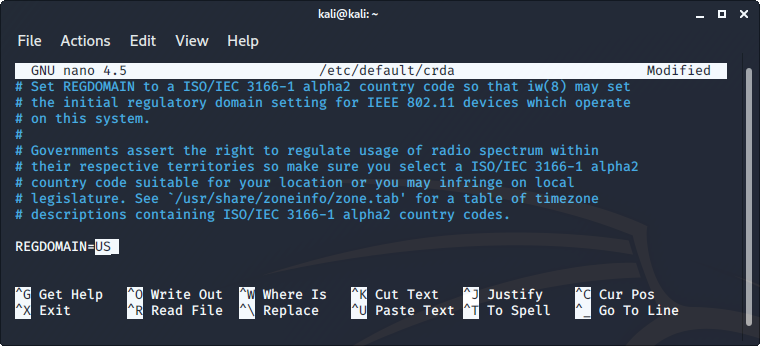
Figure 1: sudo nano /etc/default/crda
After rebooting, let's confirm the regulatory domain has been set with iw reg get again:
kali@kali:~$ sudo iw reg get
global
country US: DFS-FCC
    (2402 - 2472 @ 40), (N/A, 30), (N/A)
    (5170 - 5250 @ 80), (N/A, 23), (N/A), AUTO-BW
    (5250 - 5330 @ 80), (N/A, 23), (0 ms), DFS, AUTO-BW
    (5490 - 5730 @ 160), (N/A, 23), (0 ms), DFS
    (5735 - 5835 @ 80), (N/A, 30), (N/A)
    (57240 - 63720 @ 2160), (N/A, 40), (N/A)
Listing 18 - Getting regulatory domain information after setting it to US
In summary, here is what we can learn from the output:
- In the 2.4GHz band, transmitting is allowed between 2.402GHz and 2.472GHz with up to 40MHz channel width and up to 30dBi power.
- In the 5GHz band, 5.170 to 5.250GHz is allowed with up to 80MHz channels at 23dBi, 5.250 to 5330GHz with up to 80MHz channels at 23dBi with DFS, 5.490 to 5.730GHz with up to 160MHz channels at 23dBi and DFS, 5.735 to 5.835 with up to 80MHz channels and up to 30dBi.
- In the 60GHz band, 57.240 to 63.720 GHz is allowed with channels up to 2.160GHz at 40dBi.
The regulatory domain we set can sometimes be overridden. CRDA rules processing is fairly complex, and other factors comes into play to ensure the correct regulatory domain is used. For example, it will be overridden when connecting to an AP that is advertising a country. Some APs allow us to set a country, and will advertise it in their beacons. That may include detailed information on what channels are authorized.
A wireless card can sometimes advertise their regulatory domain through the driver. When plugging in the Alfa AWUS036NHA, it advertises its regulatory domain as GB:
kali@kali:~$ sudo iw reg get
global
country US: DFS-FCC
        (2402 - 2472 @ 40), (N/A, 30), (N/A)
        (5170 - 5250 @ 80), (N/A, 23), (N/A), AUTO-BW
        (5250 - 5330 @ 80), (N/A, 23), (0 ms), DFS, AUTO-BW
        (5490 - 5730 @ 160), (N/A, 23), (0 ms), DFS
        (5735 - 5835 @ 80), (N/A, 30), (N/A)
        (57240 - 71000 @ 2160), (N/A, 40), (N/A)

phy#0
country GB: DFS-ETSI
        (2402 - 2482 @ 40), (N/A, 20), (N/A)
        (5170 - 5250 @ 80), (N/A, 20), (N/A), AUTO-BW
        (5250 - 5330 @ 80), (N/A, 20), (0 ms), DFS, AUTO-BW
        (5490 - 5710 @ 160), (N/A, 27), (0 ms), DFS
        (57000 - 66000 @ 2160), (N/A, 40), (N/A)
Listing 19 - Getting regulatory domain information after plugging the Alfa AWUS036NHA
Since our card is 2.4GHz only, the GB's regulatory domain allows 2402 to 2482MHz, which would allow channel 12 and 13, while the US only allows channel 1 to 11. For this reason, the output of iw list shows channels 12 and 13 disabled, following the more restrictive regulation from the US regulatory domain.
kali@kali:~$ sudo iw list
...
                Frequencies:
                        * 2412 MHz [1] (20.0 dBm)
                        * 2417 MHz [2] (20.0 dBm)
                        * 2422 MHz [3] (20.0 dBm)
                        * 2427 MHz [4] (20.0 dBm)
                        * 2432 MHz [5] (20.0 dBm)
                        * 2437 MHz [6] (20.0 dBm)
                        * 2442 MHz [7] (20.0 dBm)
                        * 2447 MHz [8] (20.0 dBm)
                        * 2452 MHz [9] (20.0 dBm)
                        * 2457 MHz [10] (20.0 dBm)
                        * 2462 MHz [11] (20.0 dBm)
                        * 2467 MHz [12] (disabled)
                        * 2472 MHz [13] (disabled)
                        * 2484 MHz [14] (disabled)
Listing 20 - listing allowed frequencies after plugging Alfa AWUS036NHA
3.2.3. The rfkill Utility
rfkill is a tool to enable or disable connected wireless devices. We can use it for Wi-Fi, as well as for Bluetooth, mobile broadband such as 4G/LTE, 5G, WiMax, GPS, FM, NFC, and any other radio.
Let's run rfkill list to display all the enabled Wi-Fi and Bluetooth devices on the system:
kali@kali:~$ sudo rfkill list
0: hci0: Bluetooth
    Soft blocked: no
    Hard blocked: no
1: phy0: Wireless LAN
    Soft blocked: no
    Hard blocked: no
Listing 21 - Listing RF blocks using rfkill utility
"Soft blocked" refers to a block from rfkill, done in software. "Hard blocked" refers to a physical switch or BIOS parameter for the device. rfkill can only change soft blocks.
A radio can be disabled (soft blocked) using rfkill block followed by the device's ID number that is displayed in the rfkill list command. Using the previous output, we will execute the rfkill command to disable our Wi-Fi device:
Listing 22 - Soft blocking RF on phy0
If the command is successful, nothing is displayed.
We run rfkill list 1 to specifically list our disabled Wi-Fi device:
Listing 23 - Listing RF blocks for phy0
To re-enable our Wi-Fi device we will run rfkill with the unblock parameter:
Listing 24 - Removing the soft block on phy0
We can disable all radios at the same time with the block all parameter:
Listing 25 - Soft blocking all wireless devices
And all the devices can be re-enabled using rfkill with the unblock all parameter.
3.3. Wireless Stacks and Drivers
The Linux operating system supports two wireless stacks. The ieee80211 subsystem has been deprecated in favor of the more recent mac80211 framework. Because of this, any recent in-kernel driver will be written using the mac80211 framework.
We will review both of these as they are both still in use.
3.3.1. The ieee80211 Wireless Subsystem
When Wi-Fi first became widely available, we started with the relatively simple ieee80211 subsystem. This was good enough for Linux to interact with the various drivers and provide a common interface to handle Wi-Fi cards.
The Wireless Extension (WE), known as wext, is an extension to the Linux networking interface to deal with the specificity of Wi-Fi. It was implemented in three parts that interact with each other.
The first part was a set of user tools to control the drivers, with iwconfig, iwlist, iwspy, and iwpriv. The second part was implementing wext in Wi-Fi drivers to answer actions triggered by wireless tools. Finally, wext required a middle-man to communicate the actions of the different user tools to the drivers and respond back, which is in the kernel.
Some early drivers relied on external utilities to control various aspects and capabilities of the wireless card. Each chipset had its own utility but none were compatible with each other. They had different syntax, different capabilities, and each one could only handle its own driver.
The landscape of wireless card drivers, utilities, and standards was still littered with inconsistencies. For example, most drivers could not implement master mode, change the card's power output, or support Wi-Fi Protected Access (WPA). Even the interface names weren't standardized under ieee80211, leading to obvious confusion about when to use "eth", "wifi", "ath", "wlan", etc.
Although wext was a step in the right direction, many wireless drivers still had different capabilities and each one implemented the wireless extensions differently.
3.3.2. The mac80211 Wireless Framework
As Wi-Fi evolved and became more complex, the mac80211 framework was introduced. Mac80211 centralizes a lot of the common code, and has been more flexible to handle newer wireless technologies and differences between chipsets.
The mac80211 wireless framework is included in all modern Linux kernels. Under mac80211, most common functions are standardized. This means that the wireless drivers don't need to re-implement them.
Standardizing the functions led to both new improvements and new requirements. Here is a list of some of those changes:
- Support for 802.11n, 802.11ac, and other modes is built-in.
- WEP and WPA support is provided via wpa_supplicant, the de-facto tool to connect to wireless networks.
- Common Regulatory Domain with Central Regulatory Domain Agent (CRDA) enforces the different regulations regarding wireless communications in countries around the world (frequencies limitations, output power, and others).
- Master mode (also known as Access Point mode) requires Host access point daemon (hostapd).
- The iw command is used to manipulate the wireless interface settings instead of iwconfig, iwpriv, iwlist, and iwspy.
- The process of switching wireless modes is now standardized across all devices/drivers.
- Wireless interfaces have a common naming convention of "wlan" followed by one or two digits.
- All functions for the different modes (managed, master, monitor, mesh, etc.) are available for drivers, but not all chipsets support them.
Warning
Note that "wlan*" interface names are assigned on a first-come, first-served basis. Because of this, an interface name may vary based on the order in which it is detected. In addition, udev may rename interfaces to "wlp*" or "wlx*" in an attempt to give interfaces a predictable name when they are plugged in.
We can't possibly list all of the changes and features in mac80211 or go into detail here. Refer to the Linux Wireless website for more on this topic.
Let's continue our discussion mac80211 by talking about some of the software libraries it interacts with. mac80211 is actually part of a larger group of software libraries that includes nl80211 and cfg80211.
nl80211 is the NetLink library dedicated for 802.11, and it helps tools such as wpa_supplicant, hostapd, iw, Wireshark, aircrack-ng, and other packet capture tools to communicate and interact with the drivers in the kernel, through cfg80211. We will discuss these tools later on.
cfg80211 is part of the Linux kernel. It is the configuration API for 802.11 and interacts directly with FullMAC drivers and through mac80211 with SoftMAC drivers.
FullMAC drivers are fully integrated wireless chipsets, such as those in smartphones, with many of the wireless functions built-in to the hardware itself. Only a minimal driver is necessary.
SoftMAC on the other hand, are for simple radios and require more complex drivers. cfg80211 also interacts with the regulatory domain, CRDA, which we will discuss later on. Finally, mac80211 implements all the wireless functions needed for the SoftMAC radio to operate the different wireless modes.
The following diagram shows how these libraries interact together.
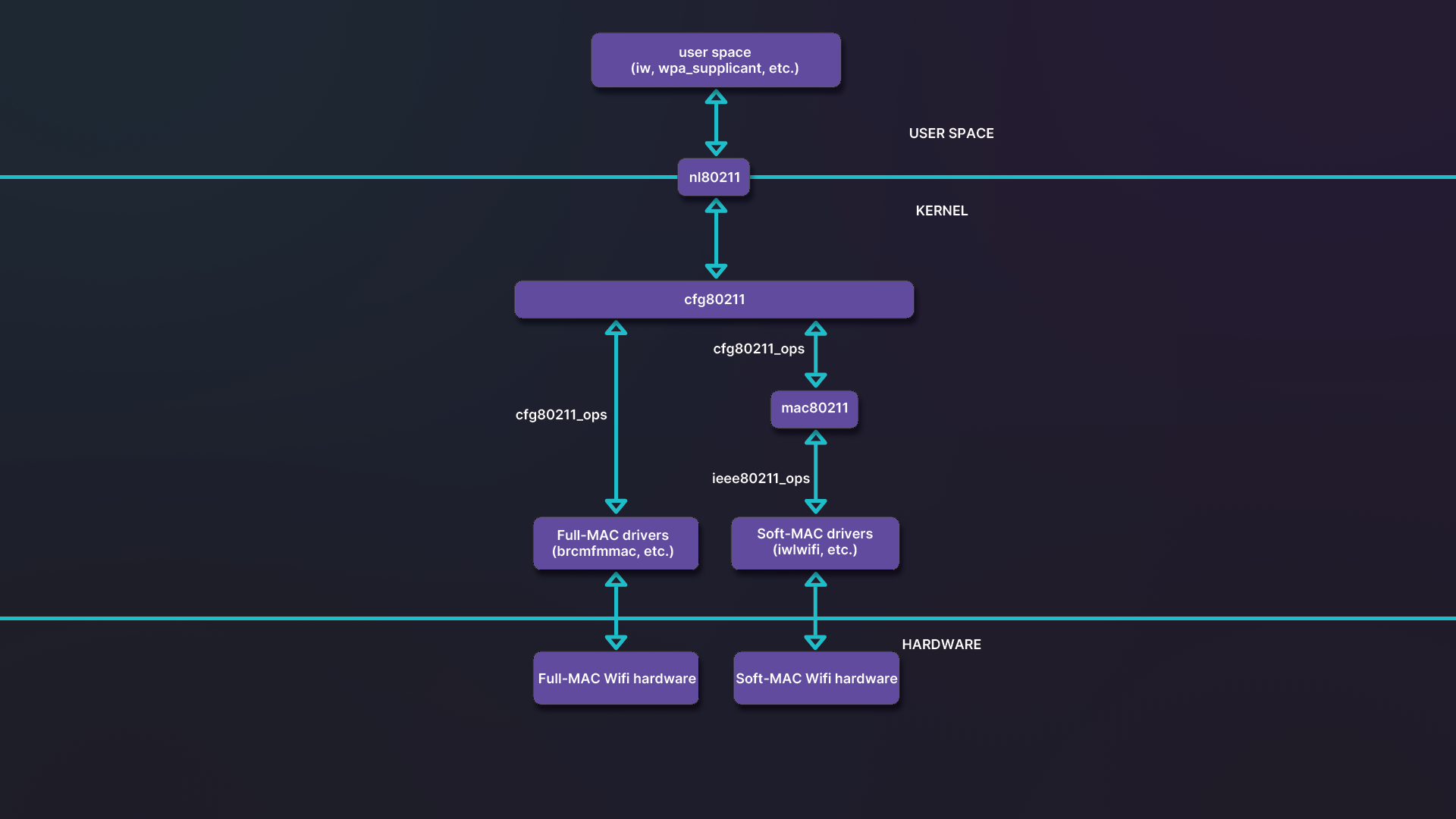
Figure 2: mac80211, cfg80211 and nl80211 links
Figure 2 shows a FullMAC driver, brcmfmac, which is used with some Broadcom chips. On the other side, we find iwlwifi, a softMAC driver that handles recent Intel chipsets.
In wireless, we have the MAC Sublayer Management Entity (MLME), which takes care of the following management operations:
- Authentication
- Deauthentication
- Association
- Disassociation
- Reassociation
- Beaconing
FullMAC have all MLME operations (or a subset of the above) done by the wireless hardware itself and its firmware. An advantage of FullMAC is that it improves power consumption, which is critical on mobile chipsets and other low power computing devices. It also gives more control from vendors over what operations can be done using their hardware. It does, however, comes at a cost. Wi-Fi operations are complex and so is their code base. No implementation is exempt from bugs.
For SoftMAC devices, everything is implemented in the software of the driver's framework. All SoftMAC drivers using mac80211 will benefit from security fixes, improvements, and other bugs fixed with the framework. With Linux kernel releases or when a Linux distribution releases security fixes, all SoftMAC drivers are updated. FullMAC drivers, on the other hand, require their respective vendors to release fixes.
3.4. Wrapping Up
In this module we discussed wireless tools, stacks, and drivers. A basic understanding of many of the concepts here will be helpful in cases where we are working with unfamiliar or uncooperative adapters. Here, we used the Alfa AWUS036AC as an example and showed all the different ways we can find its chipset and driver.
Finally, we went back in time and explored the Linux ieee80211 subsystem, which was used for drivers until around 802.11g/802.11n, and was progressively superseded by mac80211. All new Linux kernel drivers are developed using the mac80211 framework.
The mac80211 framework simplifies driver development, allowing for bug fixes and providing new features to all drivers at the same time. mac80211 can now handle newer wireless technologies with ease and iw provides us with one utility to rule them all.